
Start from a tournament that is already scheduled
This guide picks up after the tournament has teams, a schedule, and matches ready to score. If the event still needs to be built, start with How to Create a Tournament in BracketIQ. If teams still need to register, use How to Set Up Tournament Registration for Teams and Players. If the event uses pools before the bracket, keep How to Run a Tournament With Pool Play open as the setup companion.
The example uses an indoor soccer tournament with pool matches feeding a playoff bracket. The same results workflow applies to volleyball, pickleball, basketball, outdoor soccer, tennis, hockey, baseball, football, and other recreational sports when standings or bracket advancement depends on match scores.
Before matches start, decide:
- Who is allowed to enter scores.
- Whether scores come from staff, officials, captains, or the tournament director.
- Which standings columns matter for advancement.
- Whether pool winners, runners-up, or a fixed number of teams advance.
- Whether BracketIQ should automatically move advancing teams into the bracket.
BracketIQ keeps the schedule, score entry, standings, and bracket in one event workspace so you do not need to copy results between a spreadsheet, chat thread, and bracket builder.
Review the scored matches in Agenda view
Open the tournament and go to the Schedule tab. Switch to Agenda view so matches are grouped by time, with fields or courts and scores visible in the same list.
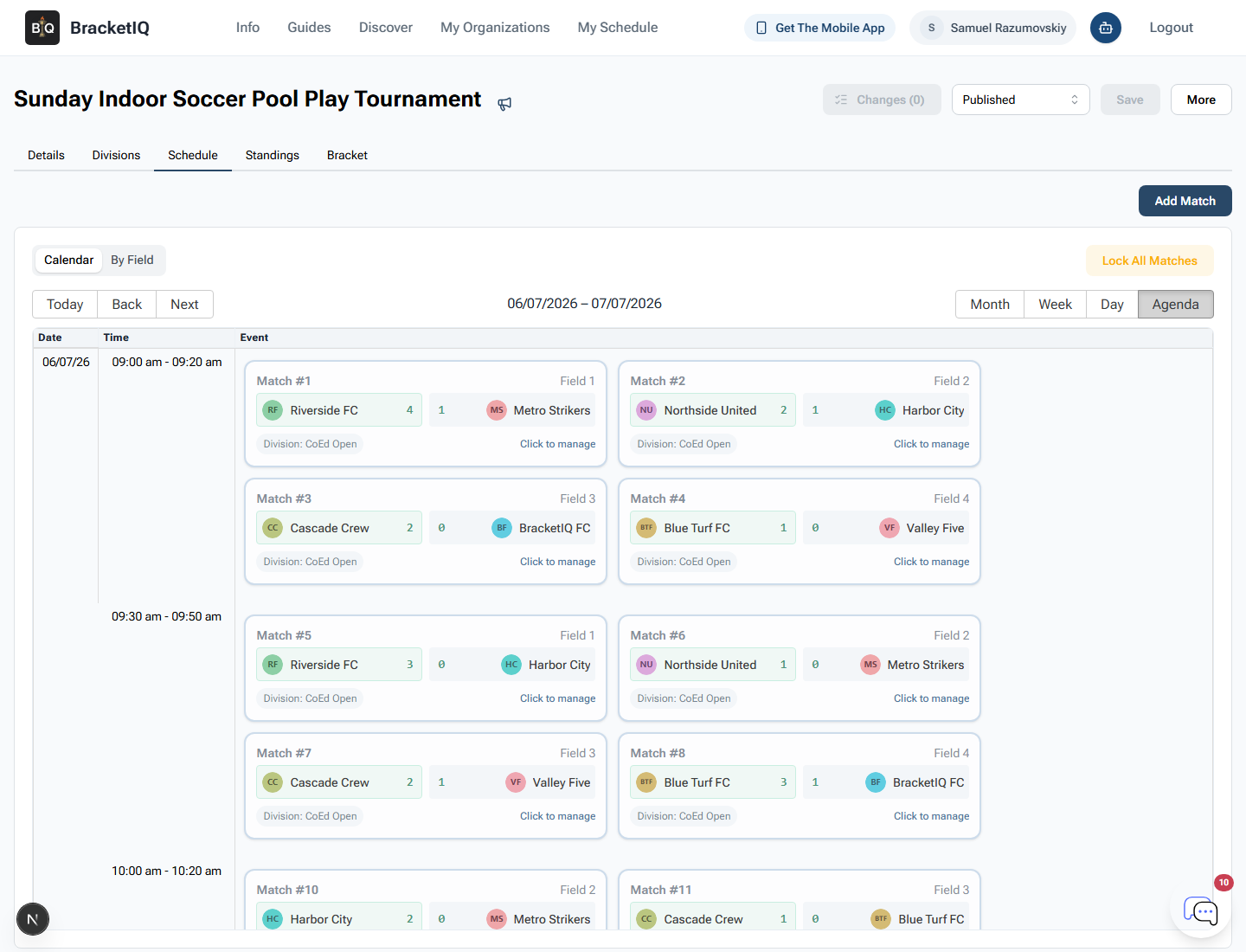
Use this screen as the score-entry starting point:
- Find the match by time, field, and team names.
- Confirm the score shown on the card matches the reported score.
- Click
Click to managewhen a score needs to be entered or corrected. - Keep later bracket matches visible so staff can see what is waiting after standings are confirmed.
Agenda view is the safest schedule view for result review because it matches the way staff work on tournament day: time first, then field or court, then teams and score.
Open a match and check the score controls
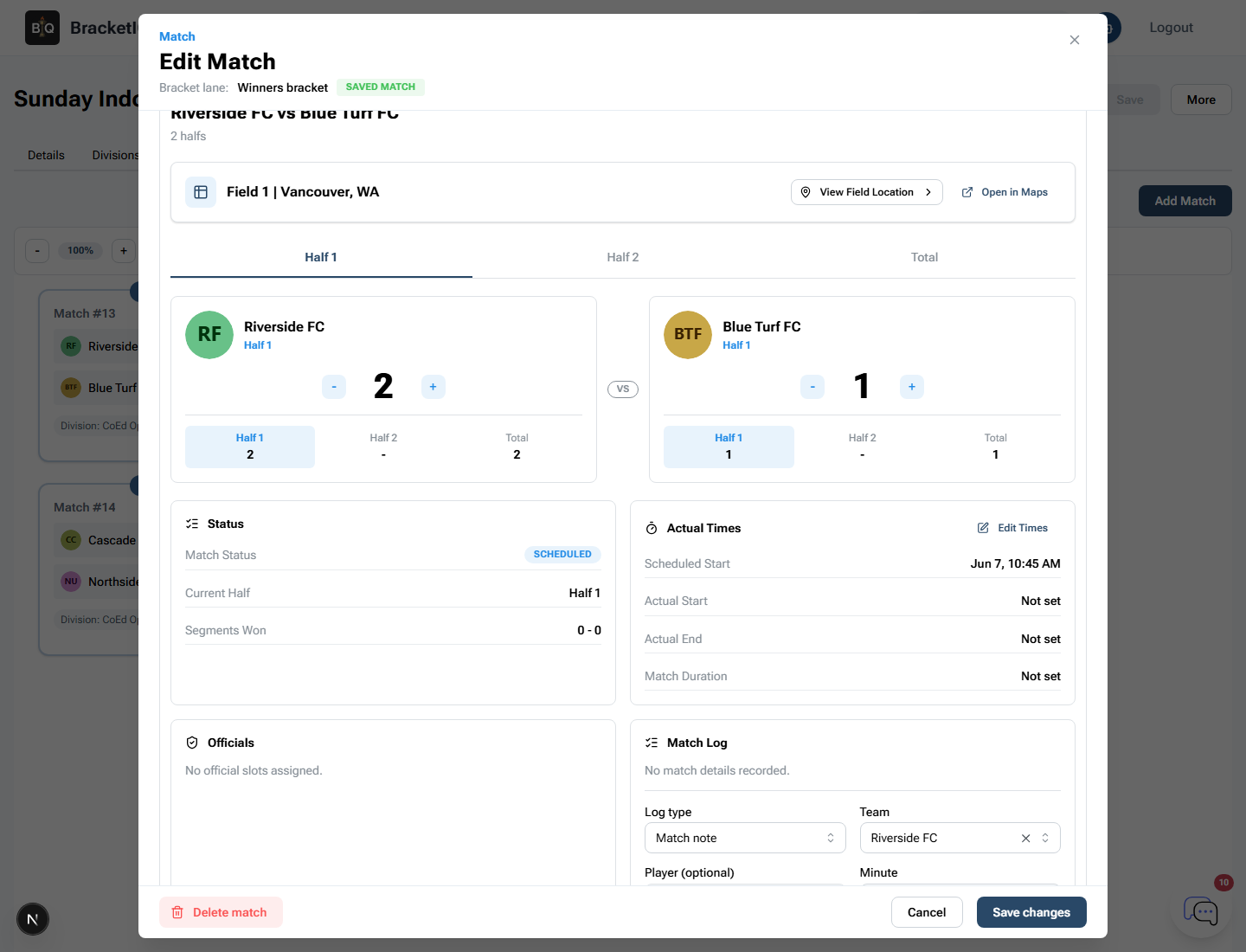
Click a match from the schedule to open the match editor. The match editor shows setup details at the top and match operations below, including score controls, match status, actual times, officials, and the match log.
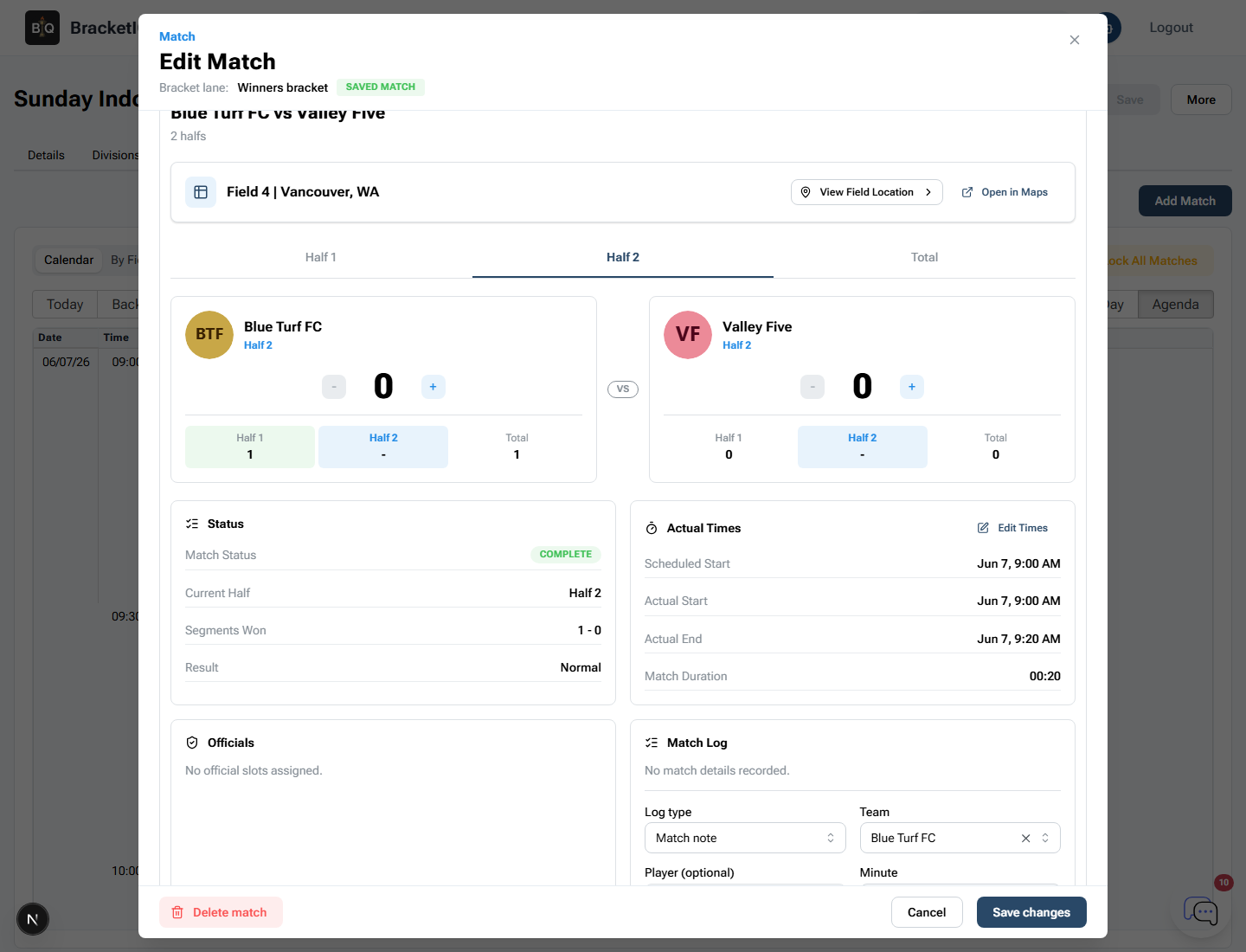
Before changing the score, confirm:
- The teams are the correct two teams.
- The field or court matches the schedule.
- The current half, set, or segment is selected.
- The match status reflects what happened on site.
- The total score matches the score sheet or official report.
For sports with halves, sets, periods, or games, enter scores in the right segment. Do not only check the final total. Segment-level scoring helps BracketIQ keep the match result, status, and later standings consistent.
Review standings before confirming advancement
After pool scores are entered, open the Standings tab. Select the division and pool you want to review.
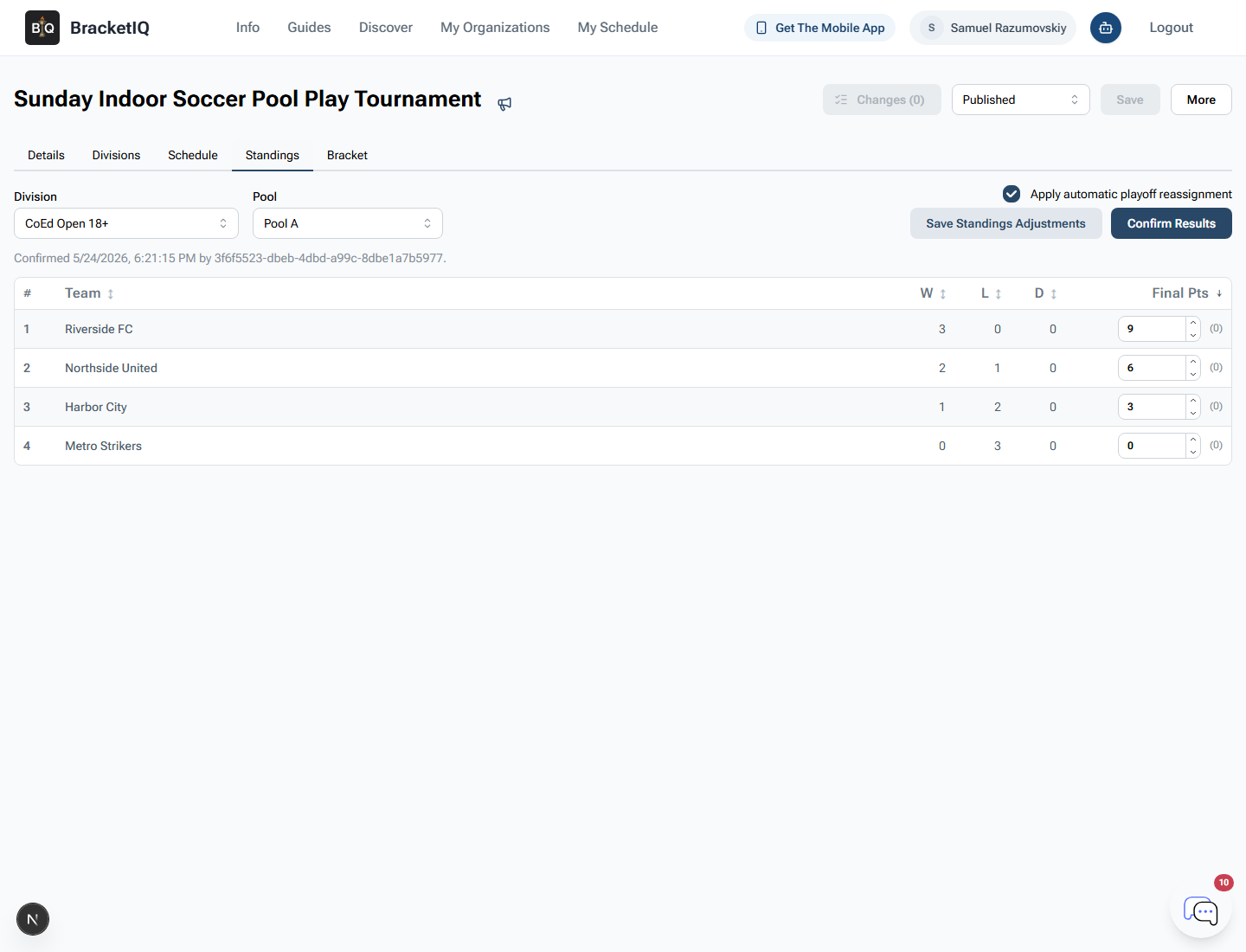
Review the standings slowly:
- Check the pool selector so you are reviewing the right group.
- Confirm every team has the expected record.
- Compare final points against your tournament rules.
- Look for obvious mistakes such as a team with too many games or a score that was entered for the wrong match.
- Use standings adjustments only when you intentionally need to resolve a tiebreaker or organizer decision.
Do not confirm standings just because all matches have scores. Confirm them after the rankings match the format you promised teams.
Confirm standings and seed the bracket
When the pool standings are correct, keep Apply automatic playoff reassignment turned on if BracketIQ should move advancing teams into the bracket for you. Then click Confirm Results.
For a pool-play tournament, repeat the review for every pool that feeds the bracket. Confirming one pool early can be useful, but the bracket is not ready until every pool that supplies advancing teams has been reviewed.
After confirming results, open the Bracket tab and verify the seeded matchups.
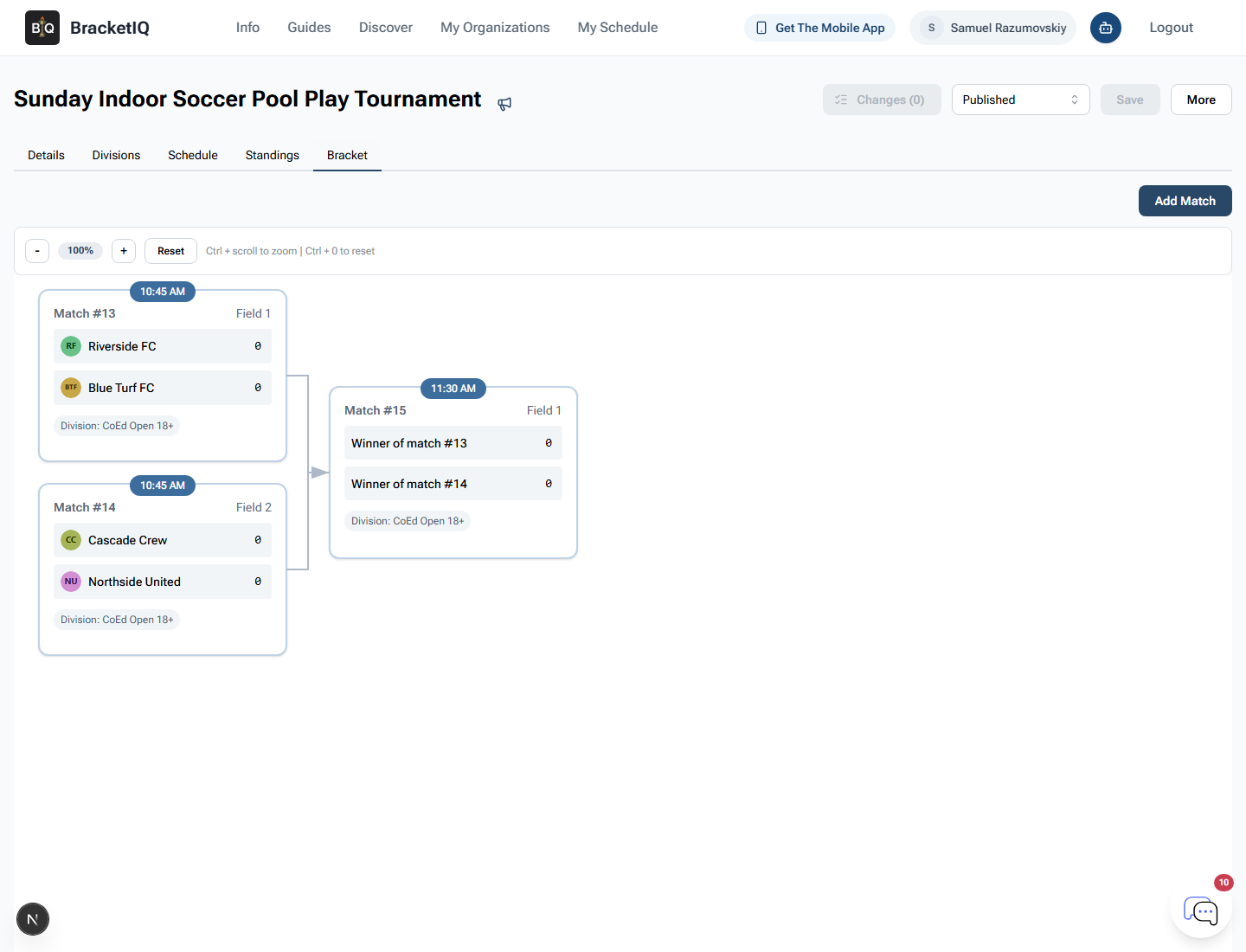
In this example:
Riverside FCandBlue Turf FCare placed in one semifinal.Cascade CrewandNorthside Unitedare placed in the other semifinal.- The final still uses winner placeholders until semifinal results are entered.
This is the most important checkpoint in the results workflow. If the bracket does not match the confirmed standings, stop and fix the standings or placement rules before teams start bracket play.
Continue score entry through bracket rounds
Once the bracket is seeded, score bracket matches the same way you scored pool matches. Open the match, enter the score by half, set, period, or game, and save the result.
For each bracket match:
- Confirm the teams match the bracket card.
- Enter the score in the correct segment.
- Check the match status and actual times.
- Save the result.
- Return to the Bracket tab and verify the next match updates as expected.
If a match is disputed, paused, forfeited, or decided by an organizer ruling, use the match status and notes deliberately. The goal is to make the BracketIQ event page the source of truth for staff and teams checking what happened and who plays next.
Results and advancement checklist
Use this checklist during tournament day:
- Review the tournament schedule in Agenda view.
- Open the correct match before entering scores.
- Enter scores in the right segment.
- Check match status and actual times.
- Review standings by division and pool.
- Confirm records and final points before advancing teams.
- Keep automatic playoff reassignment on when BracketIQ should seed the bracket.
- Confirm every pool that feeds the bracket.
- Open the Bracket tab and verify matchups.
- Continue score entry through bracket rounds.
- Recheck the public page or participant-facing view after important results.
Results are where BracketIQ connects the tournament day workflow: schedule, score entry, standings, advancement, and bracket updates. When those pieces stay in one place, teams can follow the event without waiting for a spreadsheet, photo, or group chat update.
