
Start from the club organization
Open the BracketIQ organization that represents the club. If the club has not been created yet, start with How to Create and Set Up an Organization in BracketIQ, then return to this workflow.
The organization dashboard is where a club keeps teams, events, customers, staff, public pages, payments, and communication workflows connected.
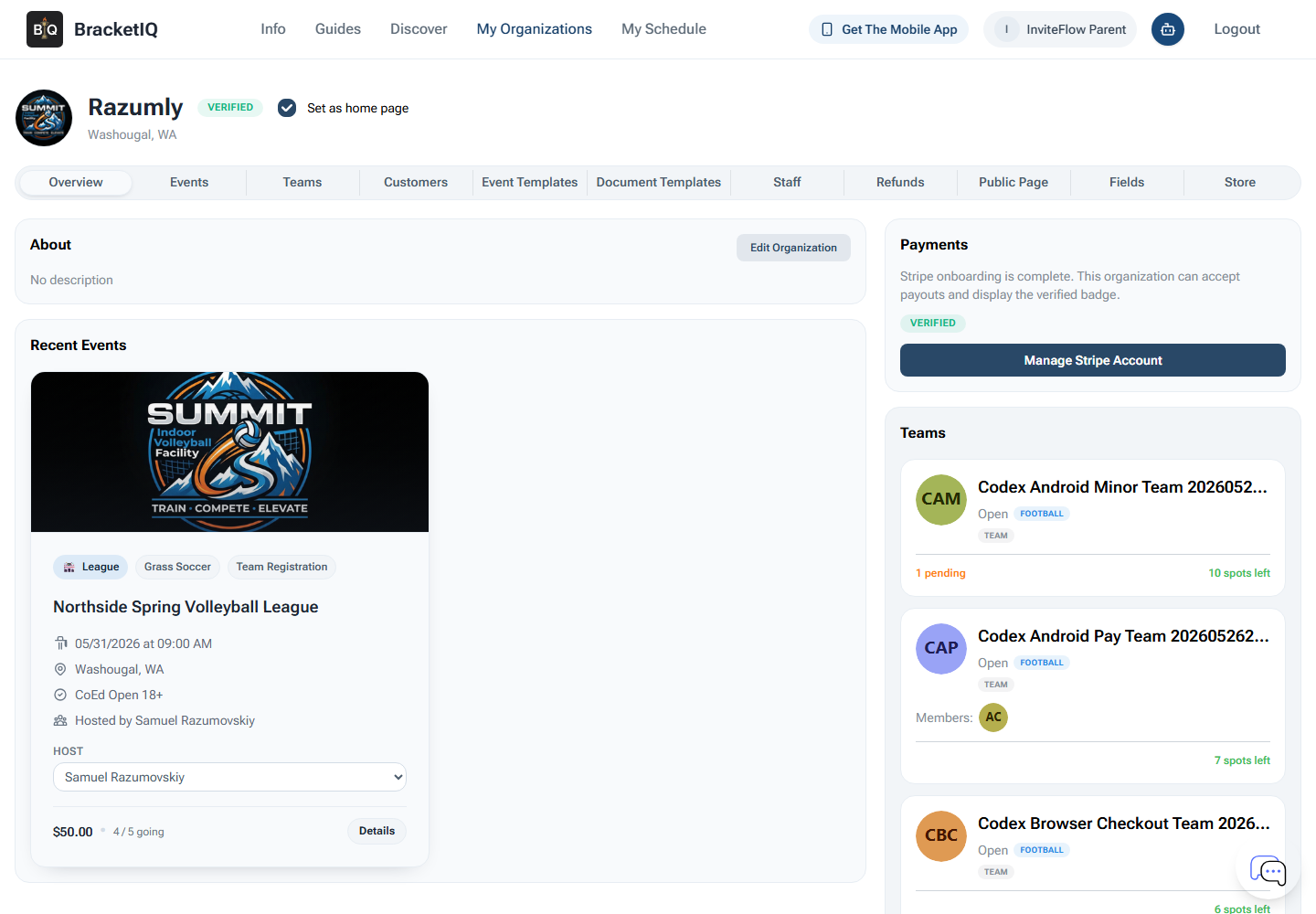
Before going deeper, confirm the club workspace is right:
- The organization name and location match the club.
- The public page is ready or close to ready.
- Payment processing is connected if the club will charge dues, registrations, passes, or event fees.
- Staff access is limited to people who should manage club operations.
- Teams and events are created under the organization instead of scattered across individual accounts.
This matters because club operations usually outlive one season. If teams, parents, payments, schedules, and staff access are all attached to the organization, the club can reuse the same workspace for the next session, tournament, or league.
Review club teams
Open the Teams tab for long-term club team records, then use the relevant league, tournament, tryout, clinic, or camp participant list when the club needs to confirm which teams are attached to a specific program.
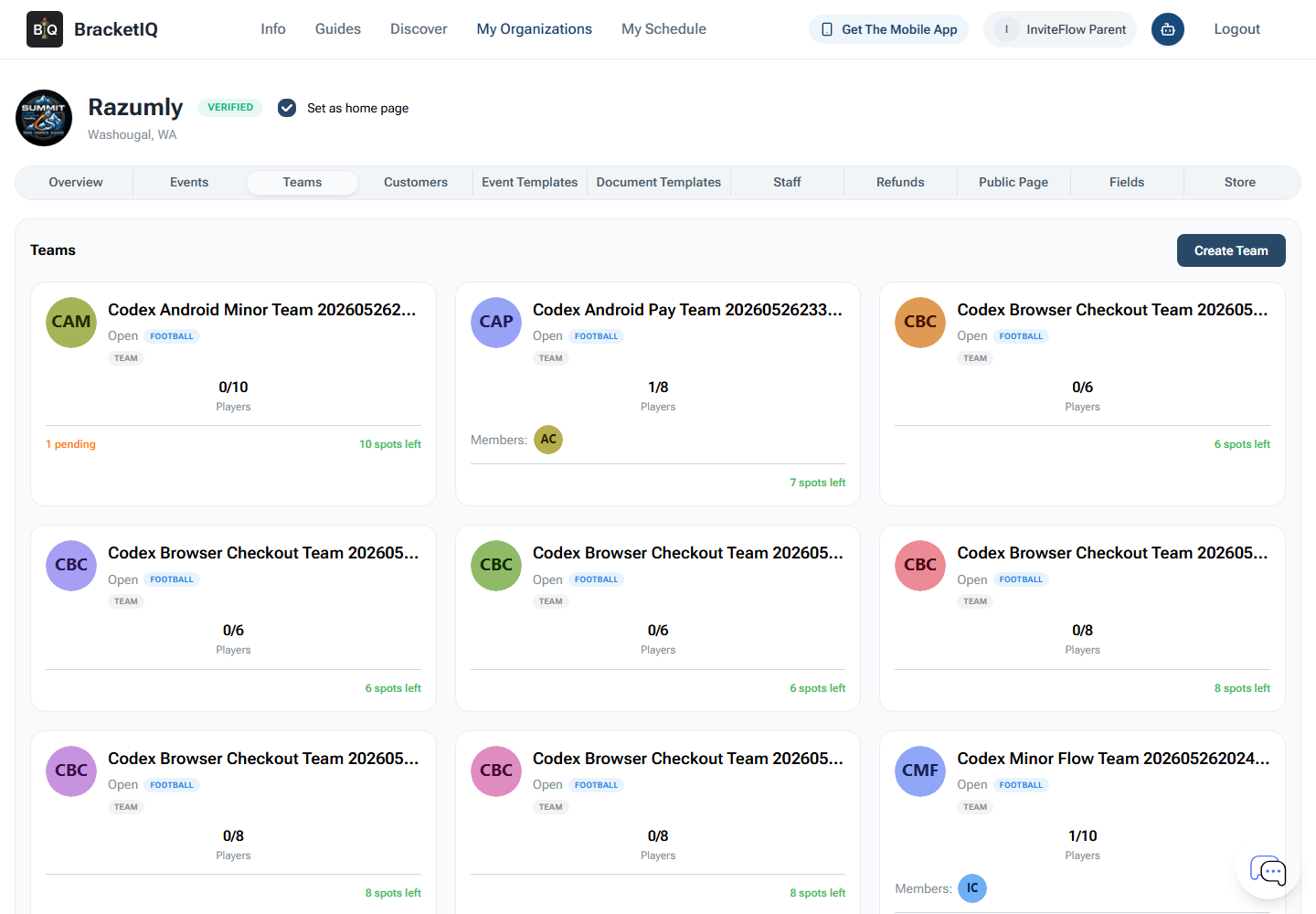
Review teams with a club operator mindset:
- Team names should be recognizable to players, parents, and staff.
- Captains or coaches should be tied to the right teams.
- Rosters should be checked before registration deadlines, schedules, or invoices become hard to change.
- Team visibility should match whether the team belongs on public pages, registration flows, or event pages.
- Duplicate or stale teams should be cleaned up before a new season starts.
For leagues and tournaments, team registration is required. Use How to Set Up Online Registration for a League or Tournament when the club needs captains to register teams or select existing teams for an event.
The Teams tab is not just an archive. It is a working list that helps the club answer who belongs where before schedules, payments, and communication depend on the answer.
Invite staff and assign the right permissions
Open the Staff tab before coaches, coordinators, front desk staff, or directors start helping manage the club.
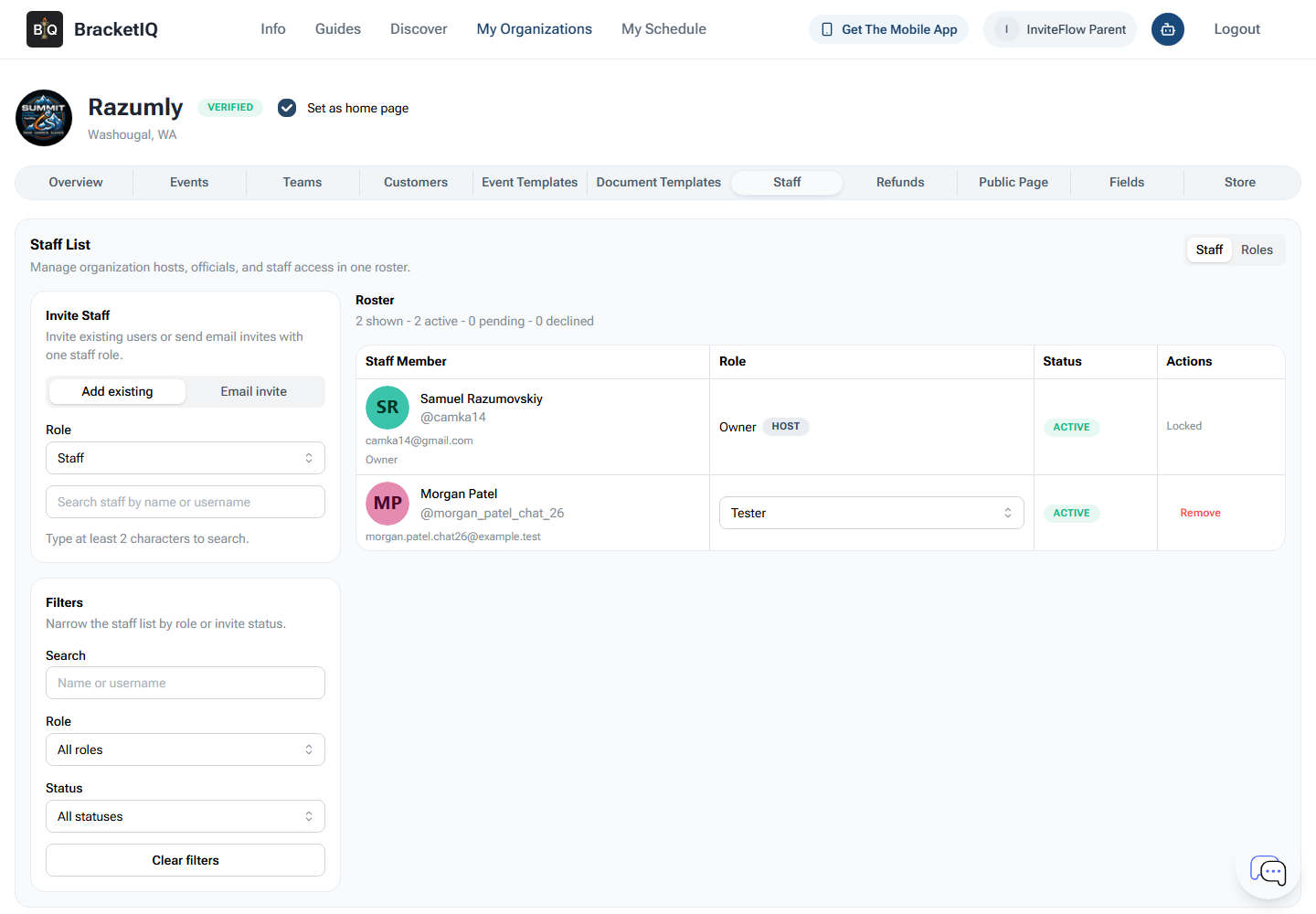
Use staff roles to match real responsibilities:
- Club directors may need broad organization, event, payment, refund, team, and staff access.
- Coaches may need team and roster access without payment or organization settings.
- League coordinators may need events, teams, schedules, standings, and participant communication.
- Finance or admin staff may need payments, customers, products, bills, and refunds.
- Temporary event staff may only need the event workflow they are helping run.
Avoid giving every person the same access. BracketIQ works better when each staff member can manage their own lane without accidentally changing payment setup, public pages, or unrelated teams.
When inviting staff, check the role before sending the invite, then review active, pending, and declined staff access regularly. Remove stale access when a season ends or a contractor no longer helps the club.
Use customers for players, parents, and billing follow-up
Open the Customers tab when the club needs relationship and billing context. For a specific league, tournament, tryout, clinic, or camp, also review the event participant list so staff can see the active teams or registrants tied to that program.
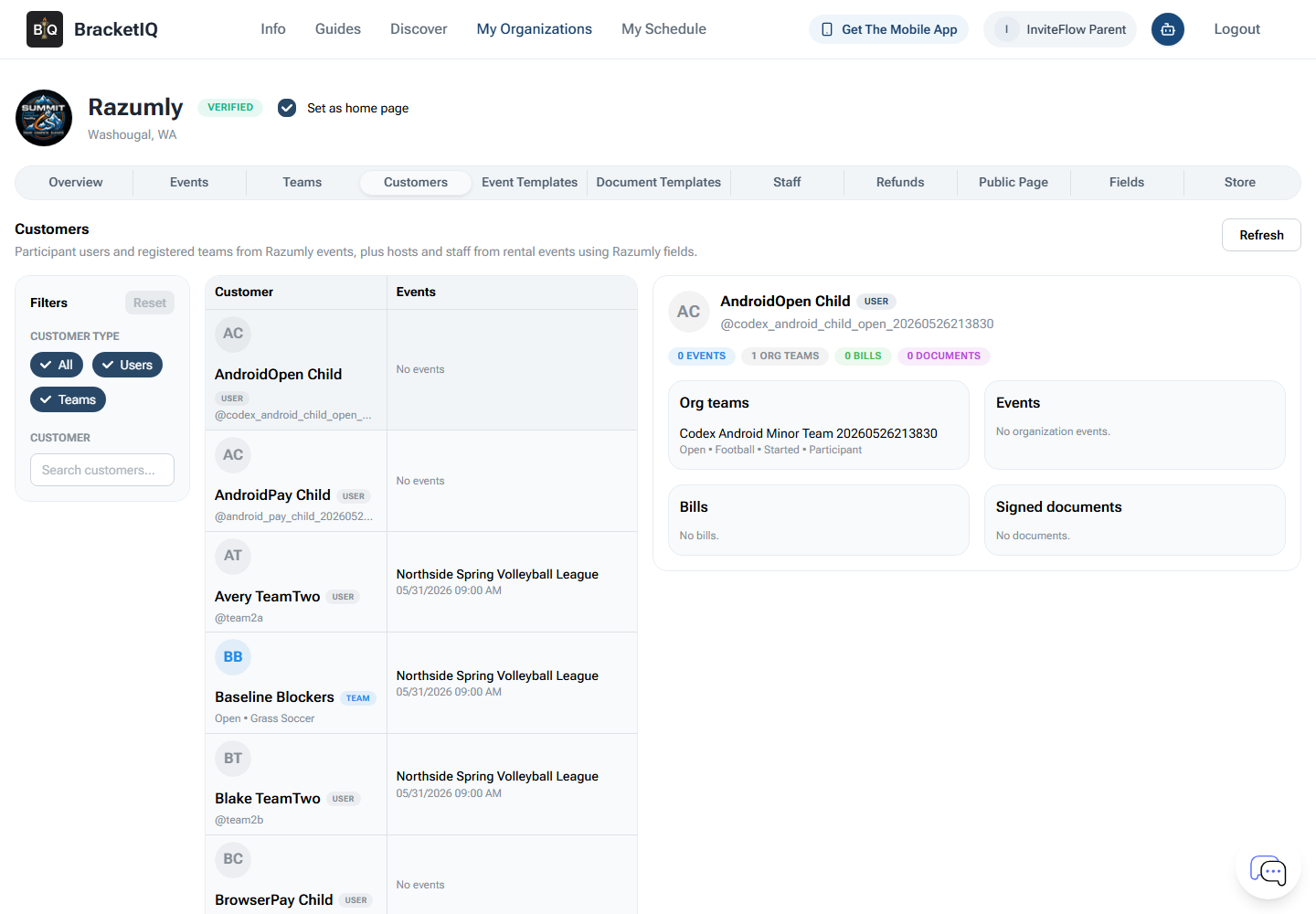
For youth and family-driven clubs, customers are often more than athletes. They can include parents, guardians, team managers, or whoever pays the bill. Use this view to support:
- Parent or guardian follow-up.
- Player registration questions.
- Payment or billing review.
- Repeat participant history.
- Customer communication before a season or event.
The customer view should not replace team rosters. Use teams for who plays together, and customers for the broader relationship the club may need for communication, payment, and support.
Connect events, registrations, and schedules
Open the Events tab to review club-hosted programming: leagues, tournaments, clinics, camps, pickup sessions, tryouts, and seasonal events.
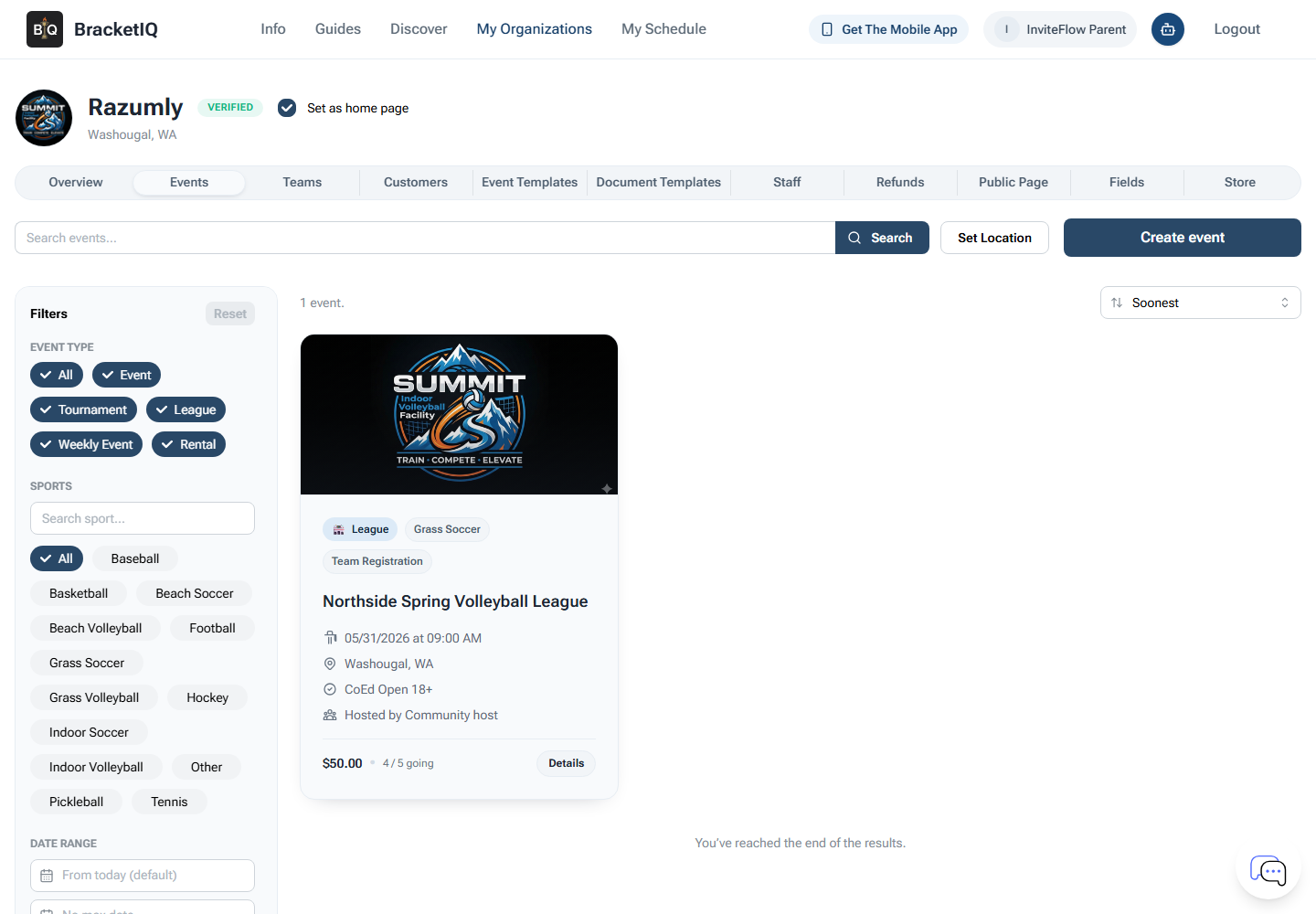
Use this tab as the club operations queue:
- Confirm which events are published.
- Check whether registration is open or closed.
- Make sure paid events are connected to the organization payment setup.
- Review team registration before the schedule is generated.
- Confirm league or tournament schedules in Agenda view before teams rely on them.
- Make sure staff know which events need score entry, check-in, or schedule updates.
For full event setup, use the league and tournament guides instead of rebuilding everything here. Start with How to Create a League in BracketIQ or How to Create a Tournament in BracketIQ, then use the club organization as the shared place where staff, teams, and registration details stay connected.
Publish the club public page and mobile path
Open the Public Page tab before sharing the club with players, parents, or teams.
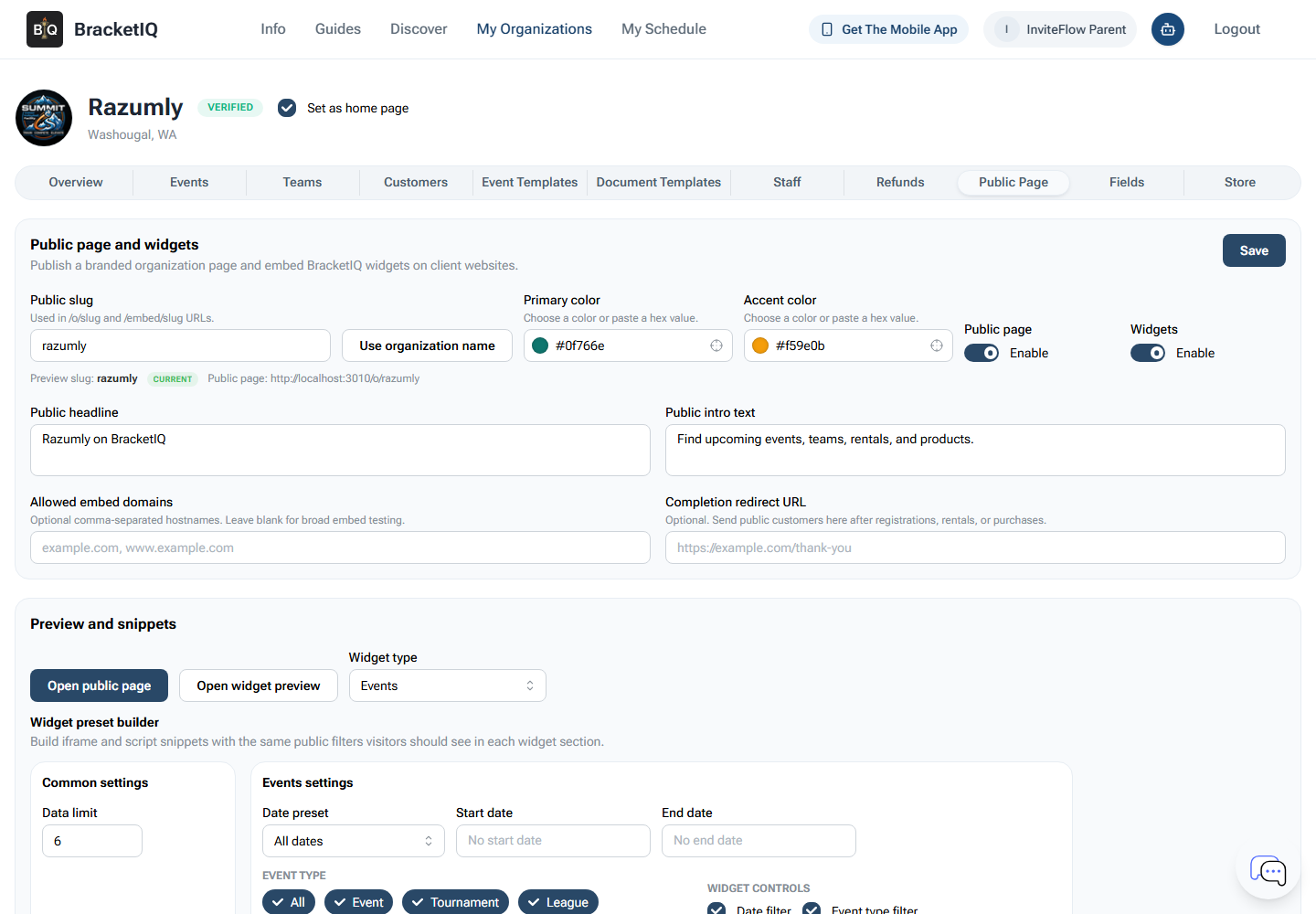
Use the public page to make club actions easy to find:
- Public club profile and headline.
- Event, league, tournament, or clinic listings.
- Team listings when the club wants them public.
- Product, pass, or payment paths when used by the club.
- Widget snippets for the club's existing website.
- Completion redirect URLs when people should return to the club website after registration or payment.
For the full setup process, use How to Create a Public Page for Your Sports Organization.
The public page and mobile app should answer the same basic question for participants: where do I register, pay, check my schedule, find my team, and see updates?
Club management checklist
Use this checklist when preparing a club organization:
- Create the organization and confirm club profile details.
- Set up payment processing before paid registrations, dues, or products.
- Create or review club teams.
- Assign captains, coaches, or managers to the right teams.
- Invite staff with role-based permissions.
- Review customers for parent, player, and billing follow-up.
- Create leagues, tournaments, clinics, tryouts, or club events under the organization.
- Confirm registration settings and team selection before sharing links.
- Review schedules in Agenda view before teams rely on them.
- Publish the public page or widgets when the club is ready to promote the workflow.
- Recheck staff access when a season ends.
Clubs run smoother when staff, teams, families, payments, and schedules are not split across separate tools. BracketIQ gives the club one workspace to manage the season, while players and parents get one place to find the next action.
