
Start from the schedule teams are already using
This guide starts after the league has already been created, registered, and scheduled. If the season is not built yet, start with How to Create a League in BracketIQ. If the schedule still needs to be generated, use How to Schedule a Multi-Week Sports League. For weekly operations, keep How to Manage a League in BracketIQ nearby.
The example uses an indoor soccer league, but the same workflow applies to volleyball, outdoor soccer, pickleball, basketball, tennis, hockey, baseball, football, and other recreational sports where teams depend on the latest time and field assignment.
Before you send an update, make sure you know:
- Which match or matches changed.
- Whether the change is a one-match adjustment or a broader reschedule.
- Which teams, managers, players, parents, officials, or hosts need the message.
- Whether the public schedule already matches the update you are about to send.
- Whether staff should expect questions at check-in or on the field.
BracketIQ keeps the schedule, match details, participant list, and notification composer in the same league workspace so the message can point people back to one current schedule.
Review the affected schedule in Agenda view
Open the league, go to Schedule, and switch to Agenda view. Agenda view is the best review format for a schedule-change message because it shows the date, time, match number, teams, scores, and field in one list.
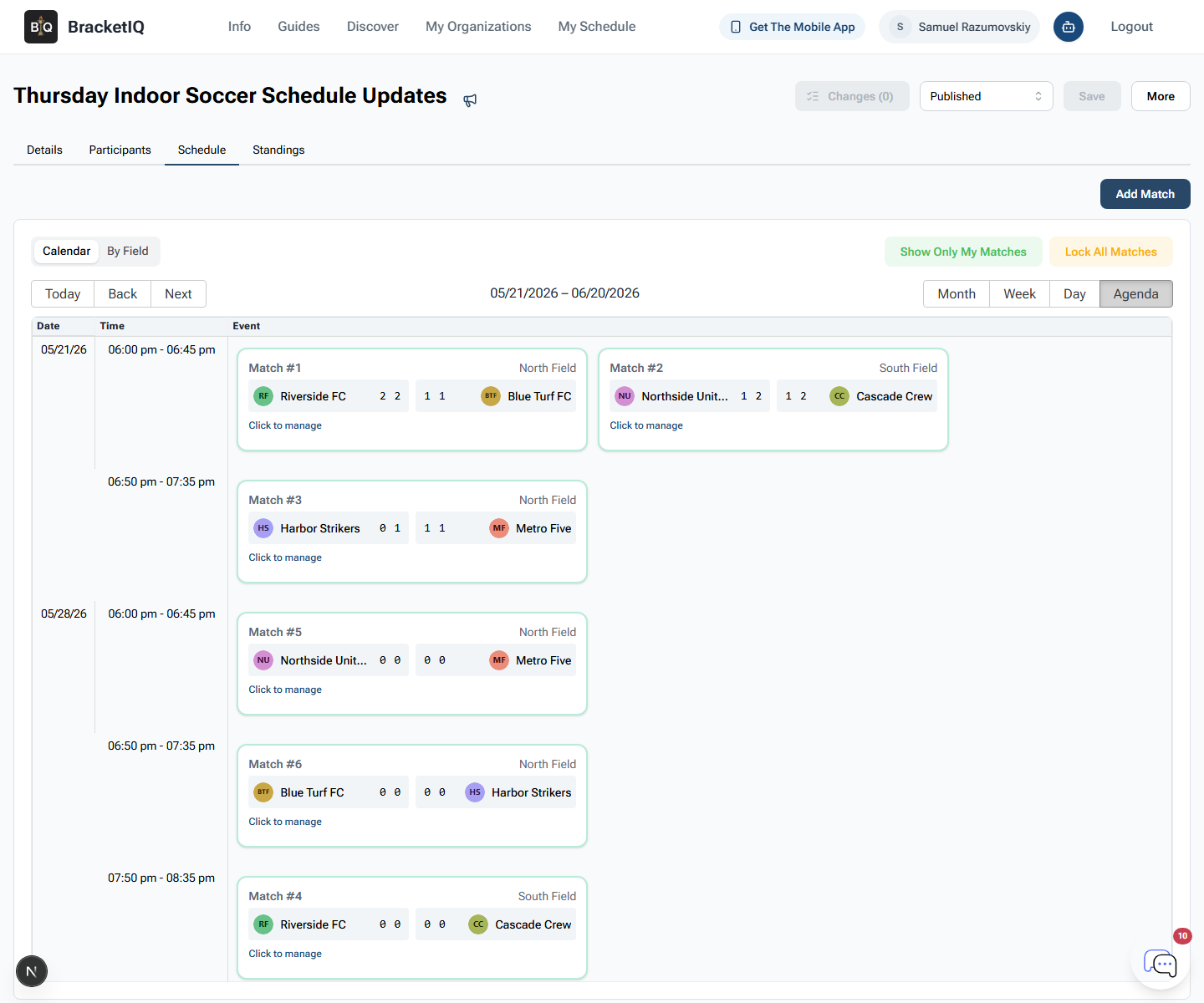
In this example, the schedule shows:
Match #5at6:00 PMonNorth Field.Match #6at6:50 PMonNorth Field.Match #4moved to7:50 PMonSouth Field.- The affected teams are
Riverside FCandCascade Crew.
Do this review before writing the message. If the notification says one thing and the schedule says another, teams will trust whichever screenshot or text they saw most recently.
Open the affected match before you message teams
Click the affected match to confirm the exact match detail. This is where you verify the field, start time, end time, teams, officials, and status before the update leaves your hands.
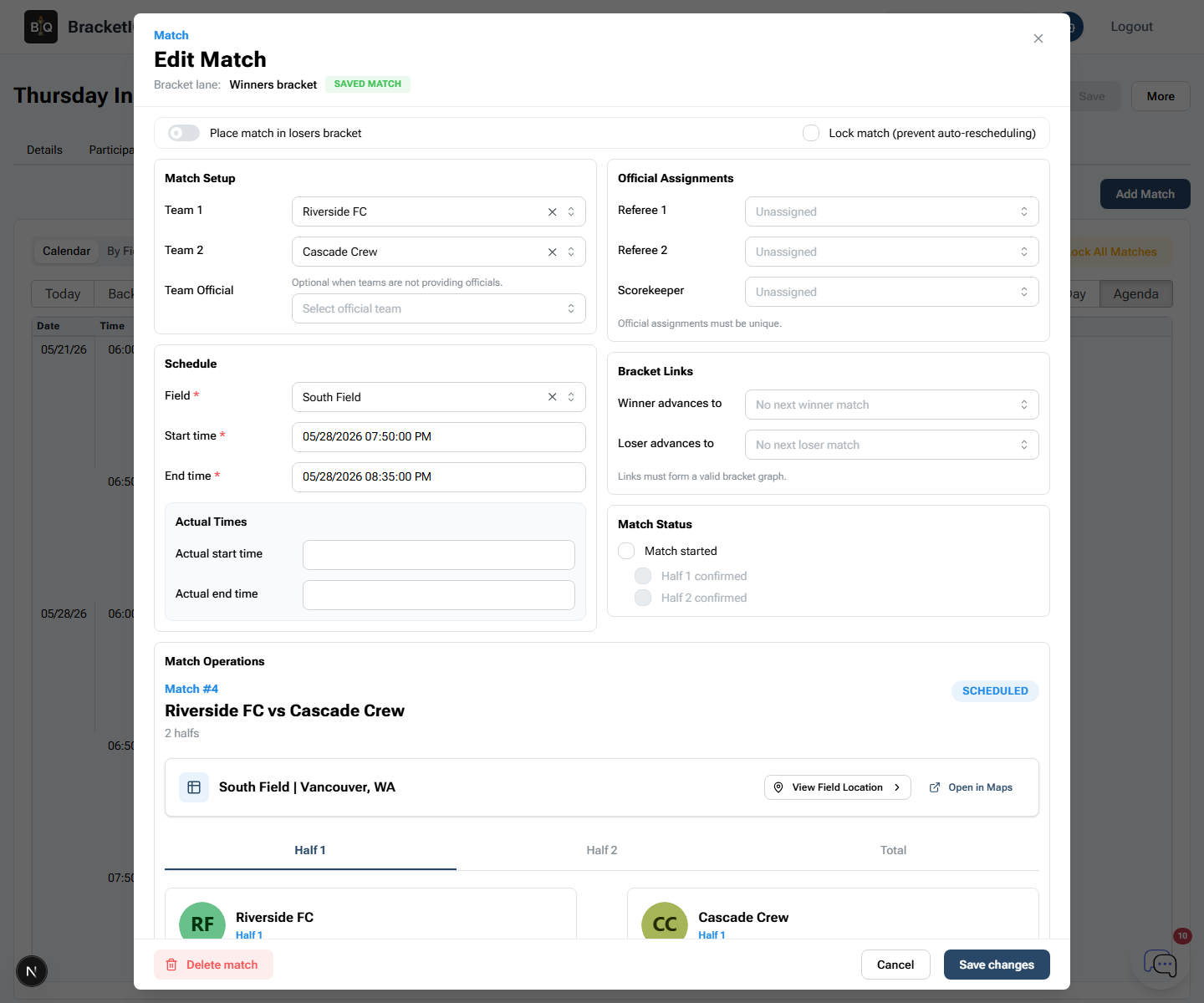
For the indoor soccer example, the match detail confirms:
Riverside FCvsCascade Crew.South Field.- Start time:
05/28/2026 07:50:00 PM. - End time:
05/28/2026 08:35:00 PM. - Match status:
Scheduled.
Use the match detail when only one match needs cleanup. If a field changes, a kickoff time moves, or an official assignment needs a correction, confirm the match here before sending the update.
Use Reschedule for broader changes
If the league constraints changed, use the More menu and choose Reschedule. This is the better path when a field closes, a team drops, a makeup night opens, or the whole weekly window needs to be rebuilt.
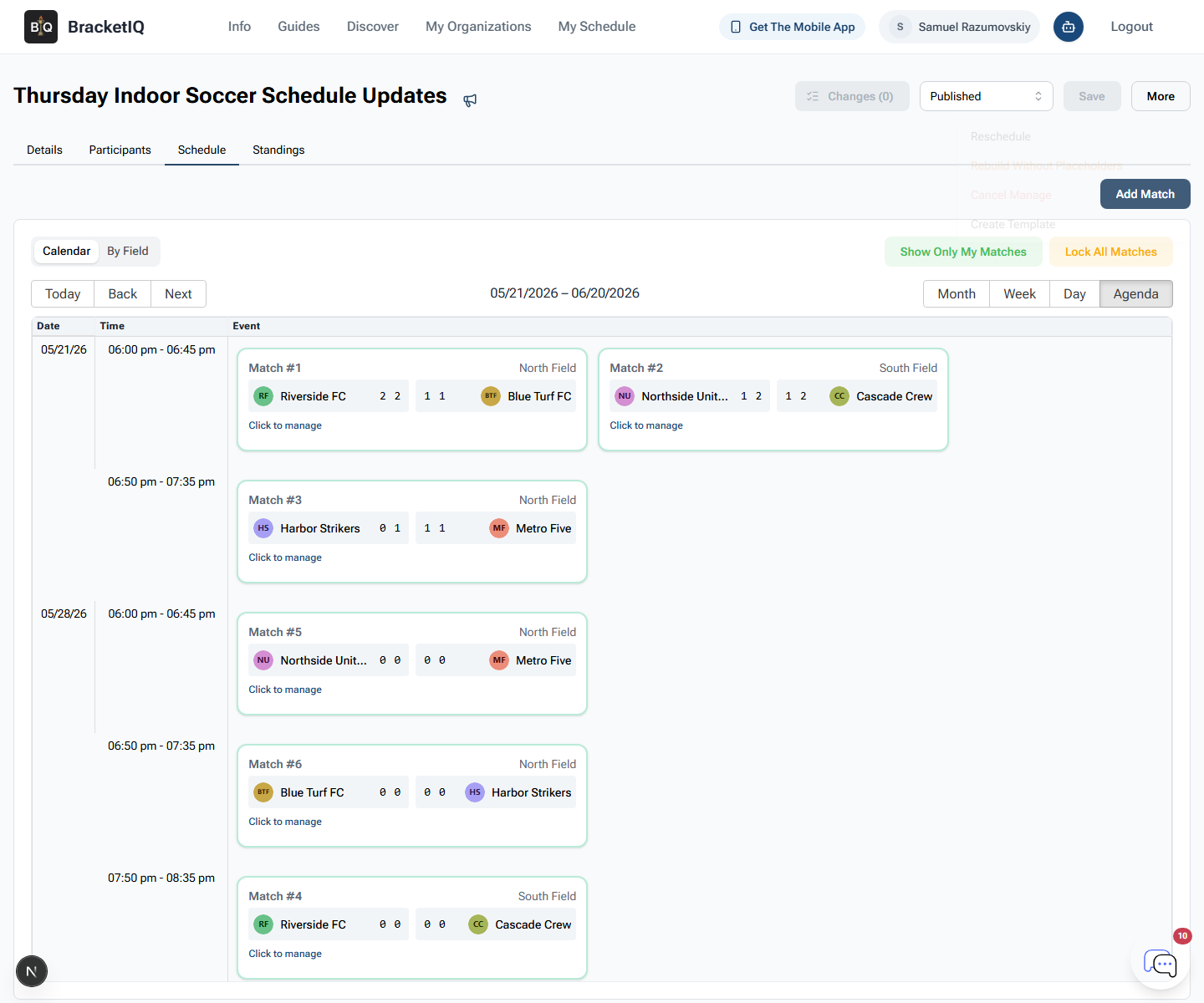
Use Reschedule when:
- Several matches need to move.
- A weekly field or court is no longer available.
- A makeup window should absorb postponed matches.
- Team additions or removals affect multiple weeks.
- You want BracketIQ to preserve existing match locks where possible.
BracketIQ can notify affected teams when saved match or schedule changes move a match time, field, or assignment. Still send a clear manual notification when the change is operationally important, such as weather, a facility issue, a late start, or a field closure.
Send a clear league notification
After the schedule is correct, use the megaphone icon to open Send notification. Write the update like a staff member would say it at the front desk: what changed, who is affected, and what action teams should take.
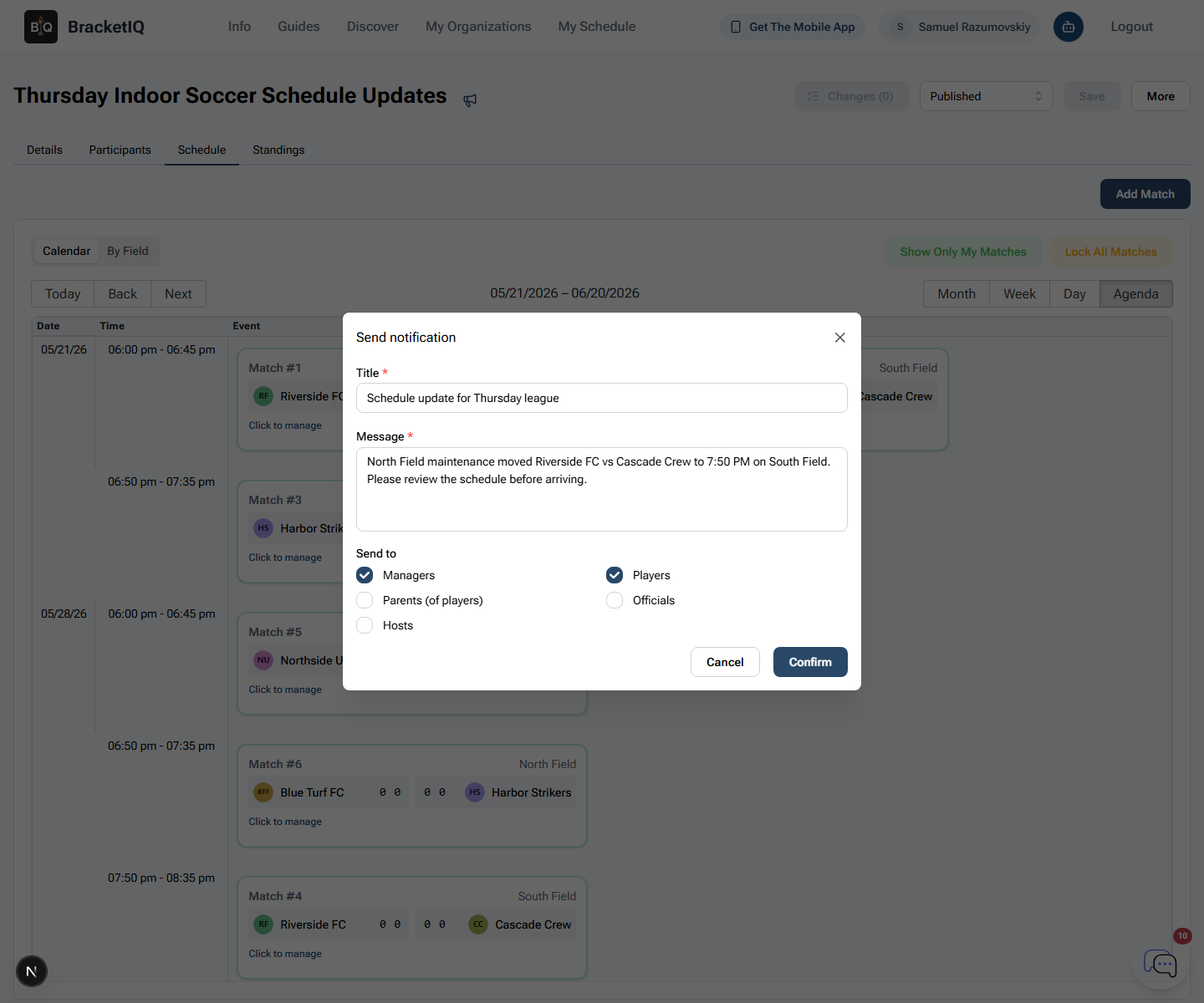
For this example, the message is:
North Field maintenance moved Riverside FC vs Cascade Crew to 7:50 PM on South Field. Please review the schedule before arriving.
Choose the audience based on the change:
- Select Managers when captains or coaches need to relay the update.
- Select Players when every rostered player should see the change.
- Select Parents when youth or family communication matters.
- Select Officials when referees or scorekeepers may be affected.
- Select Hosts when staff and co-hosts need the same notice.
Keep the message short. If the update needs a full explanation, send the summary first and point everyone back to the BracketIQ schedule for the current details.
Check the participant list before sending edge-case updates
Open Participants when the update depends on who is actually in the league. This is useful before sending a targeted message about late teams, forfeits, roster problems, payment follow-up, or documents.
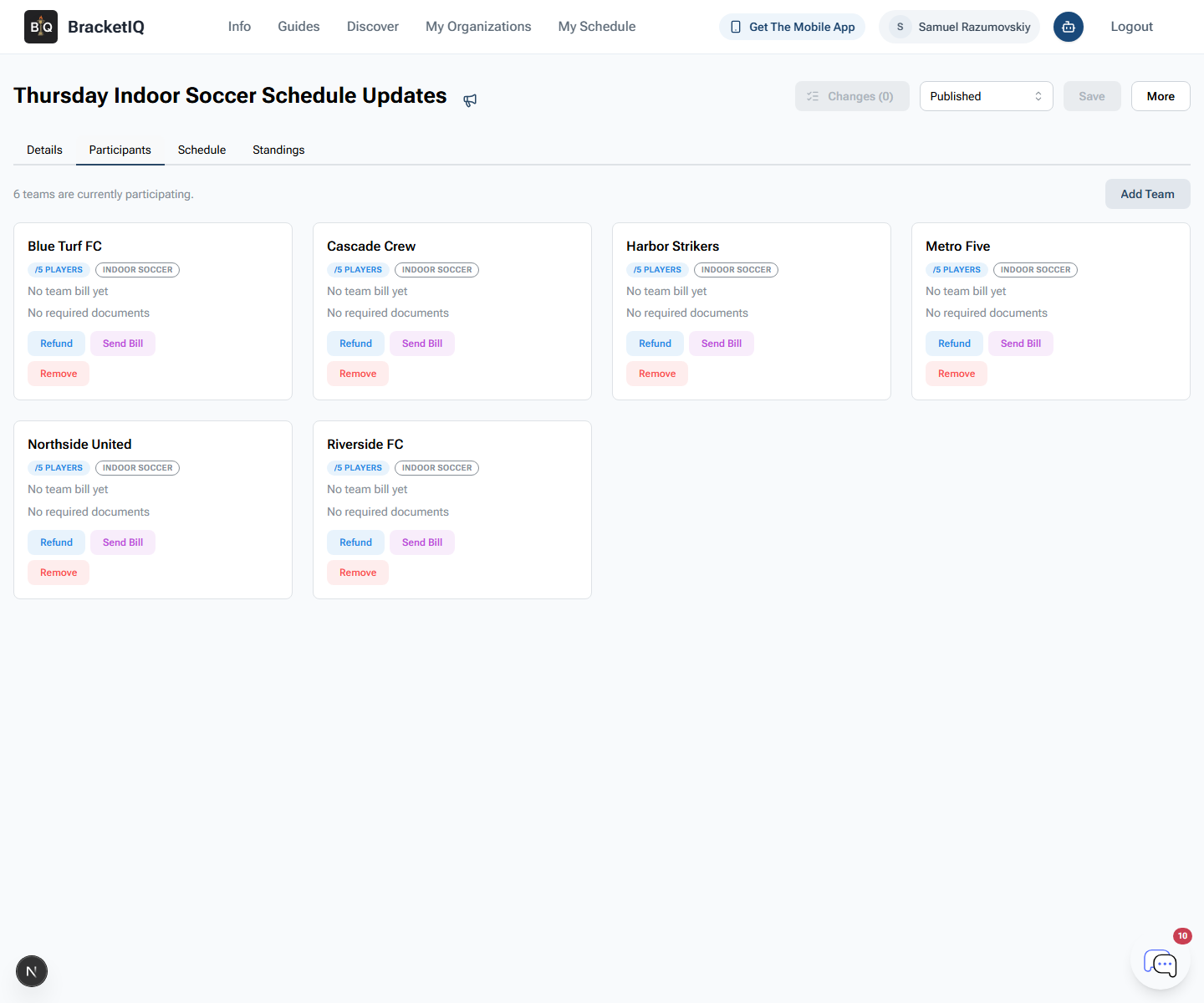
Use this step to check:
- How many teams are currently participating.
- Whether the affected teams are still active.
- Whether any team needs billing or document follow-up before the match.
- Whether a manual Add Team or Remove action changed the schedule context.
- Whether managers are the right audience for the update.
For sports with captains, this is where you decide whether one captain message is enough or whether players, parents, officials, and hosts should all receive the notification.
Verify the participant-facing schedule
After the organizer schedule and message are ready, open the participant-facing Schedule tab and check Agenda view again. This is the version teams will use from their phones.
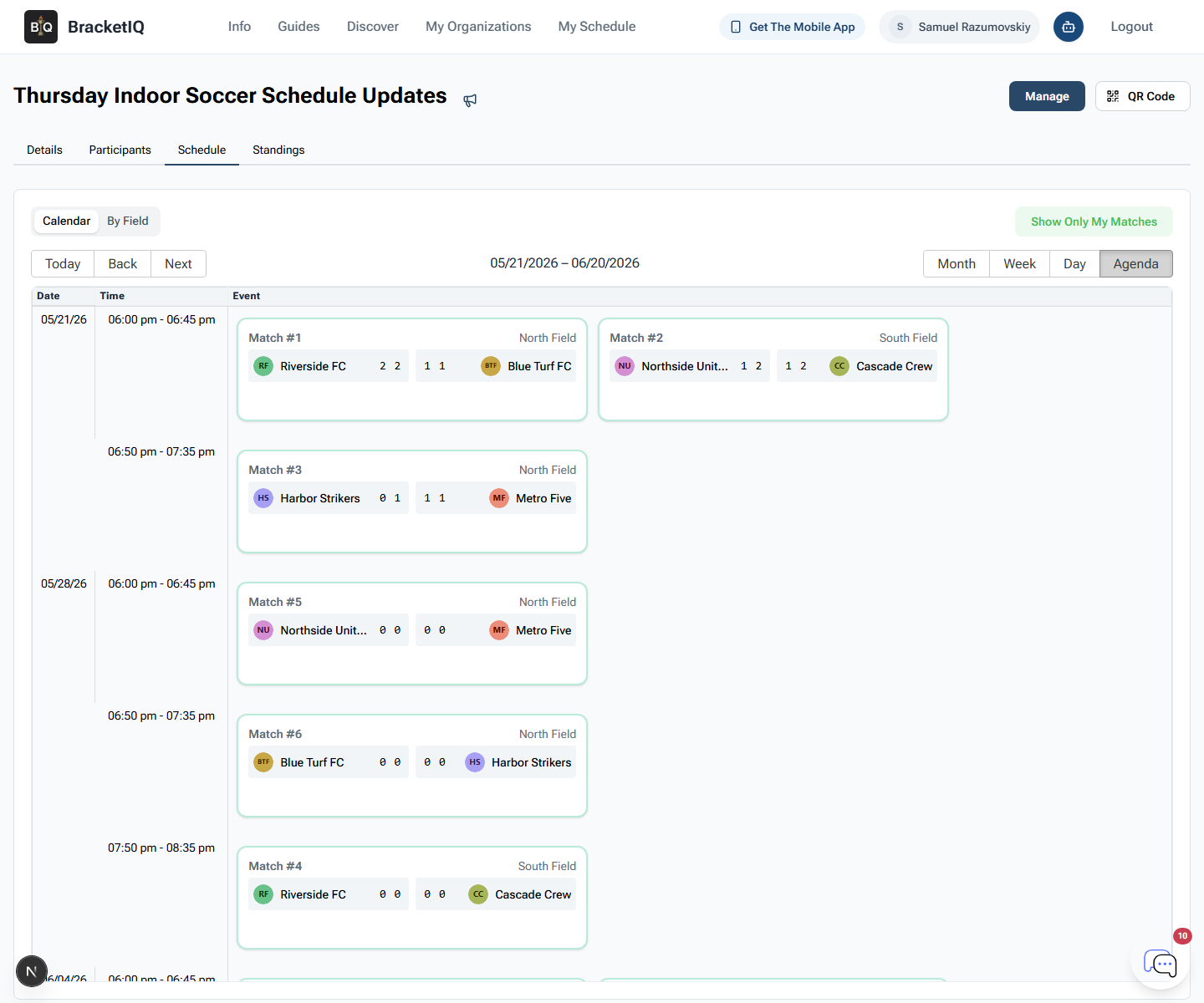
Confirm that participants can see:
- The changed match time.
- The updated field or court.
- The affected teams.
- Any completed scores that are already public.
- No organizer-only controls that make the page confusing.
The public check is the final guardrail. If the schedule is right in organizer mode but wrong or unclear to teams, the notification will create more questions instead of fewer.
Schedule-change communication checklist
Use this checklist whenever a league schedule changes:
- Open Schedule and use Agenda view.
- Identify the affected match, time, field, and teams.
- Open the match detail for one-match changes.
- Use Reschedule for broader league constraints.
- Save the schedule before sending the announcement.
- Write a short notification that says what changed and what teams should do.
- Select the right audience groups.
- Check Participants if team status affects the message.
- Verify the participant-facing Schedule tab.
- Keep league management as the weekly operating workflow after the update.
Schedule changes are normal in recreational sports. BracketIQ keeps the change from turning into a spreadsheet, text thread, and screenshot problem by connecting the live schedule, affected match details, participant list, notifications, and public schedule in one workflow.
