
Start from the organization dashboard
Create the organization first, then open its dashboard. If you have not done that yet, start with How to Create and Set Up an Organization in BracketIQ.
From the organization dashboard, select the Public Page tab. This is where BracketIQ keeps the public page, public slug, brand colors, widget settings, preview links, and embed snippets for the organization.

Use this workflow when a club, facility, or event organizer wants one public place for events, teams, rentals, products, and future registration links. The public page can be shared directly, and widgets can be embedded on another website when the organization wants BracketIQ data to appear on its existing site.
Configure the public page settings
In the Public page and widgets section, review the public-facing settings before sharing the page.
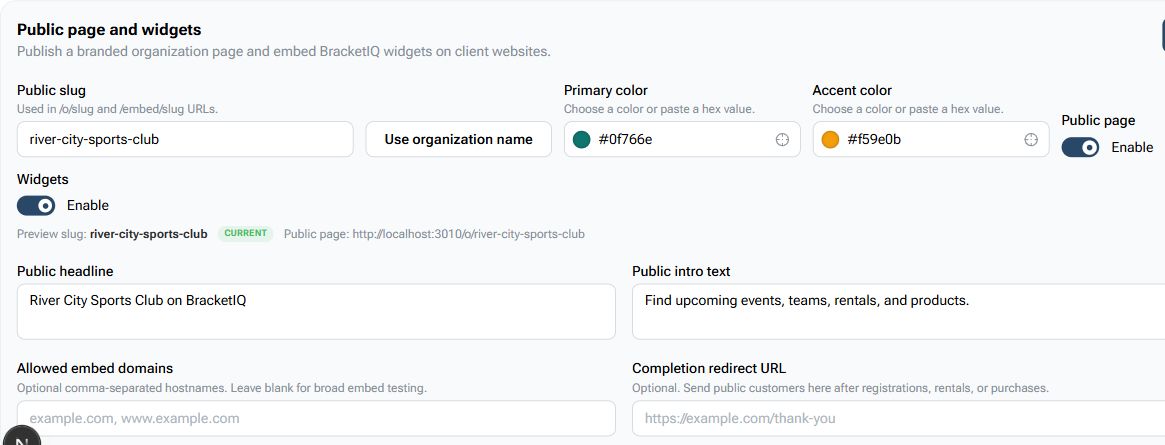
Check these fields:
Public slugcontrols the organization URLs, including/o/slugand/embed/slug.Primary colorandAccent colorcontrol the branded public-page styling.Public pagemust be enabled before visitors can open the public organization page.Widgetsmust be enabled before widget previews and embed snippets are usable.Public headlineshould quickly explain who the organization is.Public intro textshould tell visitors what they can do on the page.Allowed embed domainscan restrict which websites are allowed to embed the widgets.Completion redirect URLcan send customers back to your website after a registration, rental, or purchase.
For a real organization, choose a slug that is short, recognizable, and stable. Changing the slug later can break old links that have already been shared.
Save and confirm the preview links
After the settings are correct, click Save. BracketIQ shows the preview slug status and public page URL so you can confirm the page is using the right address.
The screenshot uses a local development URL, but a live BracketIQ page should use the production BracketIQ domain.
Build widget snippets
Use the Preview and snippets section when the organization wants BracketIQ sections embedded on an external website.
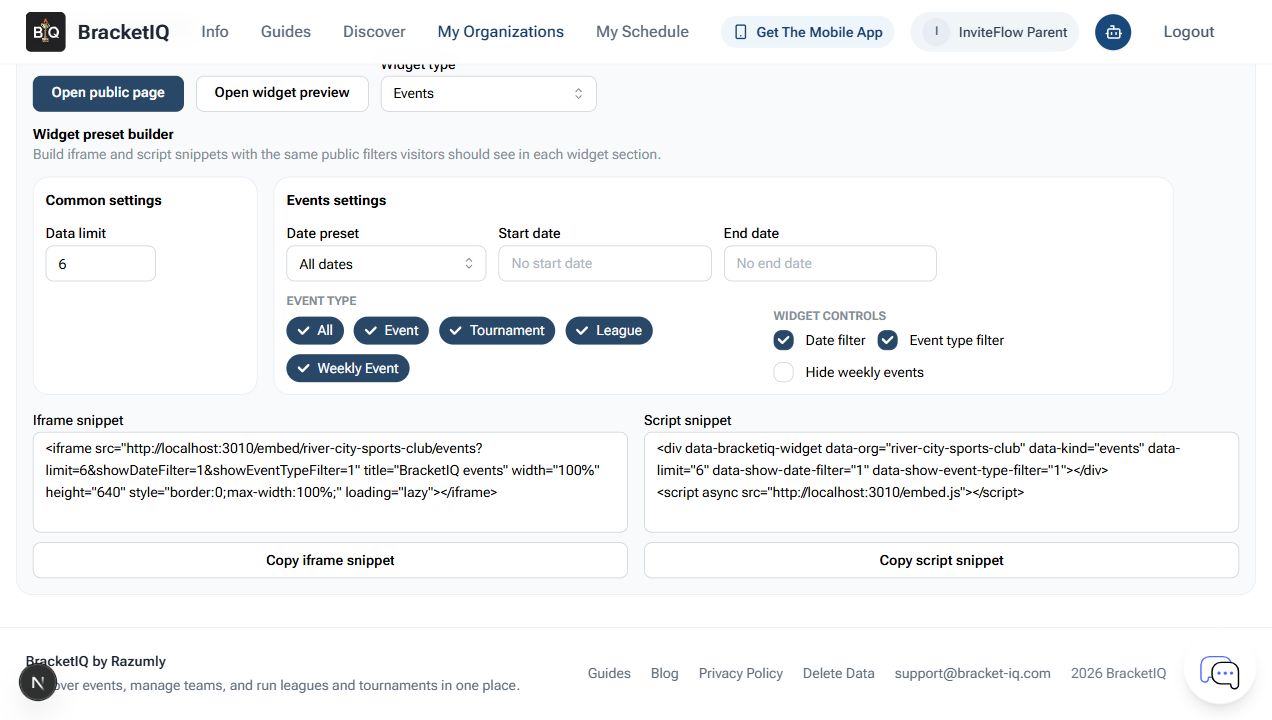
Start with the widget type. For an events widget, choose:
Data limitfor how many items the widget should show.Date presetand optional date range.- Event type filters such as
Event,Tournament,League, andWeekly Event. - Widget controls such as
Date filterandEvent type filter. - Whether to hide weekly events from the embedded listing.
BracketIQ generates both an iframe snippet and a script snippet. The iframe is usually the simplest option for a facility or club website. The script snippet gives more flexibility when the website can load the BracketIQ embed script.
Check the public organization page
Open Open public page before sharing the link. This is what players, parents, teams, renters, and customers see outside the manager dashboard.
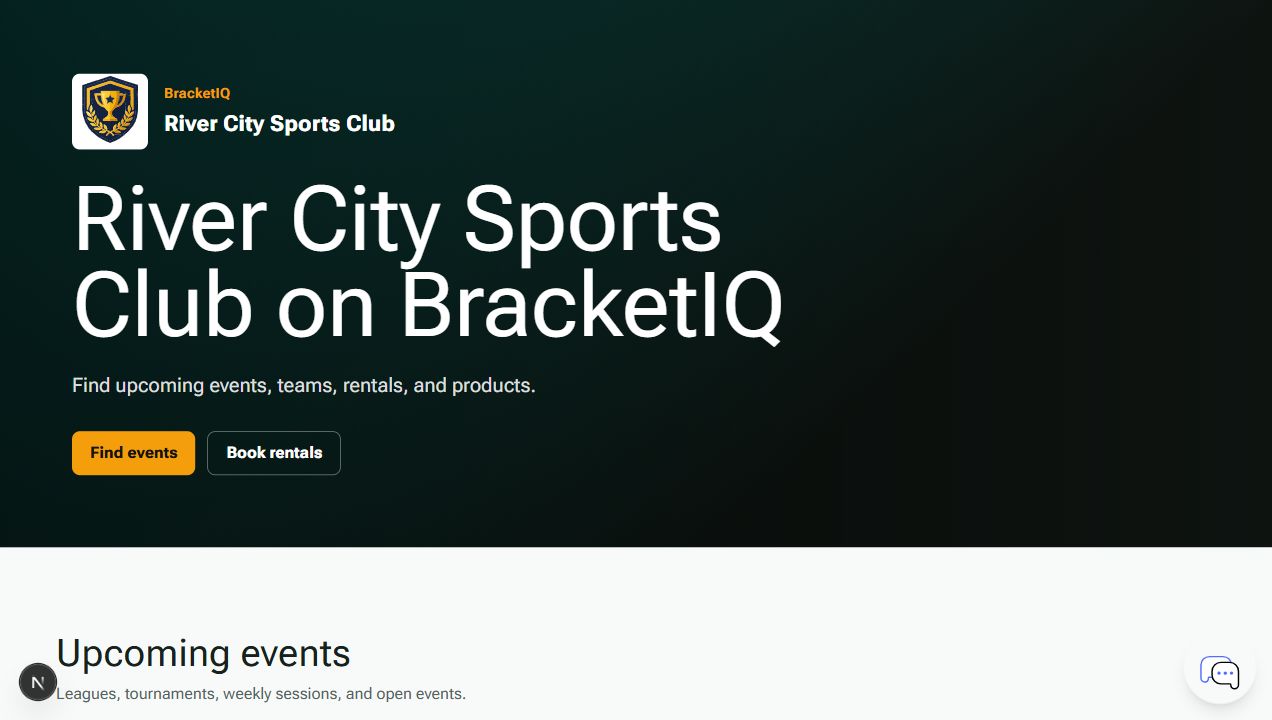
Review the visible page for:
- Organization name.
- Headline and intro text.
- Brand colors.
- Calls to action such as
Find eventsandBook rentals. - Upcoming events.
- Teams.
- Rentals.
- Products.
An empty public page is still useful as a foundation, but it should not be your final state. Add the workflows your visitors need next, such as a league, tournament, pickup event, rental inventory, team listings, or products.
Check the widget preview
Open Open widget preview before embedding a snippet on another website. The widget preview confirms the filters and empty states that visitors will see inside the embedded section.
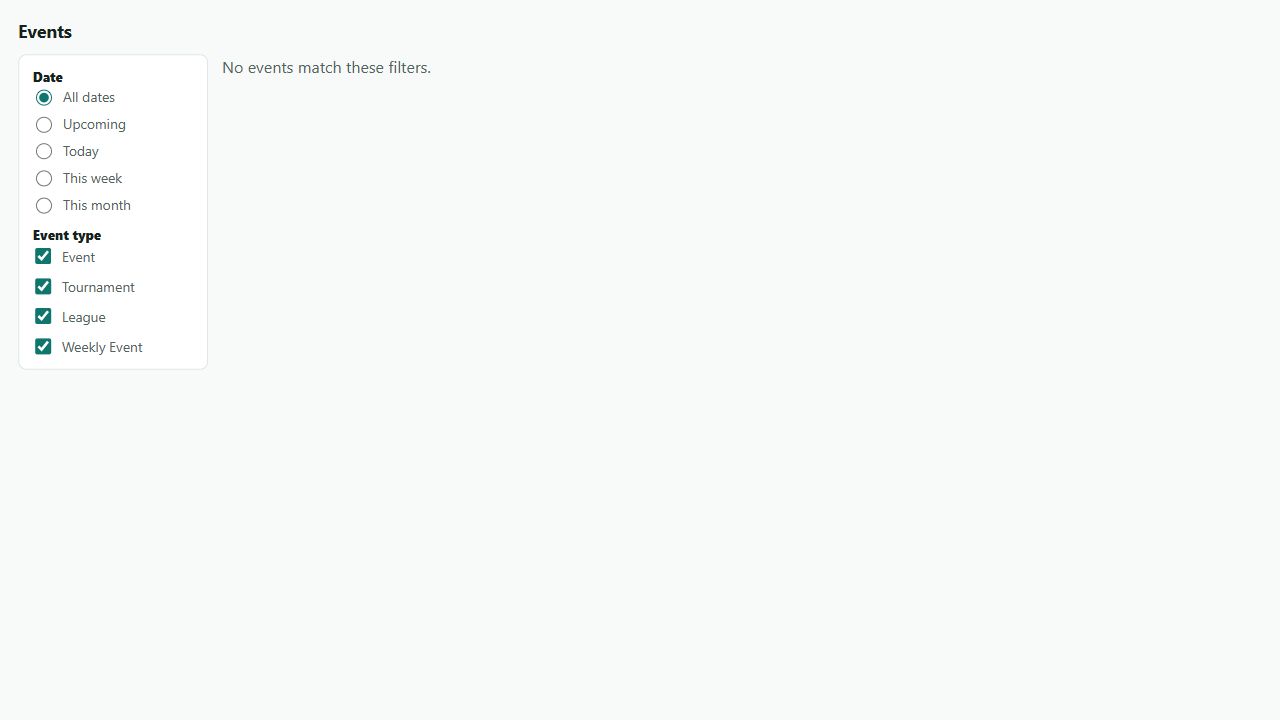
If the preview is empty, check whether the organization has published public events that match the selected filters. Empty widgets are normal while the organization is still being set up, but a live website should usually show a useful event list, rental list, team list, or product list.
Public page setup checklist
Use this checklist before sharing the organization page:
- Open the organization dashboard.
- Select
Public Page. - Choose a stable public slug.
- Set primary and accent colors.
- Enable the public page.
- Enable widgets if the organization will embed BracketIQ sections on another website.
- Write a clear headline and intro text.
- Add allowed embed domains when the website domain is known.
- Add a completion redirect URL when customers should return to the organization website after public actions.
- Save the settings.
- Open the public page and review the visitor experience.
- Open the widget preview and verify the filters.
- Add the next public workflows: events, leagues, tournaments, rentals, teams, products, or payment processing.
After the public page is ready, set up the workflows that make it useful. You can create a league, create a tournament, set up online registration, or prepare organization payment processing before publishing paid registrations and rentals.
