
Start with the league structure
This guide starts after the league has already been created in BracketIQ. If you still need to create the league, start with How to Create a League in BracketIQ. If the season is already active and you need weekly operations, use How to Manage a League in BracketIQ after the schedule is built.
The example uses an indoor soccer league, but the same scheduling workflow works for volleyball, outdoor soccer, pickleball, basketball, tennis, hockey, baseball, football, and other recreational sports that play across multiple weeks.
Before you build the schedule, decide:
- The league start and end dates.
- The days of the week when matches can happen.
- The fields or courts available on each day.
- The match duration and rest time.
- The division or divisions that can use each time block.
- Whether you need a makeup night for weather, holidays, or facility conflicts.
BracketIQ works best when those constraints are entered before matches are generated, because the schedule can use the same league setup that teams see on the public page.
Confirm the league details
Open the league in Manage mode and start from Details. Confirm the league image, name, sport, description, and published status before you work on the recurring schedule.
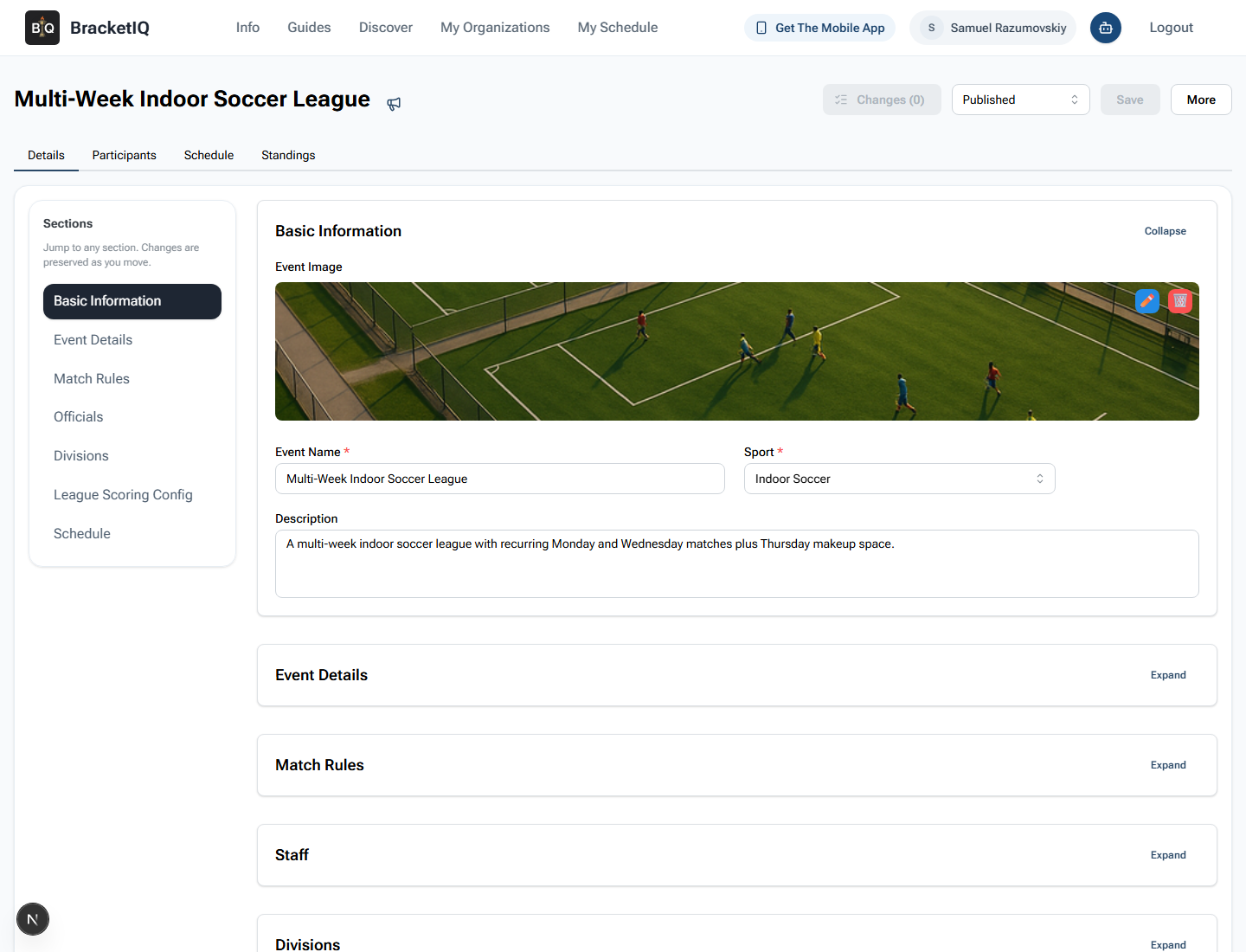
Check the basics first:
- The league name should match the season teams are joining.
- The sport should be correct because it affects labels, defaults, and participant expectations.
- The description should mention the recurring cadence if teams need to know it before registering.
- Changes should show
0before you start, so any new schedule edits are easy to track.
For a multi-week league, the schedule is part of the product teams are buying into. If the public details are vague, captains will ask about nights, times, fields, and makeup plans before the first match.
Add weekly timeslots
Scroll to the Schedule section on Details and expand it. Use Weekly Timeslots to tell BracketIQ when matches can be placed.
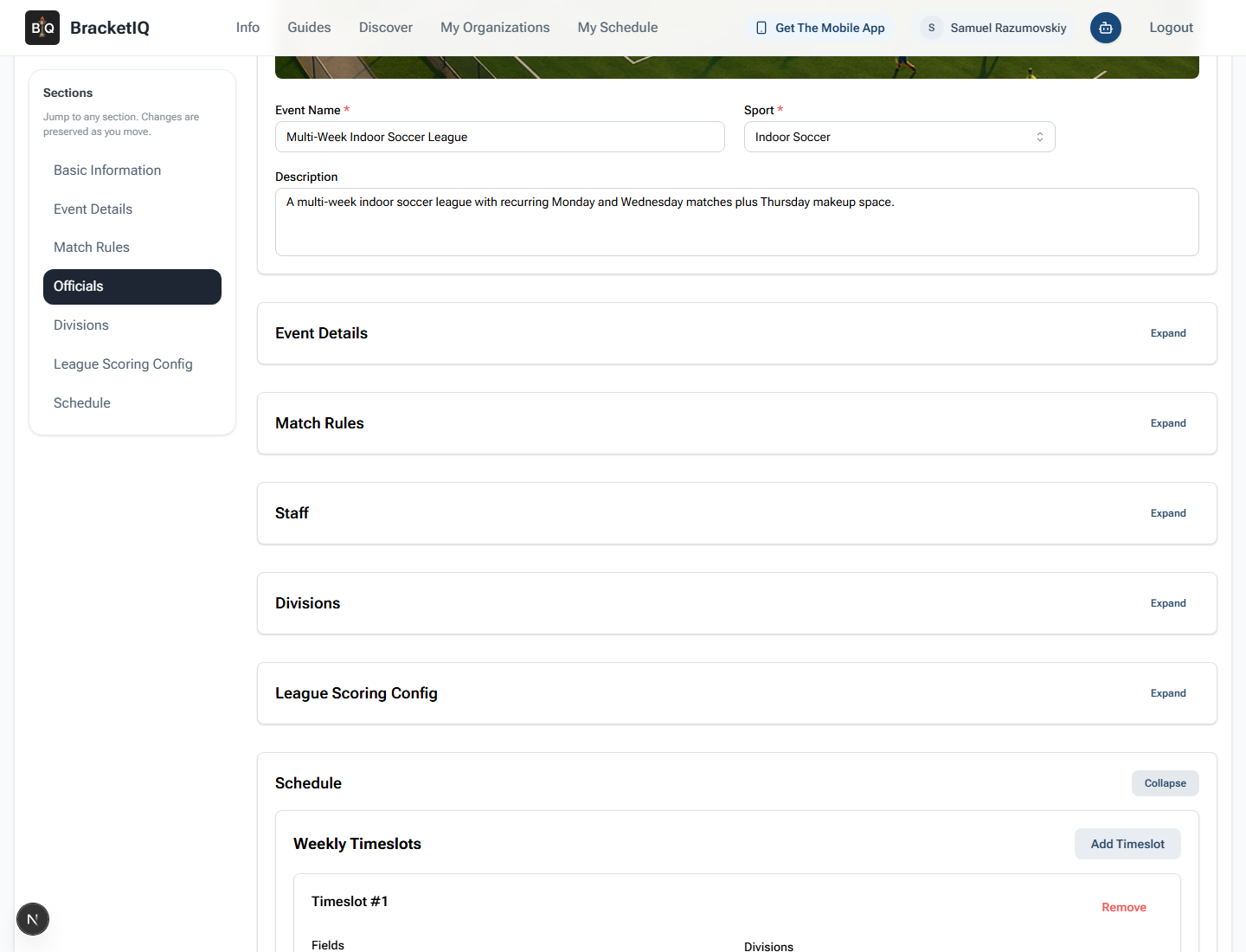
Each timeslot should answer four scheduling questions:
- Which fields or courts are available?
- Which division can use those surfaces?
- Which day or days of the week are allowed?
- What start and end time can BracketIQ schedule inside?
In the example league, Monday and Wednesday evening games use the main indoor fields, while Thursday is kept as a makeup window on a separate field. That gives the league a predictable weekly rhythm while still leaving space for reschedules.
Use separate timeslots when availability changes by day, field, court, or division. Do not force every surface into one broad block if some divisions should not use every field or if one night is meant only for makeups.
Review teams before generating or changing the schedule
Open Participants before you generate, rebuild, or heavily edit the schedule. The schedule is only useful if the team list is current.
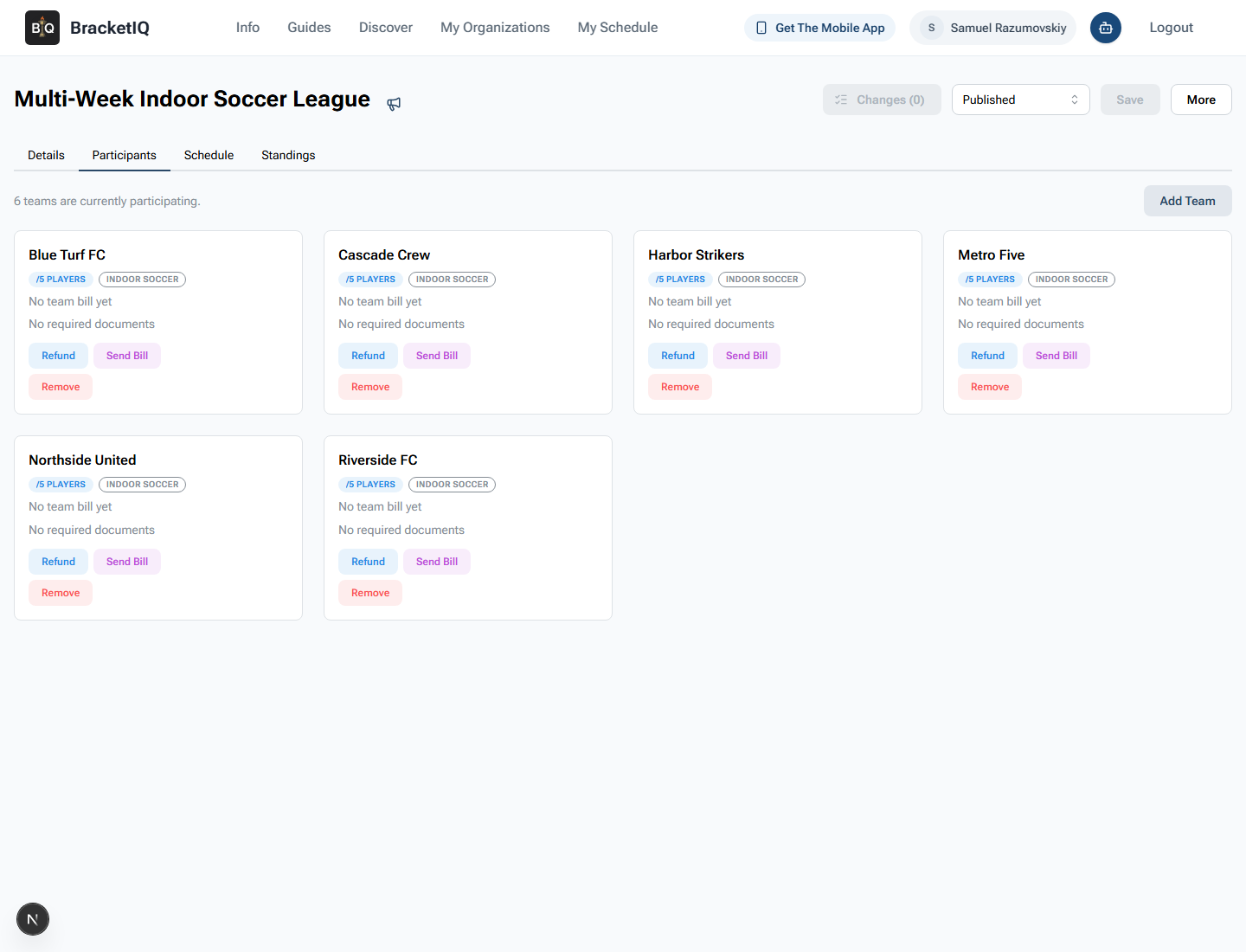
Review:
- The total number of teams currently participating.
- Whether any team should be removed before schedule generation.
- Whether late teams need to be added manually.
- Whether roster, bill, refund, or document follow-up should happen before matches are locked in.
- Whether every team belongs to the expected division.
For a recreational league, schedule fairness usually starts with the participant list. A missing team, duplicate team, or wrong division can create avoidable rescheduling work.
Check the generated schedule in Agenda view
Open Schedule and switch to Agenda view. Agenda view is the best static review format because it shows date, time, match order, teams, scores, and field assignments in one list.
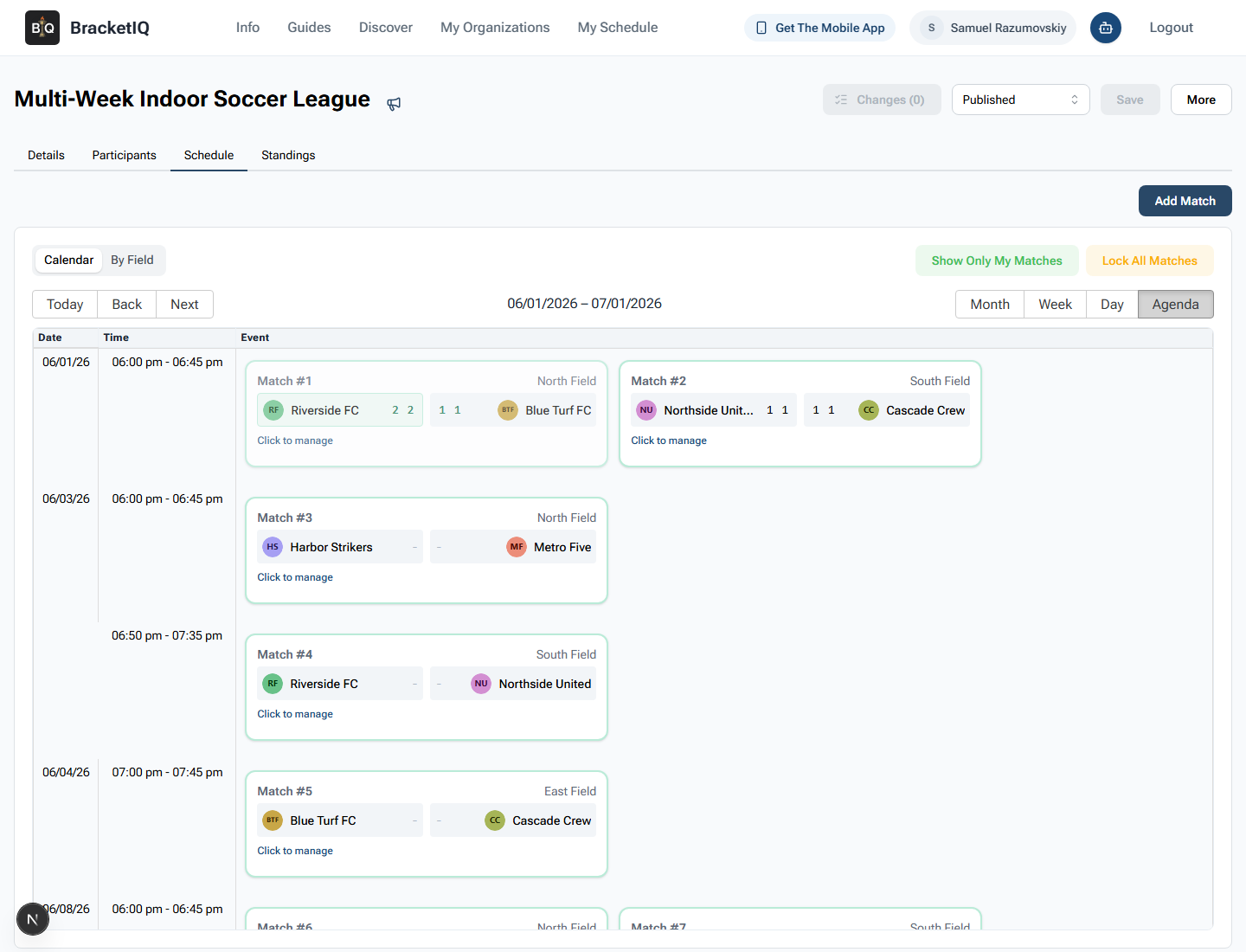
Review the schedule like an operator:
- Confirm the first match date is correct.
- Check that each match fits inside the weekly timeslot.
- Look for field or court assignments that do not match your plan.
- Watch for teams playing too close together.
- Confirm completed matches show scores and upcoming matches still show as unplayed.
- Make sure the schedule is readable for staff who will run the night.
For indoor soccer, this is where you check field rotation and kickoff spacing. For volleyball or pickleball, the same review checks court assignments and match order. For outdoor sports, this is also where you decide whether the schedule leaves enough flexibility for weather changes.
Use reschedule when league constraints change
If the weekly windows, fields, or participants change after a schedule exists, open the More menu and use Reschedule instead of manually rebuilding every match.
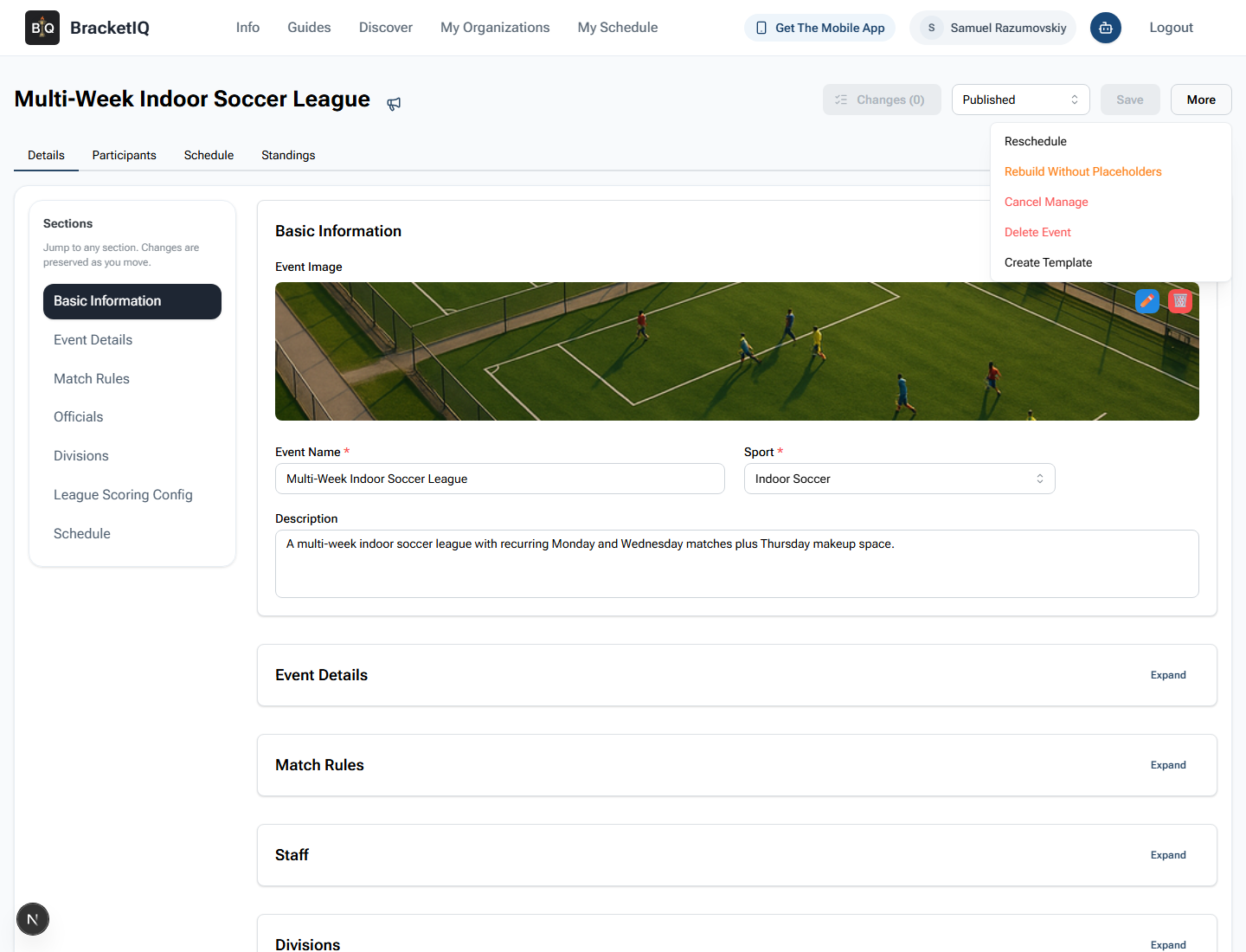
Use this step when:
- A new field or court becomes available.
- A facility loses one of the original surfaces.
- A team drops before the season starts.
- A makeup night needs to absorb postponed matches.
- A league changes match length or weekly availability.
Be careful with live seasons. If matches have already been played or teams have already planned around published dates, review what should stay locked before you reschedule. For active leagues, communicate meaningful schedule changes before teams arrive at the facility.
Verify the public schedule
After the organizer schedule looks right, open the public league page and review the Schedule tab in Agenda view. This is the version teams, captains, parents, and players will rely on.
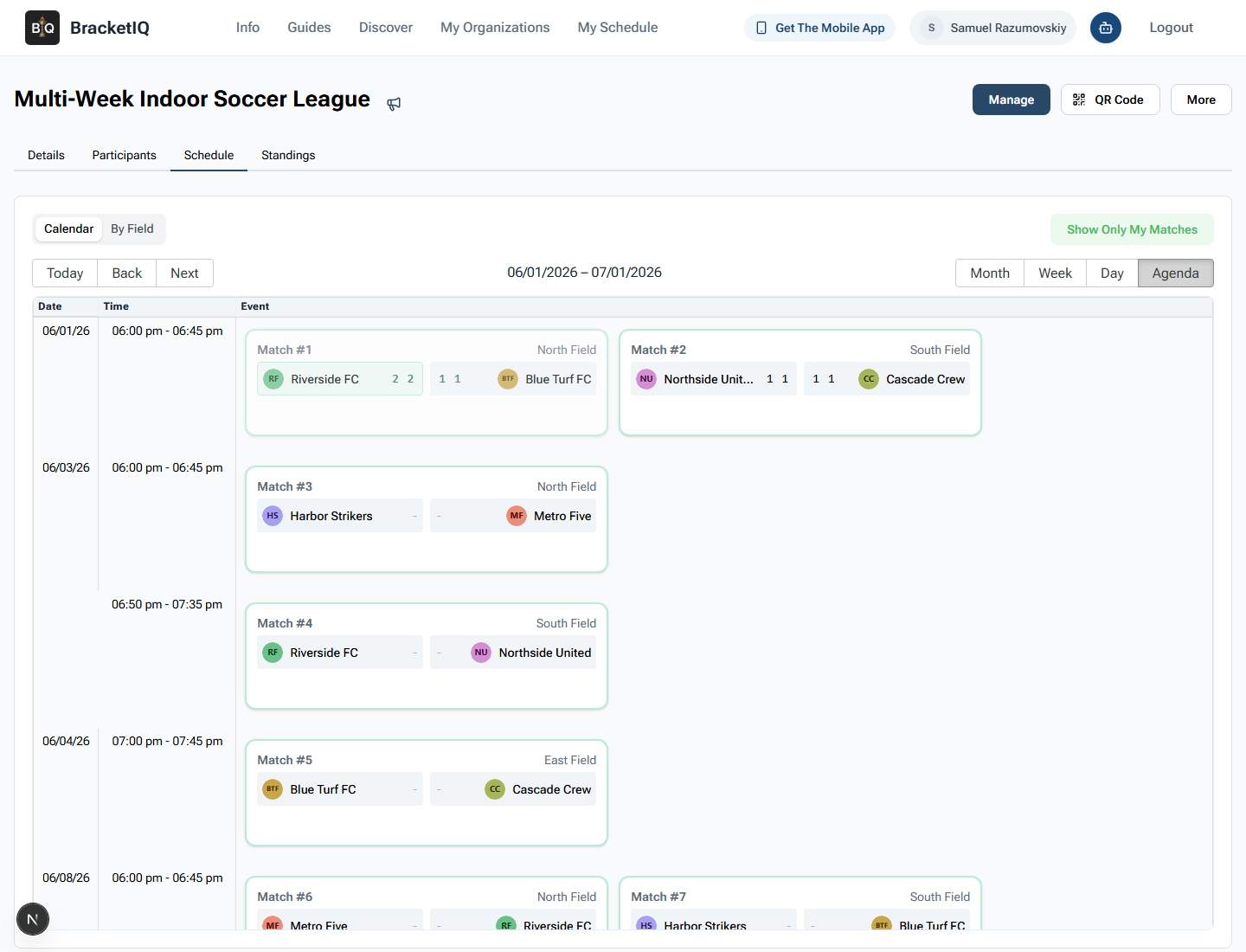
Check that the public schedule shows:
- The correct date range.
- The expected match times.
- Field or court assignments.
- Team names that participants recognize.
- Completed scores when results have been entered.
- No organizer-only controls that would confuse participants.
The public review is not optional. Staff may understand the intent behind a schedule, but participants only see what is published. BracketIQ keeps the public page connected to the organizer schedule so you can catch issues before the questions start.
Multi-week league scheduling checklist
Use this checklist before publishing or republishing a league schedule:
- Confirm the league details and sport.
- Confirm the season start and end dates.
- Add weekly timeslots by day, field or court, division, and time range.
- Keep makeup windows separate when they are not regular match nights.
- Review the registered team list before generating or rebuilding matches.
- Use Agenda view to inspect match order, times, scores, and fields.
- Reschedule only after you understand which matches should move.
- Check the public Schedule tab after organizer changes.
- Keep league management as the weekly operating workflow once matches begin.
A multi-week league schedule is not just a list of games. It is the shared operating plan for the facility, teams, captains, and players. BracketIQ gives that plan one place to live, from weekly availability to public match order.
