
Start from the facility workspace
Open the BracketIQ organization that represents the facility. If the facility is not set up yet, start with How to Manage a Sports Facility With BracketIQ, then return to this revenue workflow.
The facility workspace connects fields or courts, rentals, events, products, payments, staff access, and public pages.
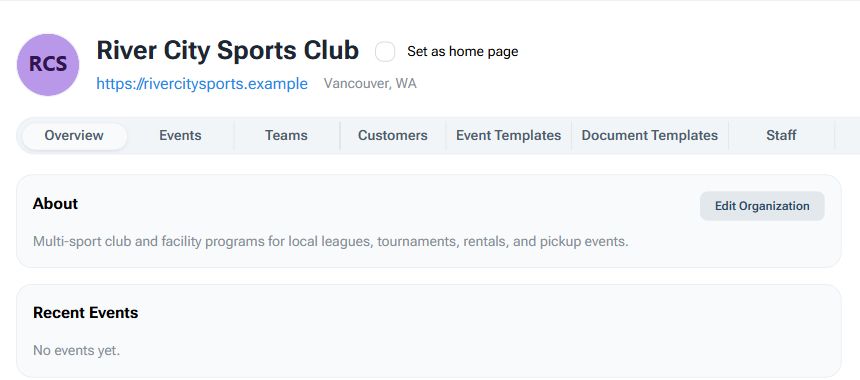
Use the organization as the facility source of truth when:
- Staff need one place to see what is bookable.
- Rentals and events use the same courts, fields, or surfaces.
- Customers need public links for bookings, registrations, passes, or products.
- Payments should route through the facility account.
- Managers need a repeatable workflow instead of manual spreadsheets and payment links.
This article focuses on the revenue side of facility operations. For broad setup, use the facility management guide first.
Keep fields, courts, and rentals connected
Open the Fields tab to review the surfaces the facility can rent, schedule, or assign to events.
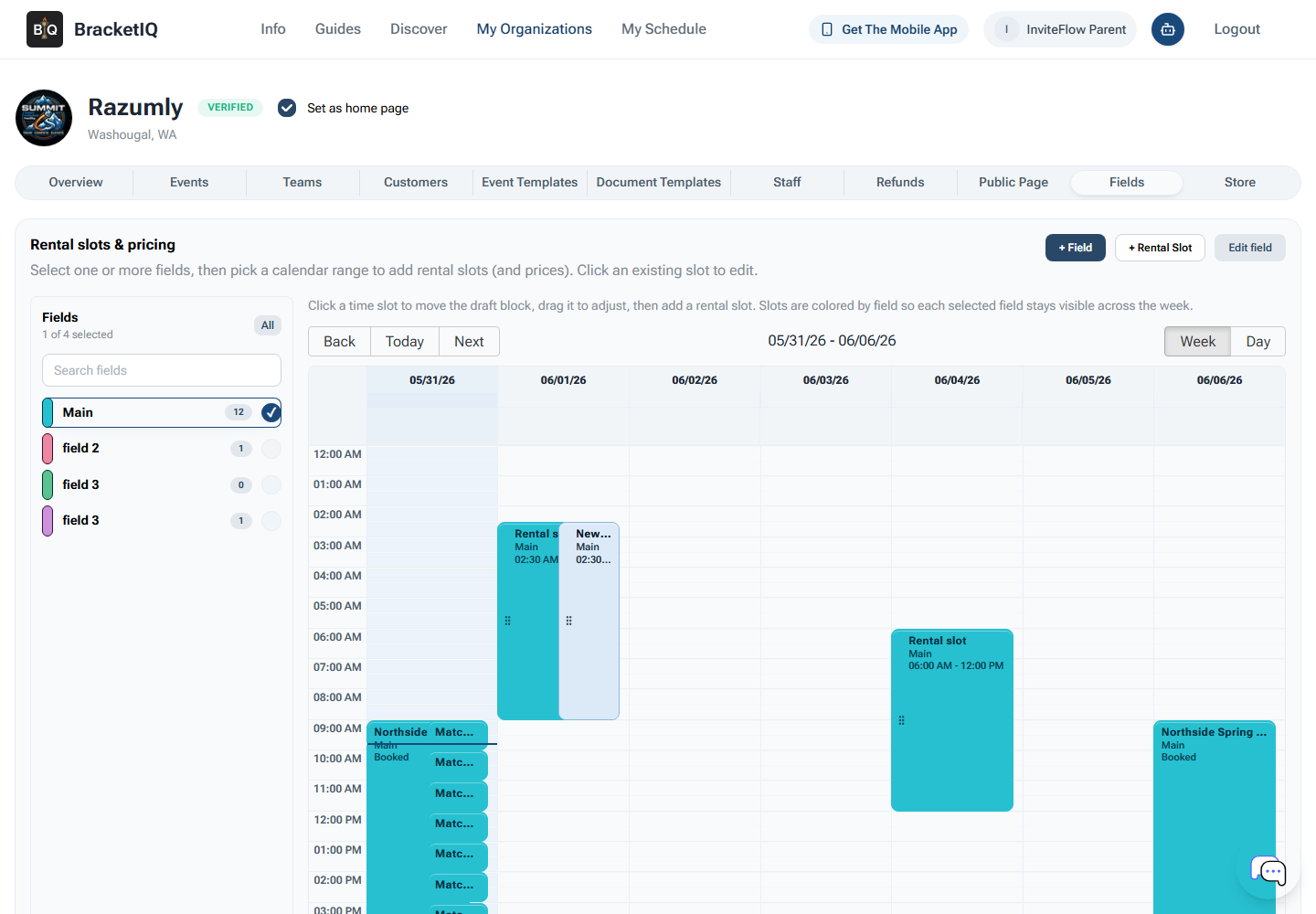
Before taking rental payments or publishing availability, confirm:
- Each court, field, turf area, rink, or room has a clear name.
- Rental availability matches the real facility schedule.
- Staff know which surfaces are bookable and which are reserved for programming.
- Rental blocks do not conflict with leagues, tournaments, clinics, or maintenance.
- Public booking details are ready before customers reach checkout.
Facilities usually lose time when rentals are tracked separately from programming. BracketIQ works better when the same field or court inventory supports both rentals and scheduled events.
Coordinate facility events from the same organization
Open the Events tab to review facility-hosted leagues, tournaments, pickup sessions, clinics, open play, camps, and other scheduled programming.
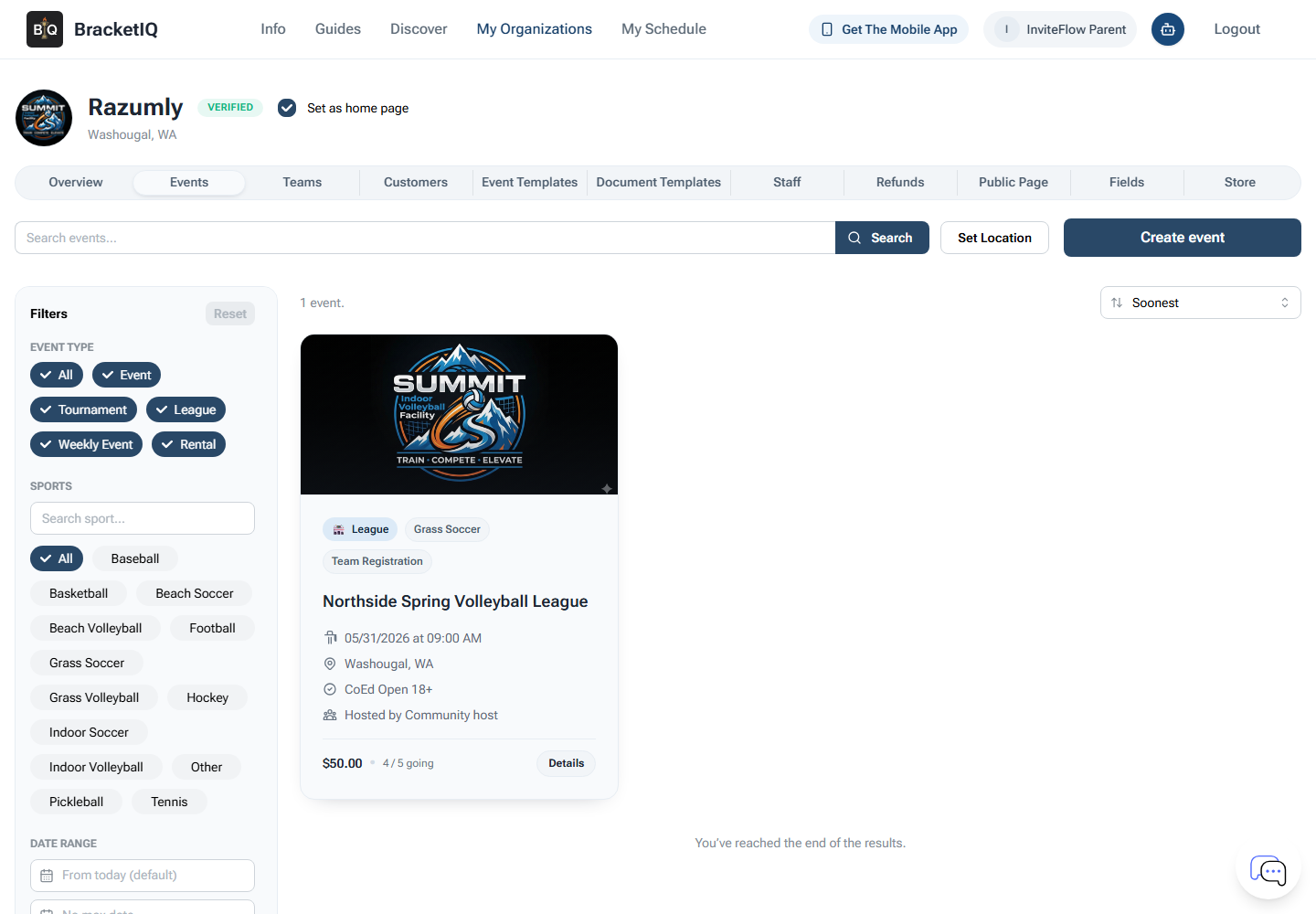
Use this view to keep revenue workflows aligned:
- Confirm paid events are attached to the facility organization.
- Check whether registration is open, closed, or still in draft.
- Review events that need fields or courts before schedules are final.
- Keep staff clear on which events need check-in, score entry, refunds, or participant communication.
- Separate active programming from old events that should no longer drive staff action.
For full setup, use How to Create a League in BracketIQ, How to Create a Tournament in BracketIQ, or How to Create a Paid Pickup Sports Event With BracketIQ.
Use products for passes, add-ons, and facility sales
Open the Store tab when the facility sells passes, memberships, add-ons, merchandise, training products, or other items that should be tied to the organization.
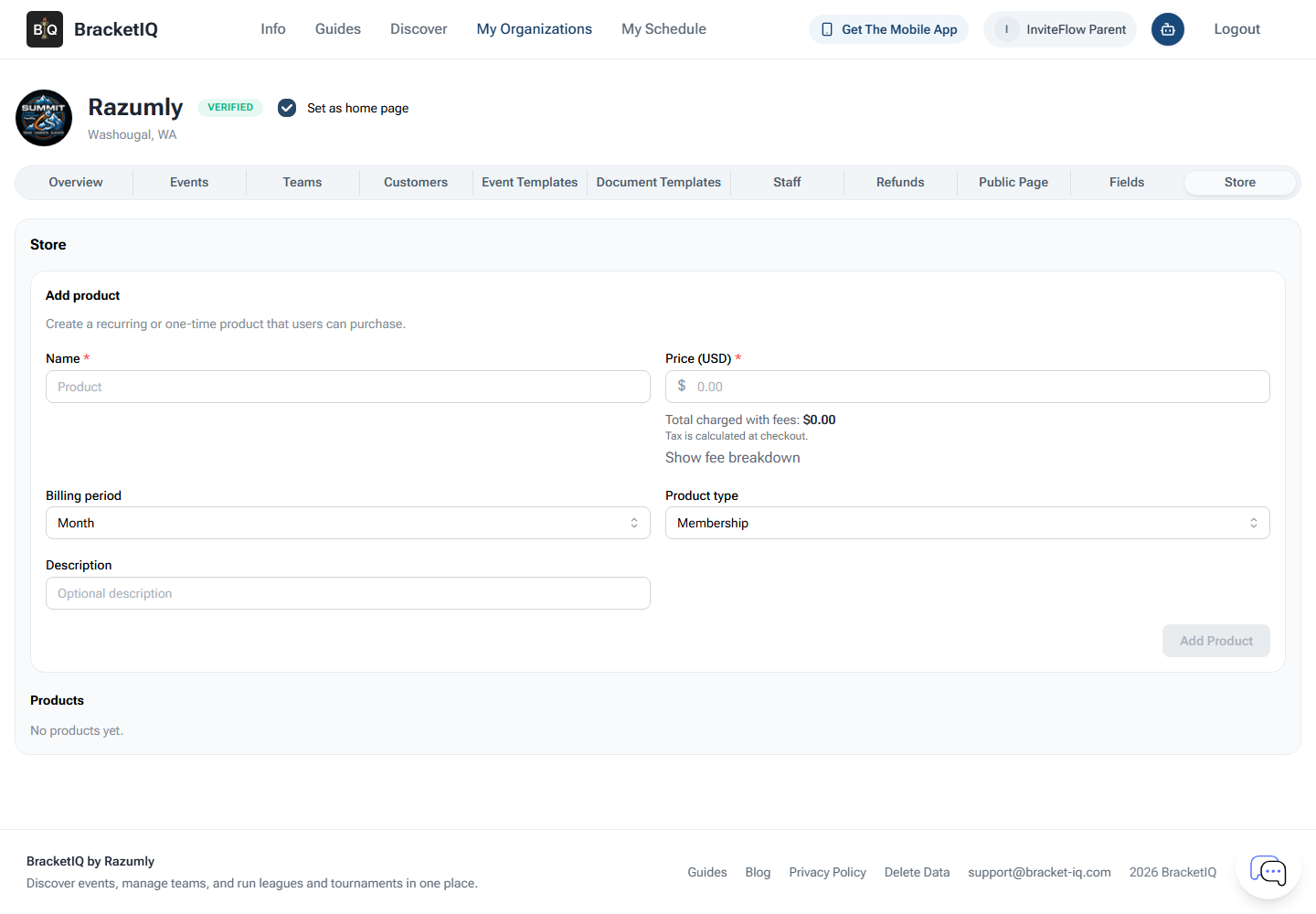
Use products when the purchase is not just a one-time event registration:
- Court or field passes.
- Open play punch cards.
- Facility memberships.
- Training packages.
- Add-ons for events or rentals.
- Merchandise or other organization products.
Products help staff keep non-event sales out of ad hoc payment requests. They also make it easier to understand what customers bought through the facility rather than through an individual staff member.
Confirm payments before sharing paid links
Open the organization payment area before publishing paid rentals, events, registrations, passes, or products.
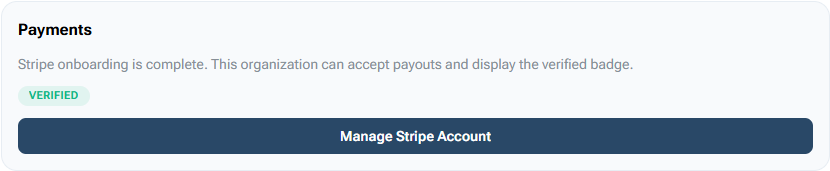
Check payment readiness before customers arrive:
- Stripe onboarding is complete.
- Payout status is verified.
- Staff know who can view payments, bills, refunds, and products.
- Event prices, rental prices, and product prices are correct.
- Refund responsibility is clear before the first customer pays.
For setup, use How to Set Up Payment Processing for Your BracketIQ Organization. BracketIQ-controlled screens show the facility payment status; Stripe-hosted onboarding should be completed through Stripe's secure flow.
Publish the public page and widgets
Open the Public Page tab when the facility is ready to send customers to one public path.
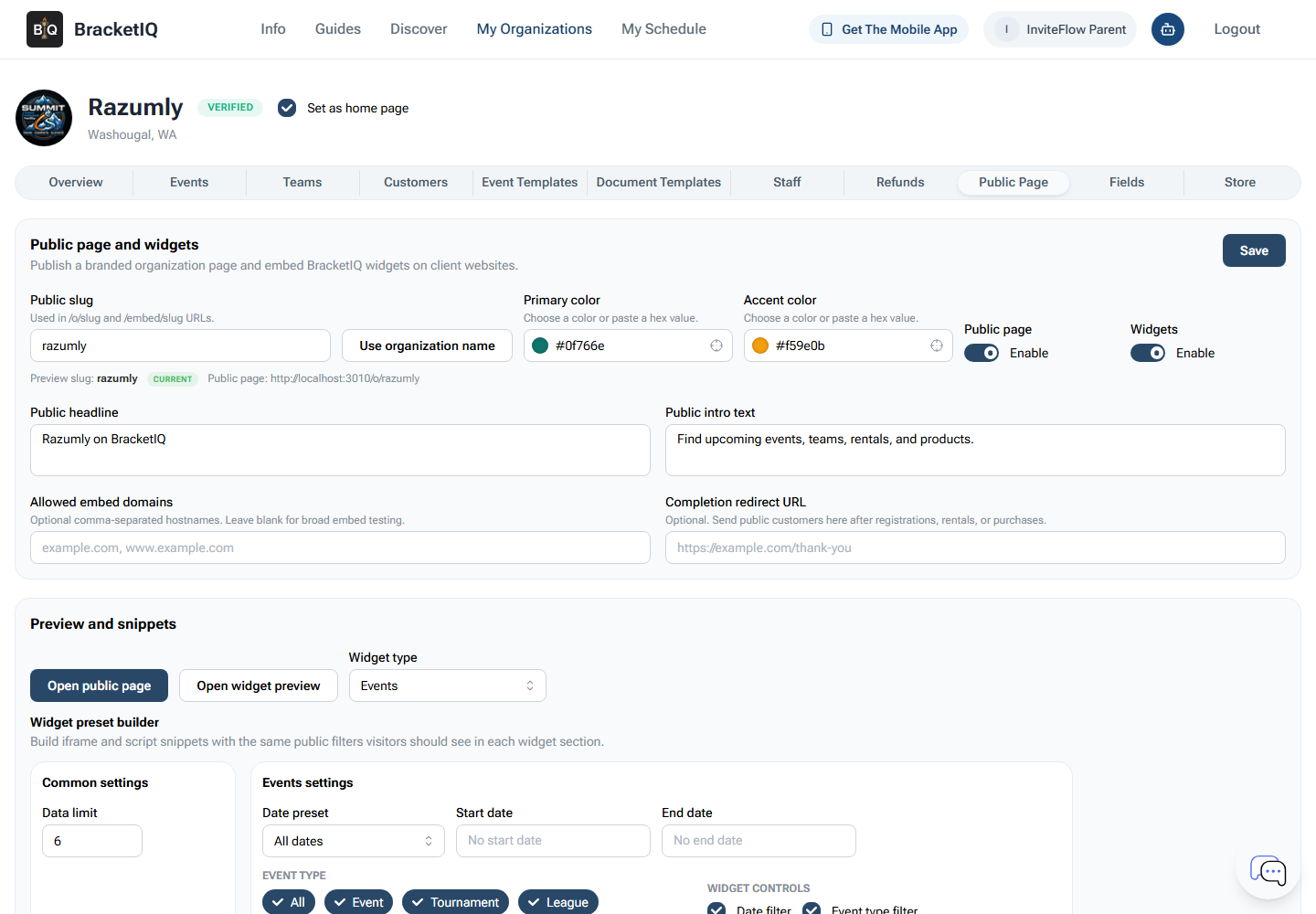
Use the public page and widgets to promote:
- Rentals.
- Facility-hosted leagues and tournaments.
- Pickup events and open play.
- Clinics, camps, and training.
- Products, passes, and memberships.
- Mobile-friendly access for customers and participants.
For detailed setup, use How to Create a Public Page for Your Sports Organization.
Facility revenue checklist
Use this checklist before opening facility revenue workflows:
- Confirm the facility organization profile and staff access.
- Review fields, courts, and bookable surfaces.
- Make sure rental availability does not conflict with facility programming.
- Create leagues, tournaments, pickup events, clinics, or open play under the facility organization.
- Add products, passes, or add-ons in the Store when they are not event registrations.
- Connect and verify organization payment processing.
- Review prices before sharing public links.
- Publish the public page or widgets.
- Keep staff clear on who handles rentals, events, products, payments, refunds, and schedule updates.
Facilities run cleaner when rentals, events, products, and payments are not split across separate tools. BracketIQ gives the facility one organization workspace for public promotion, booking and registration paths, staff operations, and payment follow-up.
