
Start from the multi-sport facility organization
Open the BracketIQ organization that represents the facility. If the facility is not already set up, start with How to Manage a Sports Facility With BracketIQ, then return to this workflow.
The organization overview is the shared control center for every sport the venue supports.
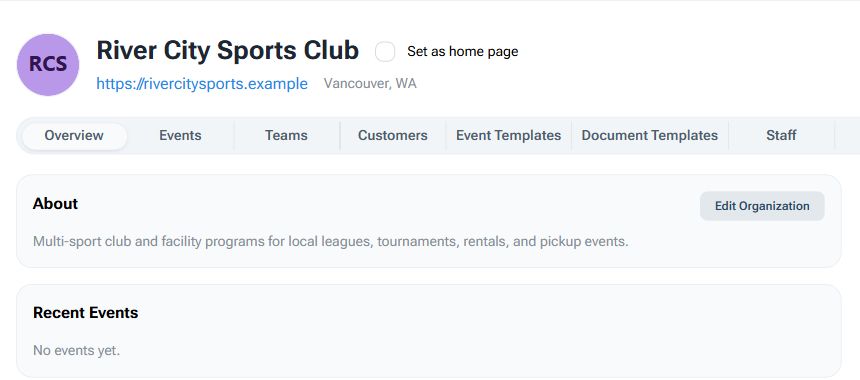
Use one facility organization when:
- Volleyball, soccer, pickleball, basketball, tennis, hockey, baseball, football, or other sports share the same venue.
- Staff need one place to manage rentals, leagues, tournaments, clinics, and open play.
- Customers should find current programs from one public page.
- Payments and products should route through the facility account.
- Fields, courts, or rooms need to be scheduled across multiple use cases.
The point is not to force every sport into the same format. The point is to keep the shared facility inventory, staff access, public links, and payment workflows connected.
Map every bookable surface
Open the Fields tab and make sure each bookable surface is clear.
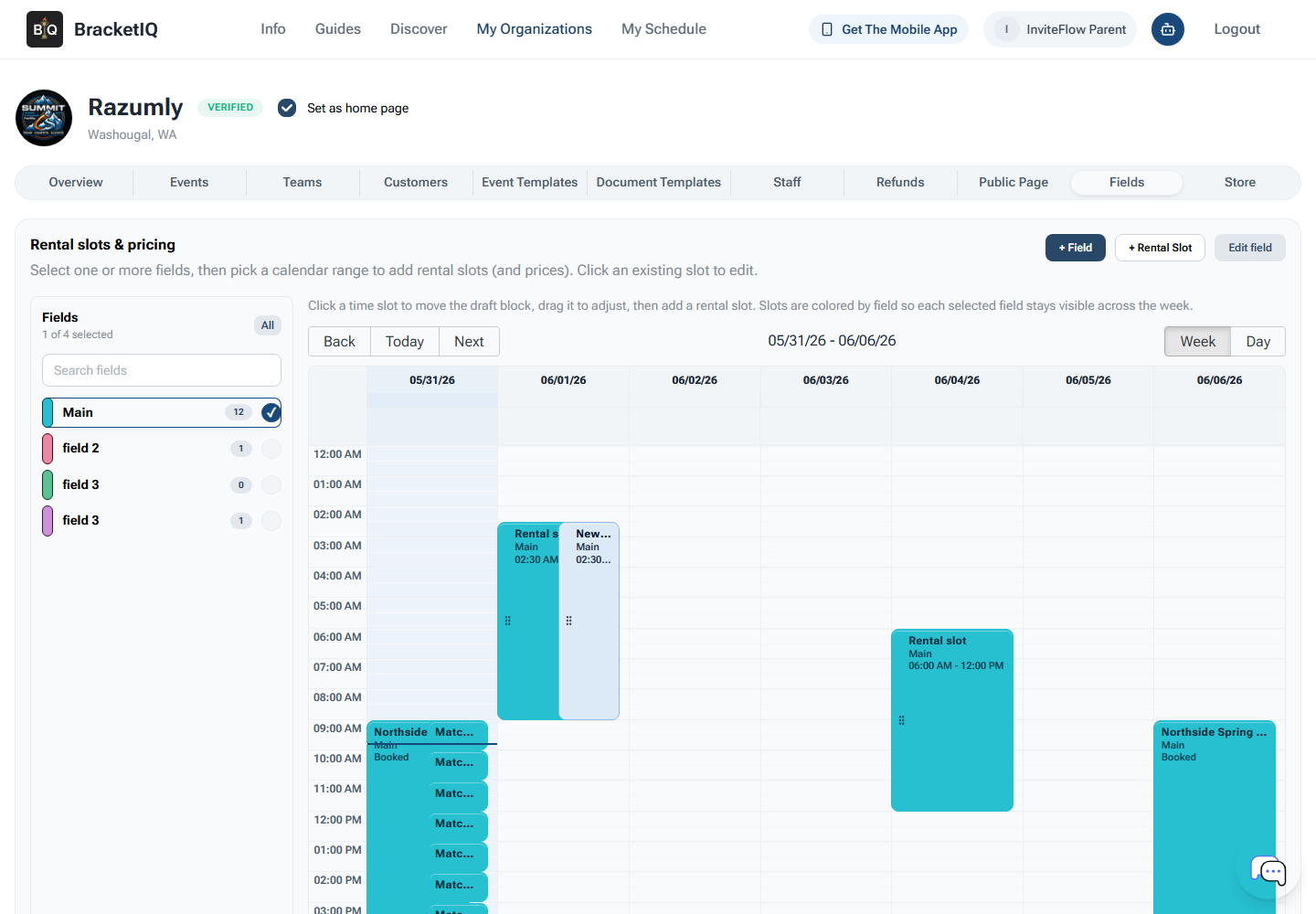
For a multi-sport facility, surface names should make sense to both staff and customers:
- Volleyball Court 1, Court 2, or Beach Court 1.
- Indoor Soccer Field A or Turf Field 1.
- Pickleball Courts 1-4.
- Basketball Court, Half Court, or Training Court.
- Batting cage, rink, room, or outdoor field.
Use field or court setup to reduce scheduling confusion:
- Separate surfaces by sport when they are not interchangeable.
- Keep shared surfaces clear enough for staff to know which sport is using them.
- Review rental availability before publishing booking options.
- Block surfaces for maintenance, leagues, tournaments, clinics, or private rentals.
If a surface can support multiple sports, name it for how staff actually schedule it. A turf field used for indoor soccer and flag football may need a neutral name, while volleyball courts should usually be named by court number.
Keep sport-specific programming visible
Open the Events tab to review leagues, tournaments, pickup sessions, clinics, camps, open play, and special programming across sports.
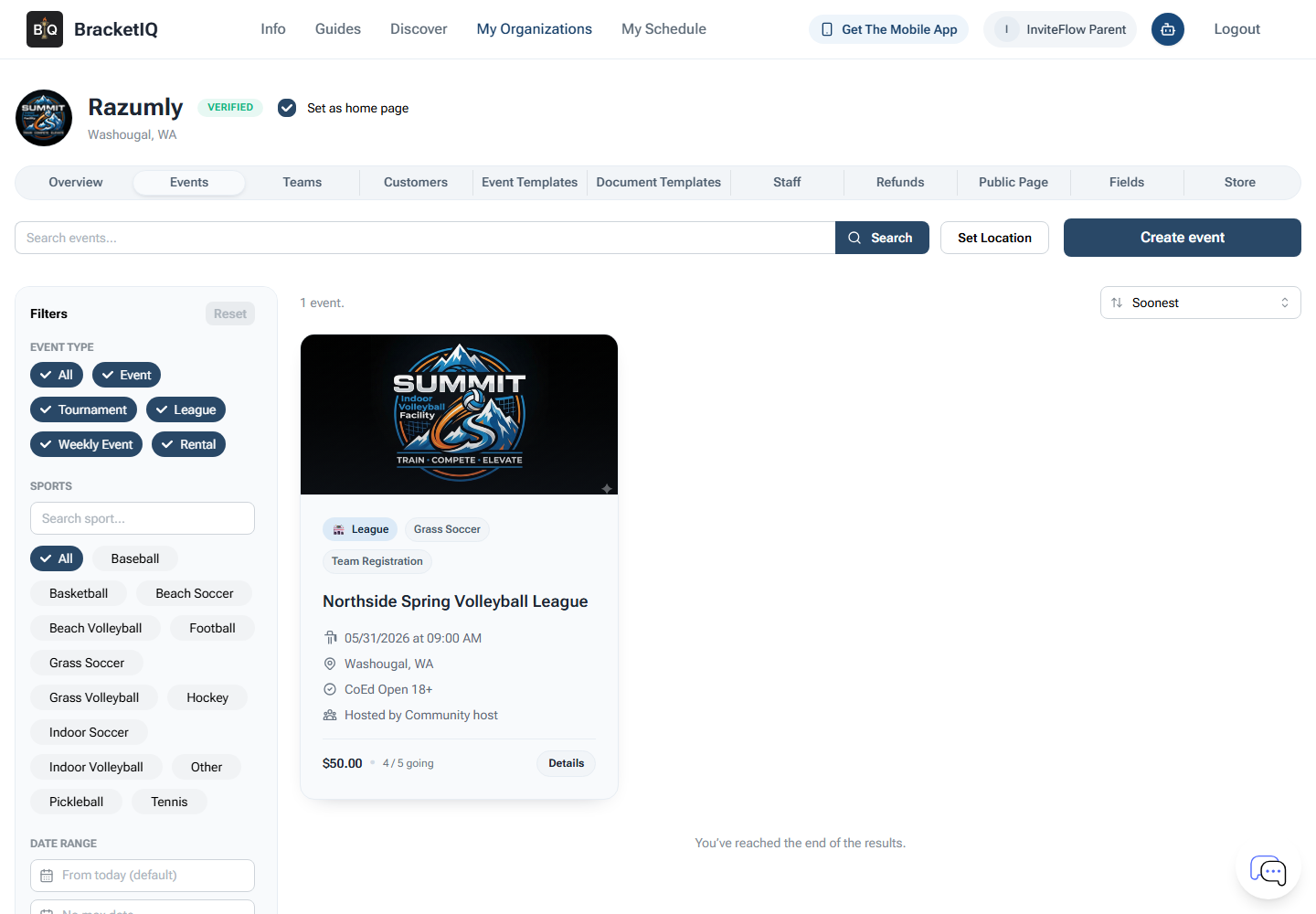
Use the event list to keep programming from blending together:
- Confirm each event has the correct sport.
- Keep draft events separate from published events.
- Review which programs are open for registration.
- Check whether paid events are tied to the facility payment setup.
- Make sure staff can tell which sport needs attention next.
- Retire old events from the active staff workflow.
Use the league and tournament guides for deeper setup: How to Create a League in BracketIQ, How to Create a Tournament in BracketIQ, and How Event Organizers Can Run Leagues and Tournaments in One Place.
Review schedules in Agenda view
When schedules are generated or updated, review them in Agenda view so staff can see the operational sequence across fields or courts.
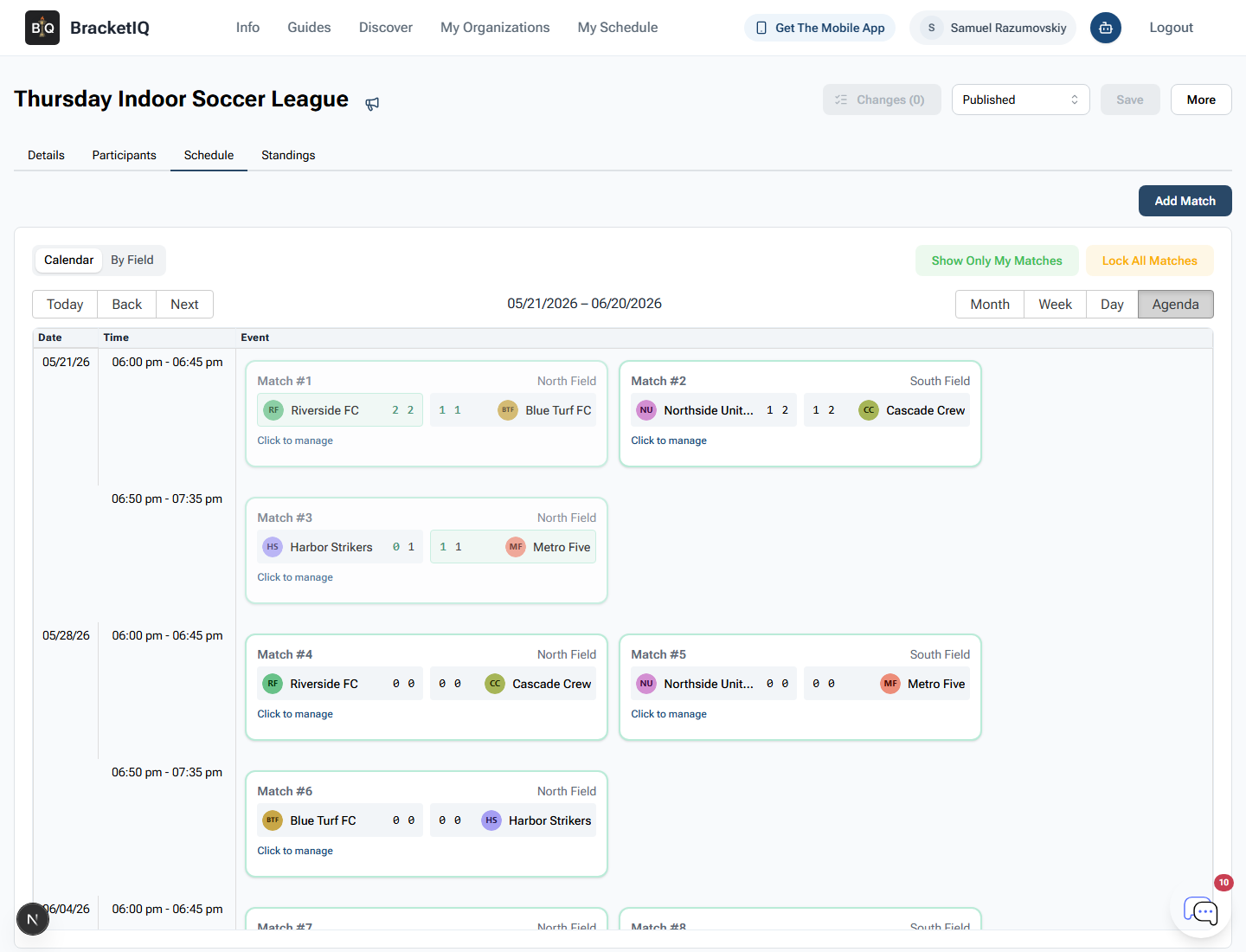
Agenda view is especially useful at a multi-sport venue because it shows:
- Start times.
- Teams or participants.
- Court, field, or surface assignments.
- Match or game order.
- Gaps between bookings or events.
- Potential conflicts before customers arrive.
Use Agenda view by default for static schedule review in guides and public communication because it shows the order, time, teams, and assigned surface in one scannable view.
Use products and passes for facility-wide sales
Open the Store tab when the facility sells passes, memberships, open-play punch cards, training packages, add-ons, or merchandise that may span multiple sports.
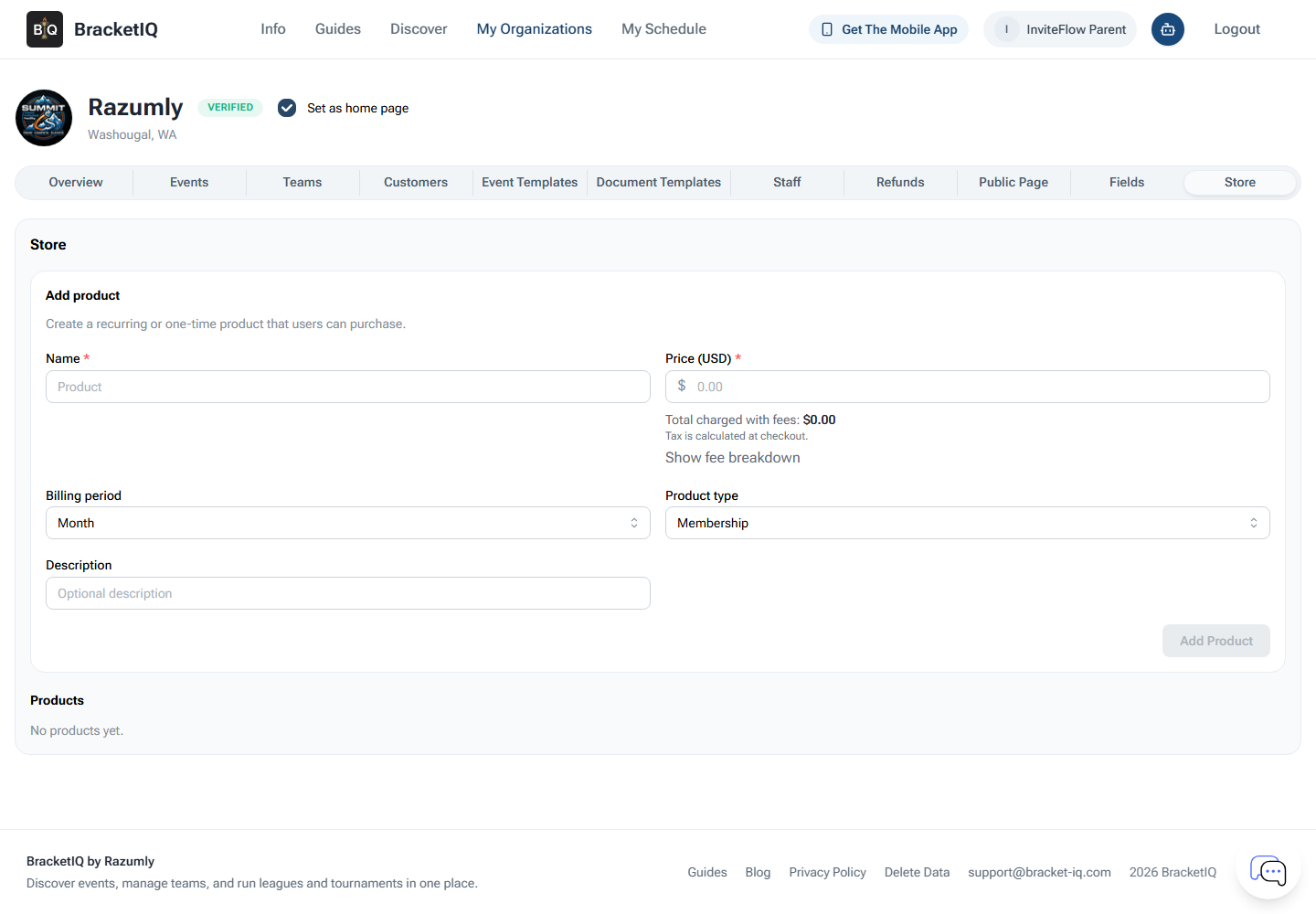
Products are useful when the purchase is not tied to one league or tournament registration:
- Pickleball open-play pass.
- Volleyball clinic package.
- Soccer turf rental add-on.
- Multi-sport membership.
- Training bundle.
- Facility merchandise.
For the broader revenue workflow, use How Sports Facilities Can Manage Rentals, Events, and Payments in One Place.
Publish one public path for the facility
Open the Public Page tab when the facility is ready to promote rentals, events, products, and widgets.
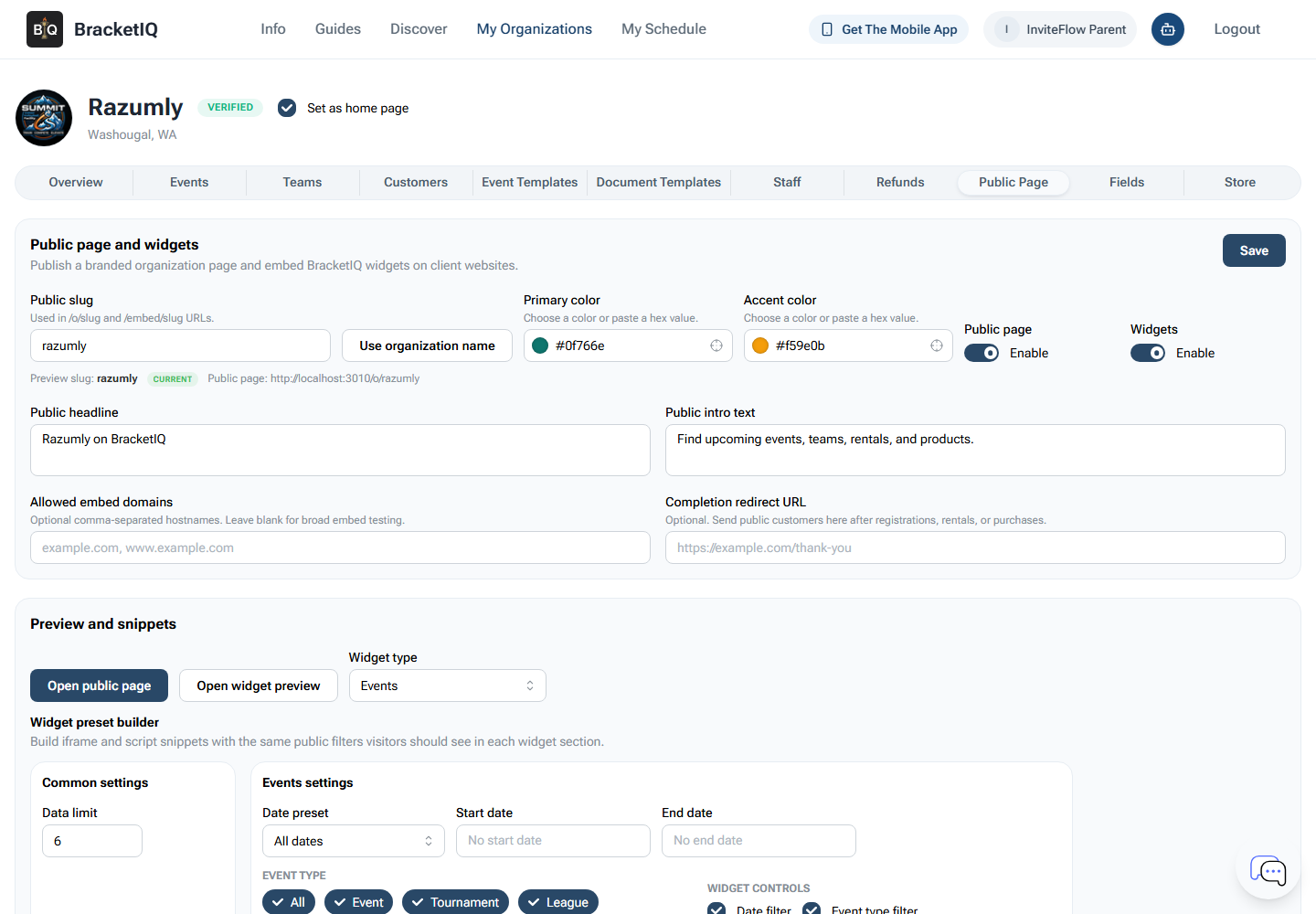
Use the public page and widgets to help customers find the right sport-specific action:
- Register for volleyball, soccer, pickleball, basketball, or other programs.
- Book available courts or fields.
- Buy passes or products.
- Find active leagues and tournaments.
- Use embedded listings on the facility website.
- Access the same workflow from mobile.
For the detailed setup process, use How to Create a Public Page for Your Sports Organization.
Multi-sport facility checklist
Use this checklist when setting up or auditing a multi-sport facility:
- Confirm the organization profile and staff access.
- Name each field, court, or surface clearly.
- Decide which surfaces can support multiple sports and which cannot.
- Review rental availability before publishing bookings.
- Create sport-specific leagues, tournaments, clinics, open play, or pickup events under the facility.
- Review schedules in Agenda view before publishing or sending updates.
- Add products or passes for facility-wide sales.
- Connect payment processing before sharing paid links.
- Publish public pages or widgets so customers can find the right sport-specific path.
- Keep old programs from cluttering the current staff workflow.
Multi-sport facilities are hard to manage when every sport uses a different scheduling, payment, and communication process. BracketIQ keeps the sports distinct while giving the facility one workspace for surfaces, events, rentals, products, payments, public pages, and staff operations.
