
Start from the organizer workspace
Open the BracketIQ organization that represents the event organizer. If the organization is not created yet, start with How to Create and Set Up an Organization in BracketIQ, then return to this workflow.
The organization dashboard is the shared workspace for staff, hosted events, payments, customers, public pages, widgets, fields, teams, and operational follow-up.
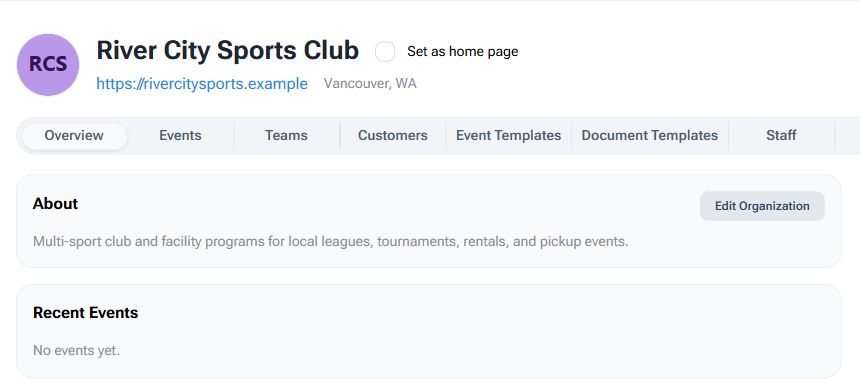
Use the organization as the event organizer home base when:
- Multiple staff members help run events.
- Leagues and tournaments need to be attached to the same brand.
- Registration, payments, schedules, public pages, and customer history should stay connected.
- Participants need one place to find event information.
- You want future events to reuse the same organization setup.
This is the main difference between a one-off personal event and an event organizer workflow. The organization is built to hold repeat operations.
Keep leagues and tournaments under the same organizer
Open the organization's Events tab to review the leagues, tournaments, pickup sessions, clinics, and other programs attached to the organizer.
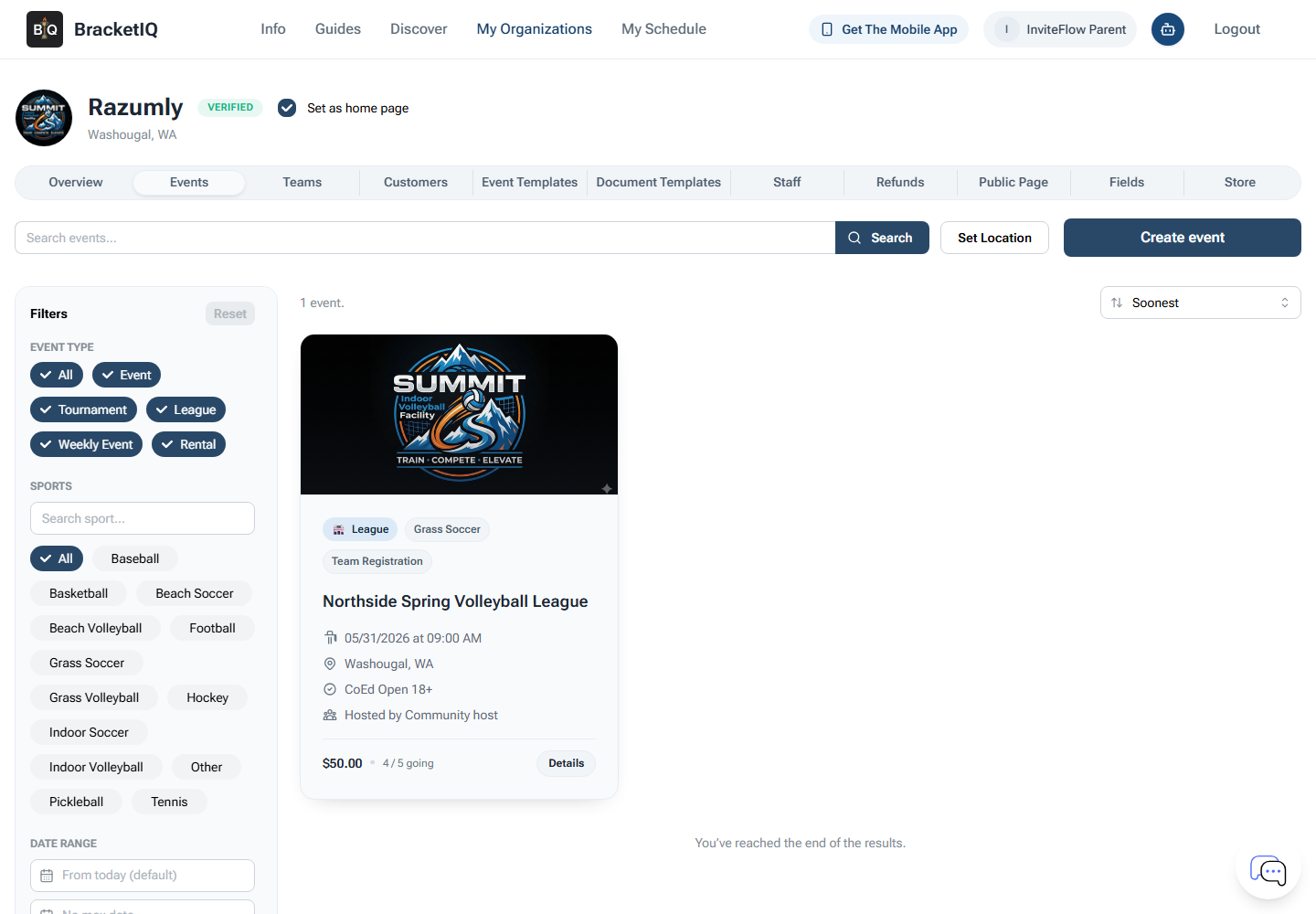
Use this list as the organizer queue:
- Confirm every league and tournament belongs to the right organization.
- Separate drafts from published events.
- Check which events are open for registration.
- Keep older events from distracting staff during the current season.
- Make sure staff know which event needs registration review, scheduling, scoring, or public updates next.
Create the actual league or tournament from the dedicated setup guide. Use How to Create a League in BracketIQ for recurring seasons and How to Create a Tournament in BracketIQ for bracket or pool-play events.
Review registrations before operations depend on them
Open the participant or registration review screen before finalizing schedules, team lists, invoices, or staff assignments.
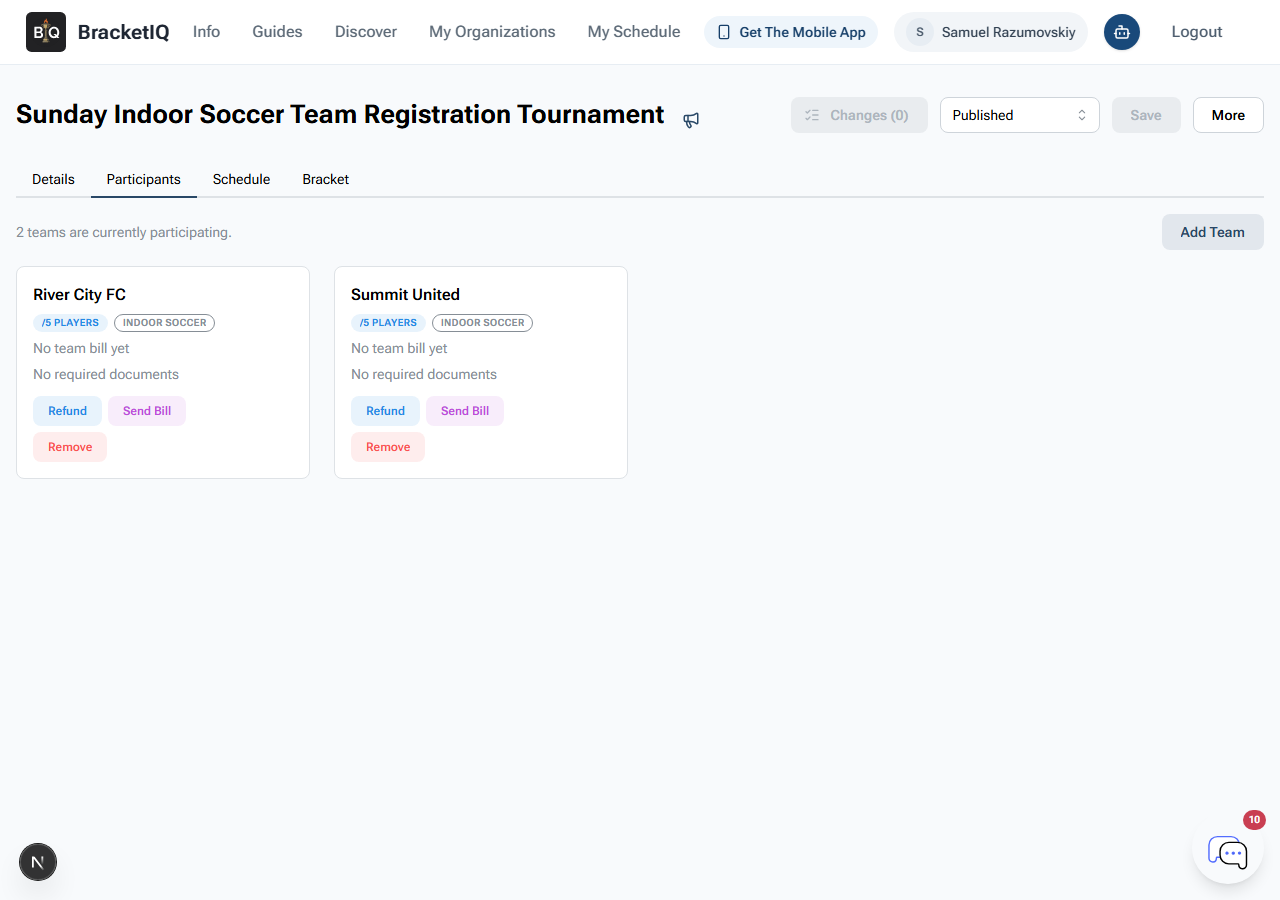
Check for the issues that usually create day-of work:
- Teams registered for the wrong division.
- Captains who created duplicate teams.
- Free agents or individual players who need follow-up.
- Missing payments or billing questions.
- Teams that need roster, waiver, or document follow-up.
- Capacity problems before the schedule is generated.
Team registration is required for leagues and tournaments in BracketIQ. For the shared setup path, use How to Set Up Online Registration for a League or Tournament, then use the event-specific league or tournament registration guide if the workflow needs more detail.
Use Agenda view to coordinate the schedule
Open the event schedule and review it in Agenda view before publishing changes or sending participants to the schedule.
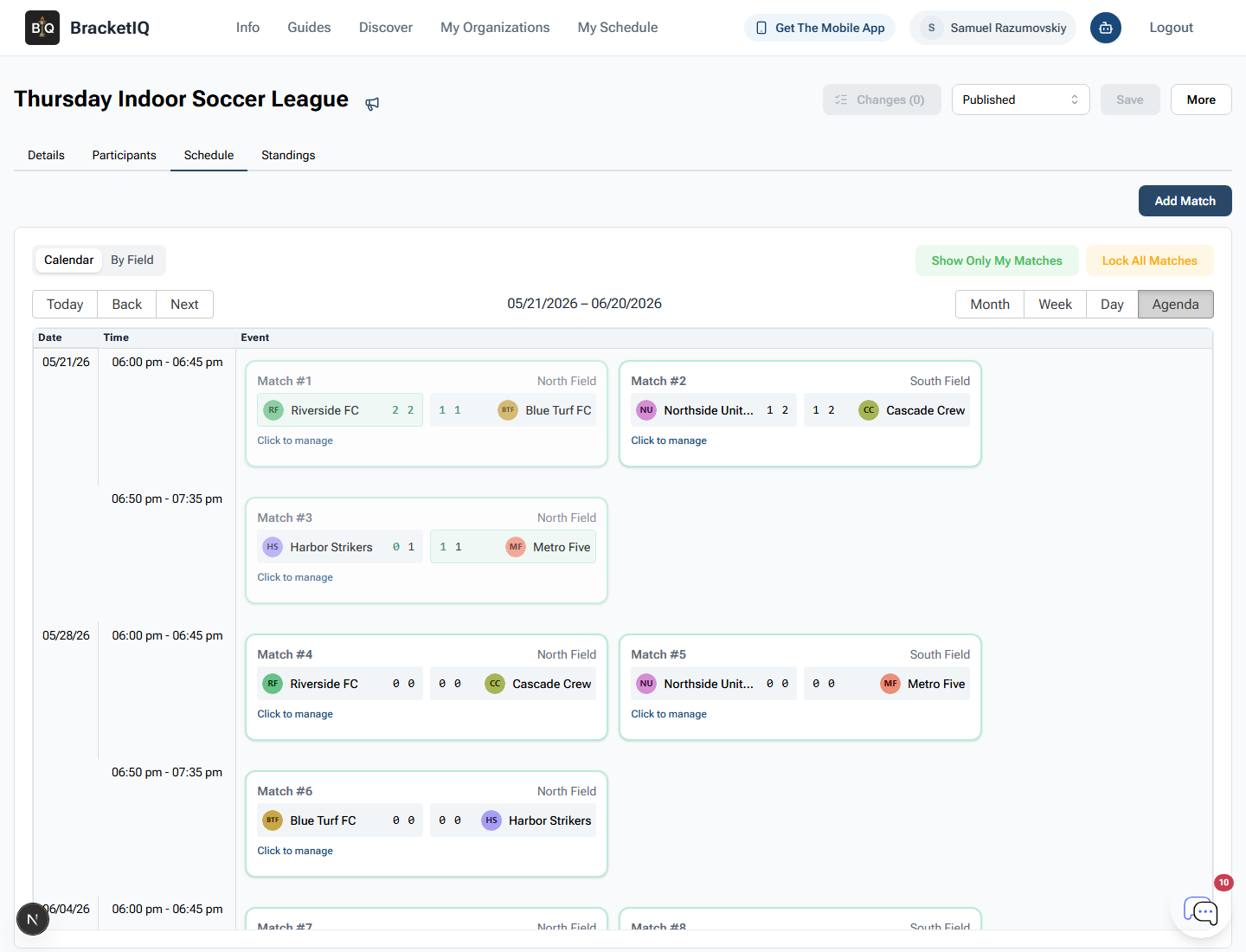
Agenda view is useful for event organizers because it shows the operational sequence:
- Match or game order.
- Start times.
- Teams or participants.
- Court, field, or surface assignments.
- Gaps, conflicts, or reschedule needs.
- What staff should expect next.
For league scheduling, use How to Schedule a Multi-Week Sports League. For tournament pool and advancement workflows, use How to Run a Tournament With Pool Play and How to Manage Tournament Results, Standings, and Advancement.
Confirm payment readiness before charging participants
Open the organization payment area before publishing paid registrations, rentals, products, or event fees.
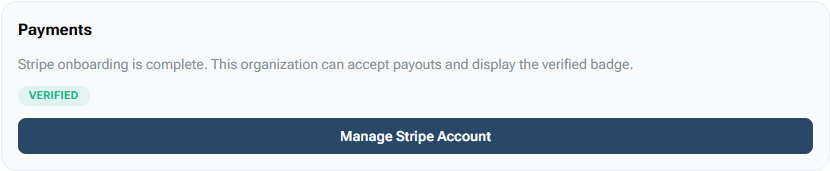
Before sharing paid links, confirm:
- Stripe onboarding is complete.
- The organization payout status is ready.
- Event prices and division prices are correct.
- Refund and billing responsibilities are clear.
- Staff know who can view payments, bills, and refunds.
Use How to Set Up Payment Processing for Your BracketIQ Organization before accepting money through the organization.
Promote the organizer page instead of scattered links
Open the public organization page when the organizer is ready to promote active events.
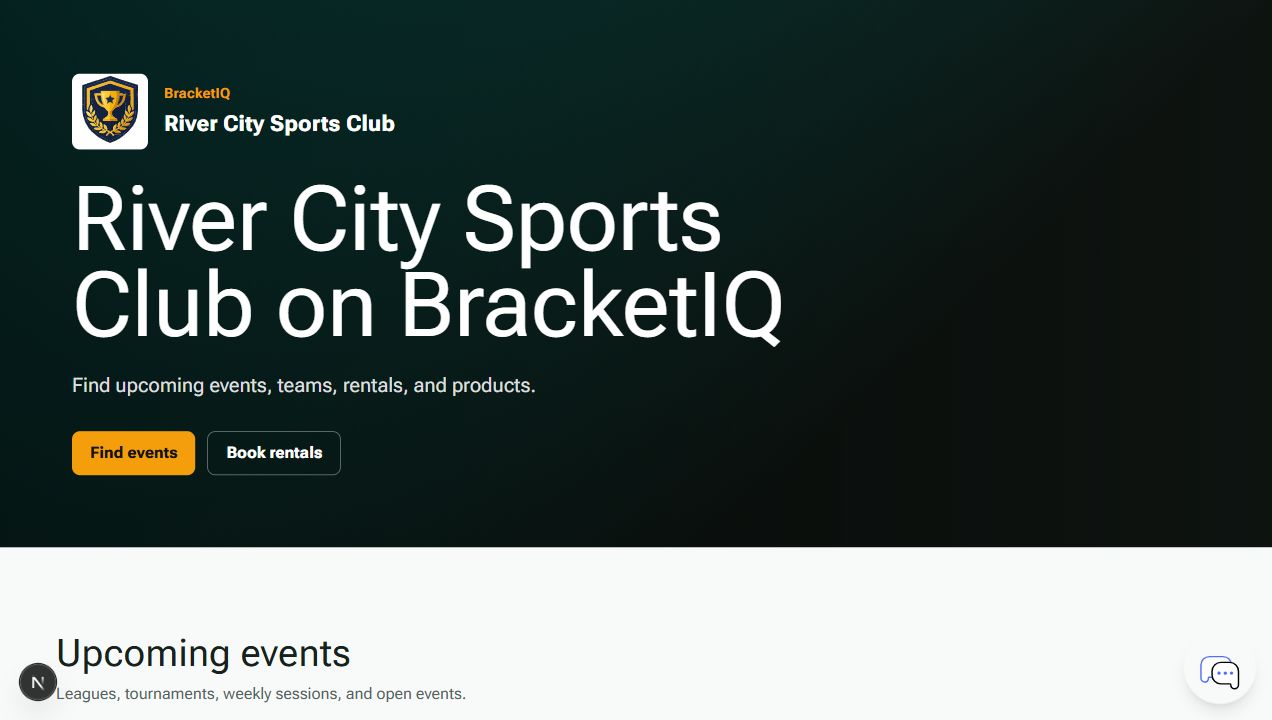
The public page helps participants find the current path without staff sending a different link for every question:
- Active leagues and tournaments.
- Registration links.
- Public event details.
- Organization branding.
- Mobile-friendly access.
- Widget or embed paths for the organizer's existing website.
For full setup, use How to Create a Public Page for Your Sports Organization.
Event organizer checklist
Use this checklist before launching a new season or tournament weekend:
- Confirm the organization profile, public page, and staff access are ready.
- Create the league or tournament under the organization.
- Open registration only after divisions, pricing, and capacity are clear.
- Review registered teams and participants before scheduling.
- Confirm payment processing before sharing paid registration links.
- Review schedules in Agenda view.
- Make sure staff know who handles registration, schedule changes, scoring, payments, and public updates.
- Promote the public organization page or event links.
- Keep old events archived or out of the staff workflow when they are no longer active.
BracketIQ works best for event organizers when the league or tournament is not managed in isolation. The organization workspace keeps registration, scheduling, payments, staff, public pages, and participant updates connected from setup through event day.
