
Start from a tournament that is already published
This guide picks up after the tournament has already been created. If you still need to build the event, start with How to Create a Tournament in BracketIQ. If you are opening team signups before day-of management, use How to Set Up Tournament Registration for Teams and Players, then come back here when the event is published and teams are joining.
The example uses a one-day indoor soccer tournament, but the same management workflow applies to volleyball, outdoor soccer, basketball, pickleball, tennis, hockey, baseball, football, and other recreational sports. If the tournament uses pools before the bracket, use How to Run a Tournament With Pool Play for the pool setup workflow, then use How to Manage Tournament Results, Standings, and Advancement when scores start feeding standings and bracket placements.
Before event day, plan the management checks you need to make:
- Confirm the event is still published.
- Review which teams are registered.
- Check whether any team still needs a bill, document, or roster cleanup.
- Review the schedule by time and field.
- Confirm the bracket is connected correctly.
- Know where scores and match notes will be entered.
- Open the public page and verify what teams can see.
BracketIQ keeps those pieces in the same tournament workspace so you are not switching between spreadsheets, payment notes, group chats, and bracket files.
Open the tournament dashboard
Open the tournament from your BracketIQ account. The organizer view shows the tournament name, published status, save state, and the main workflow tabs: Details, Participants, Schedule, and Bracket.
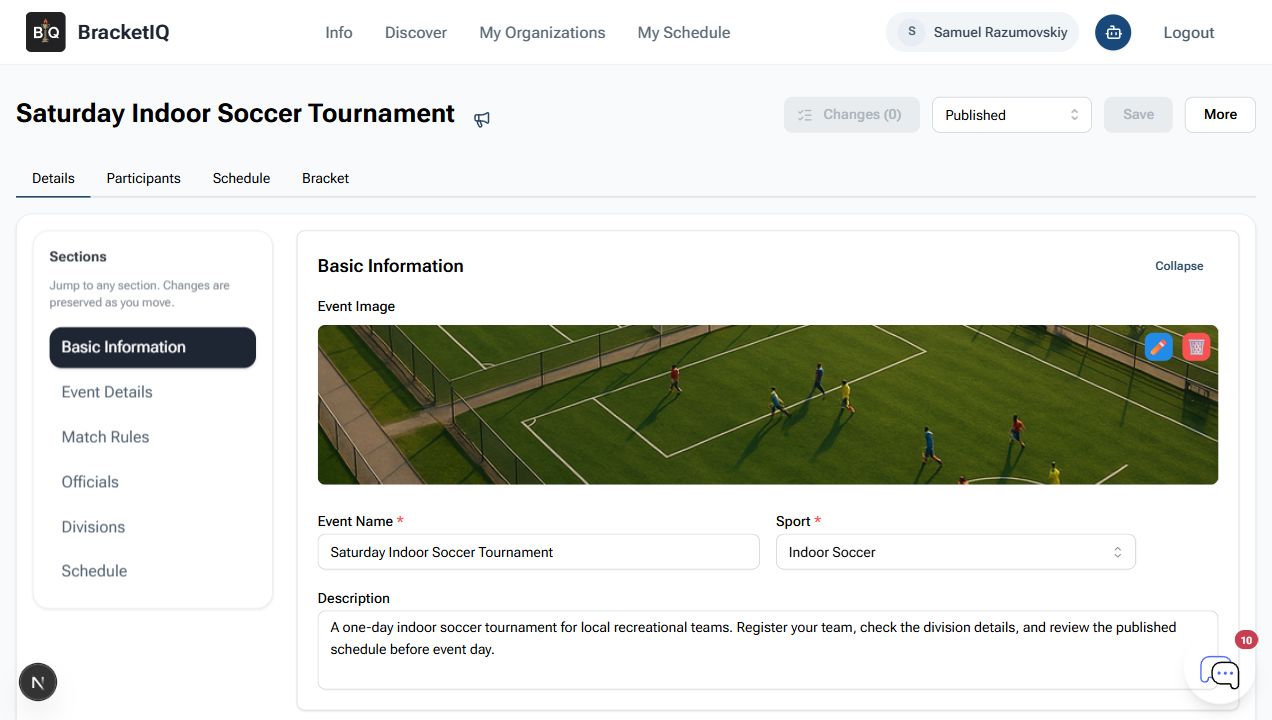
Use this first screen as your control check. Before changing anything, make sure:
- The status is
Published. - The event image, sport, name, and description still match the event you are promoting.
- The Changes button shows
0when you have no unsaved edits. - The Schedule and Bracket tabs are available for the tournament.
If the tournament still says Draft, publish it before sharing the link with teams. If the tournament details are wrong, fix those before you spend time managing registrations or matchups.
Review registered teams
Open Participants to see the teams currently participating. For a team tournament, this is where you review the list of teams, spot registration gaps, and decide whether you need to add or remove a team manually.
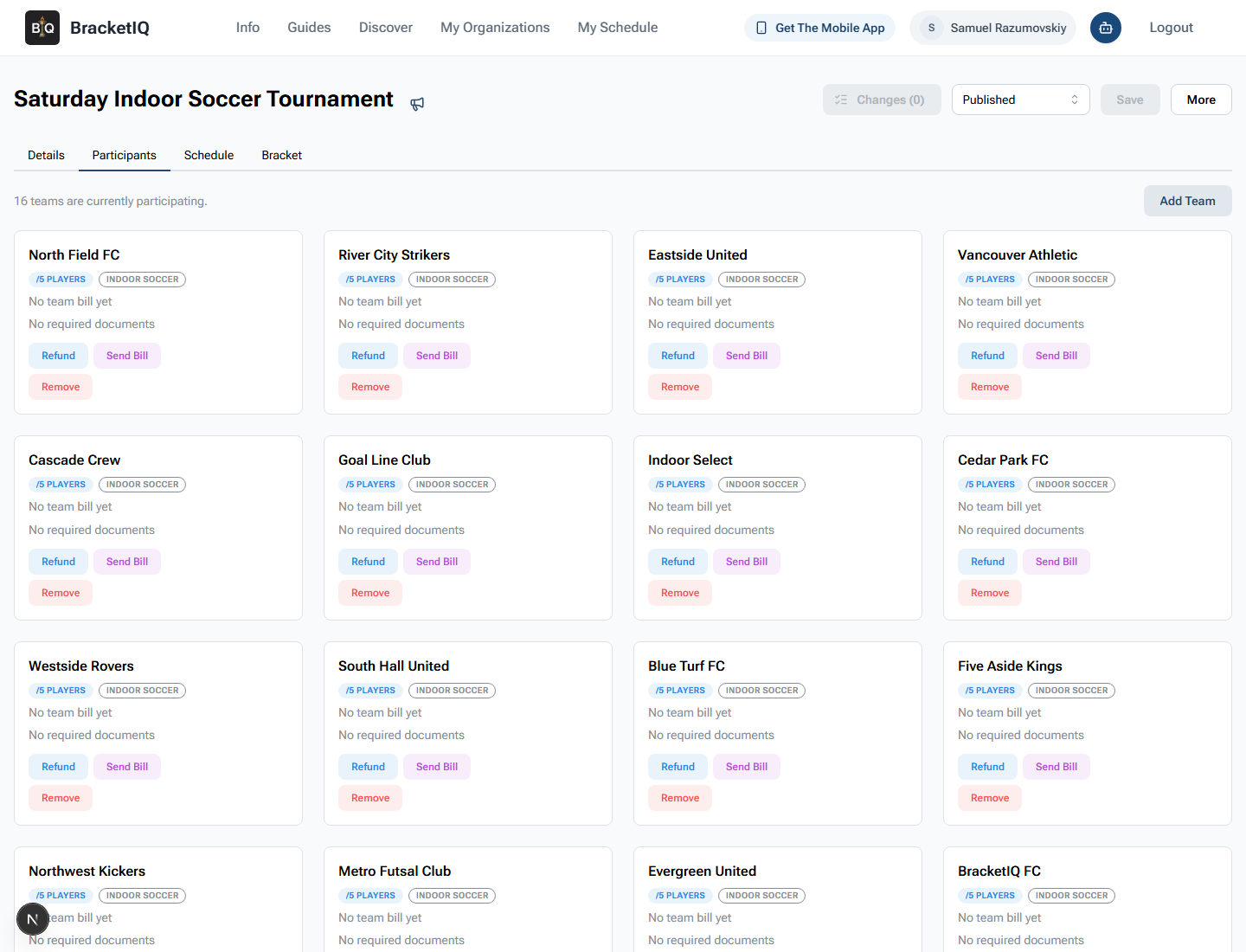
Check the participant list before you finalize the schedule:
- Confirm the number of teams matches the format you planned.
- Look for teams that need a bill, refund, or document follow-up.
- Remove teams only when you are sure they should not remain in the event.
- Use Add Team when a late team needs to be inserted by the organizer.
For a full tournament, the participant count should match the capacity you planned during setup. If you have empty spots, leave the event open, add teams manually, or adjust the format before you lock the schedule.
Check the schedule in Agenda view
Open Schedule after the team list looks right. Switch to Agenda view when you want to inspect the tournament flow by time while still checking fields or courts.
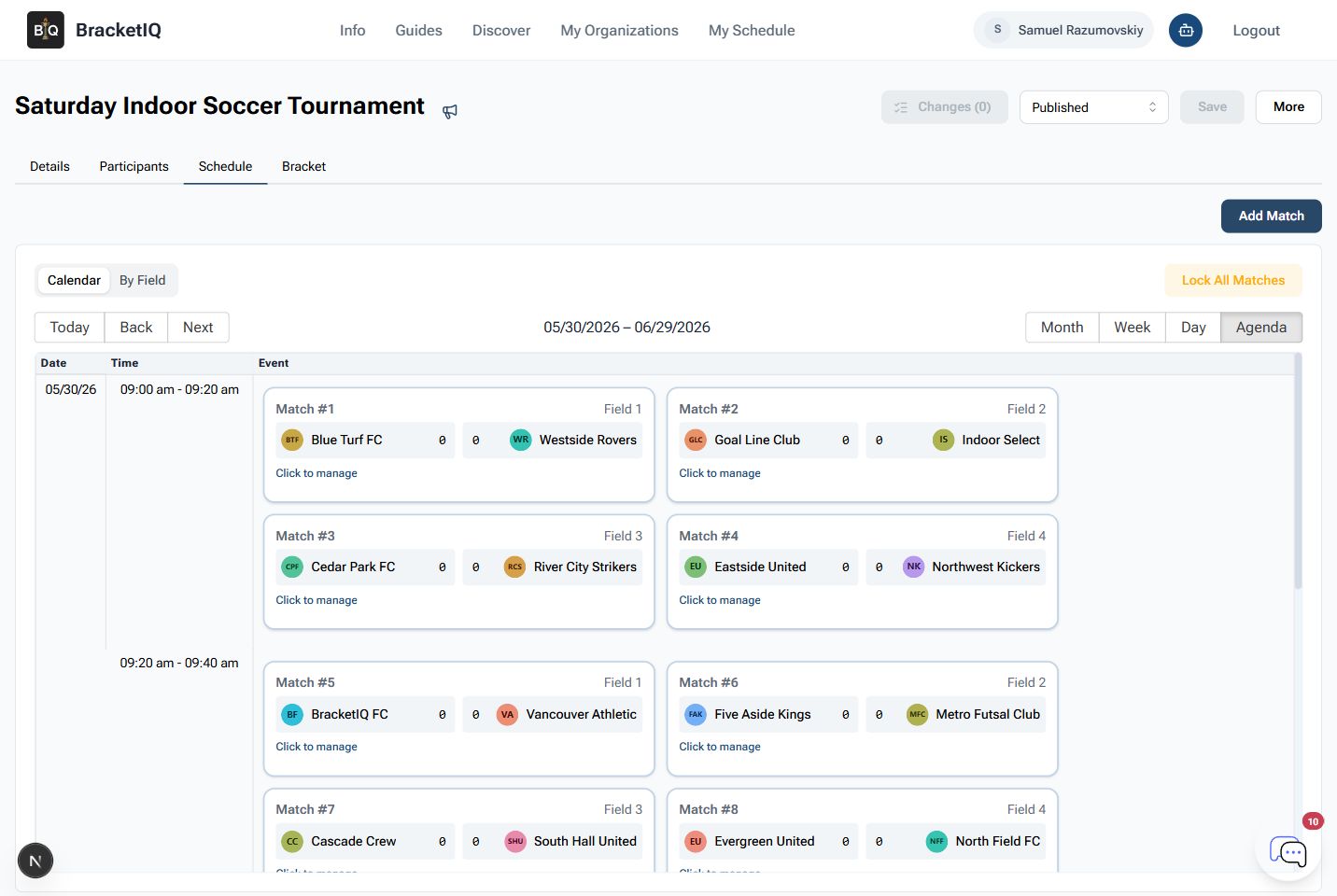
Review the schedule the same way staff will use it on site:
- Confirm the first matches start at the expected time.
- Check that each field or court is being used as planned.
- Look for overlaps that would make a team play in two places at once.
- Leave later-round matches as winner placeholders until results are known.
- Lock matches only when you are ready to prevent automatic rescheduling changes.
For a one-day tournament, the Schedule tab becomes the staff operating board. It should answer where a team goes next without requiring someone to ask the tournament director.
Review the bracket
Open Bracket to see how the tournament advances. In a single-elimination tournament, the first round should feed into later matches, and later matches should show winner placeholders until earlier results are entered.
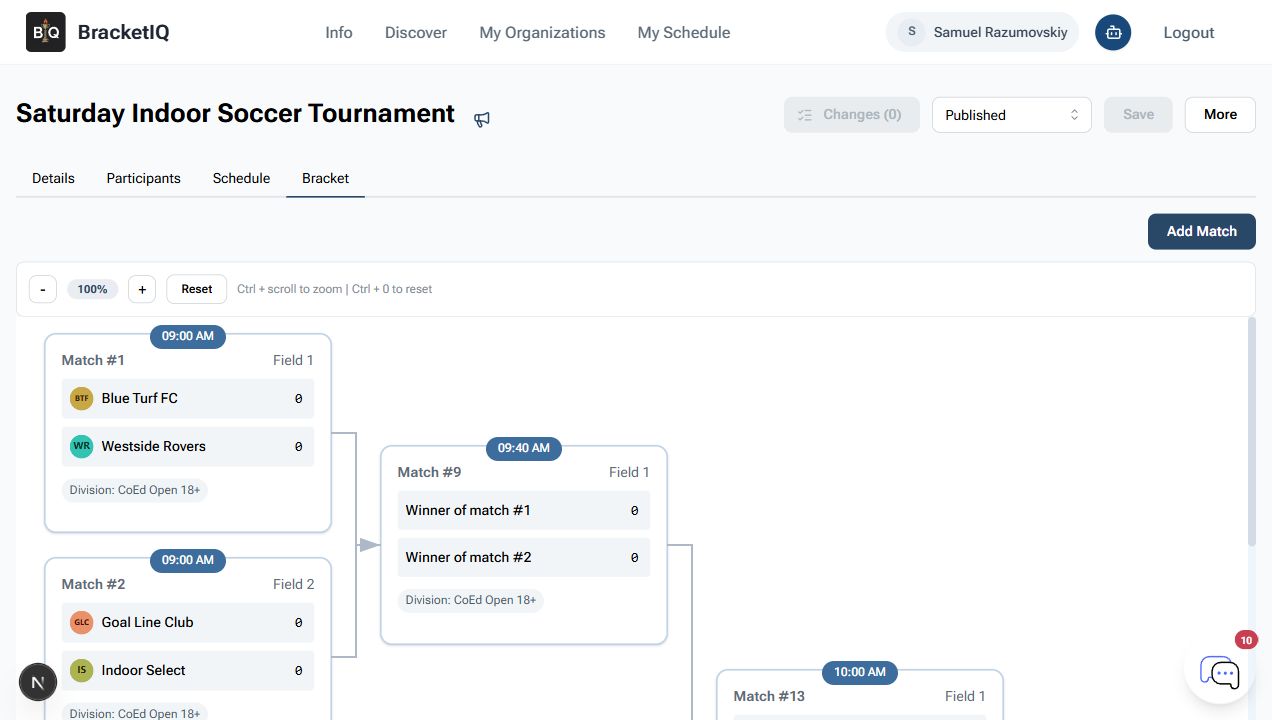
Use the bracket view to check:
- First-round teams are placed in the correct matchups.
- Match times and field labels make sense.
- Winner paths flow into the correct next matches.
- The final match is easy to identify.
- The division label is correct when the event has multiple divisions.
Do this review before teams arrive. Bracket mistakes are easier to fix before scores, staff assignments, and participant expectations depend on them.
Open a match before scores are reported
Click a match from the schedule or bracket to open the match editor. The editor shows match setup, schedule details, bracket links, status, score controls, actual times, officials, and the match log.
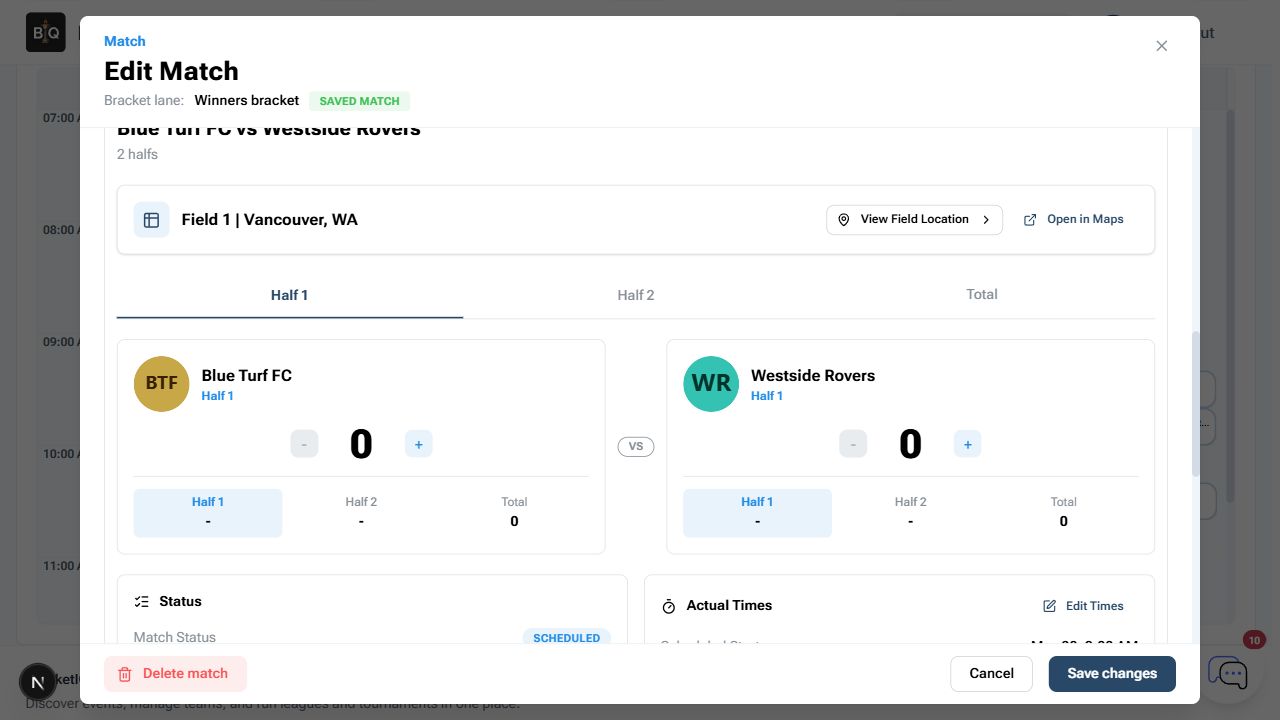
Use this screen during the tournament to:
- Confirm the two teams are correct.
- Check the field and scheduled time.
- Enter score changes with the plus and minus controls.
- Track the current half, set, or segment when the sport uses multiple parts.
- Add match notes when something important happens.
- Save changes after score or status updates.
For sports with officials or scorekeepers, this is the screen staff should understand before the first match starts. If someone will enter scores from a phone, make sure they can find the event and open the right match before the tournament is under pressure.
Verify the public page
After reviewing the organizer tools, open the public event page. This is the version teams use to confirm event details, capacity, divisions, registration options, schedule information, and the tournament status.
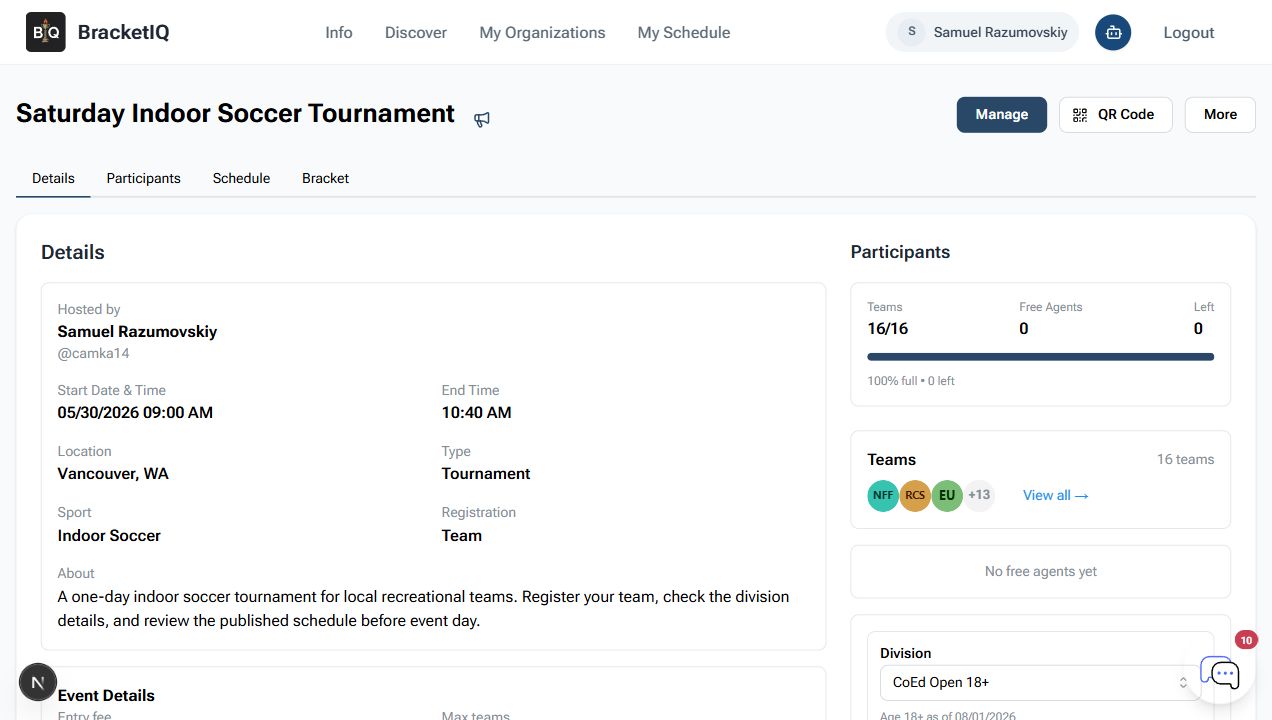
Check the public page for:
- Correct date, time, location, and sport.
- Clear team registration details.
- Accurate participant capacity.
- Visible division information.
- Schedule and bracket tabs that teams can reference.
- A public page that still makes sense after organizer changes.
This final review catches mistakes that are easy to miss from the organizer view. If the public page is confusing, teams will ask the same questions repeatedly on event day.
Tournament management checklist
Use this checklist before and during tournament day:
- Start from a published tournament.
- Review the Details tab for event basics.
- Open Participants and confirm the team list.
- Follow up on bills, refunds, documents, or roster issues.
- Open Schedule and inspect Agenda view by time and field.
- Open Bracket and verify advancement paths.
- Open one match and confirm score entry is easy to find.
- Save changes after edits.
- Recheck the public page after meaningful updates.
- Keep BracketIQ open during the event so staff and teams can rely on the same source of truth.
Tournament management is where BracketIQ replaces the scattered tournament binder. The setup guide gets the event published; this workflow keeps registrations, schedules, brackets, scores, and team-facing information connected once teams are actually playing.
