
Start with the club team list
Open the club organization, then review the Teams tab for long-term club teams and the relevant event Participants tab for teams attached to a league, tournament, tryout, clinic, or camp. If the club organization is not set up yet, start with How to Manage a Sports Club With BracketIQ, then come back to this workflow.
The team list is the club's working roster map. For event-based programs, the participant list shows which teams are registered, the sport, roster expectations, billing state, document status, and organizer actions.
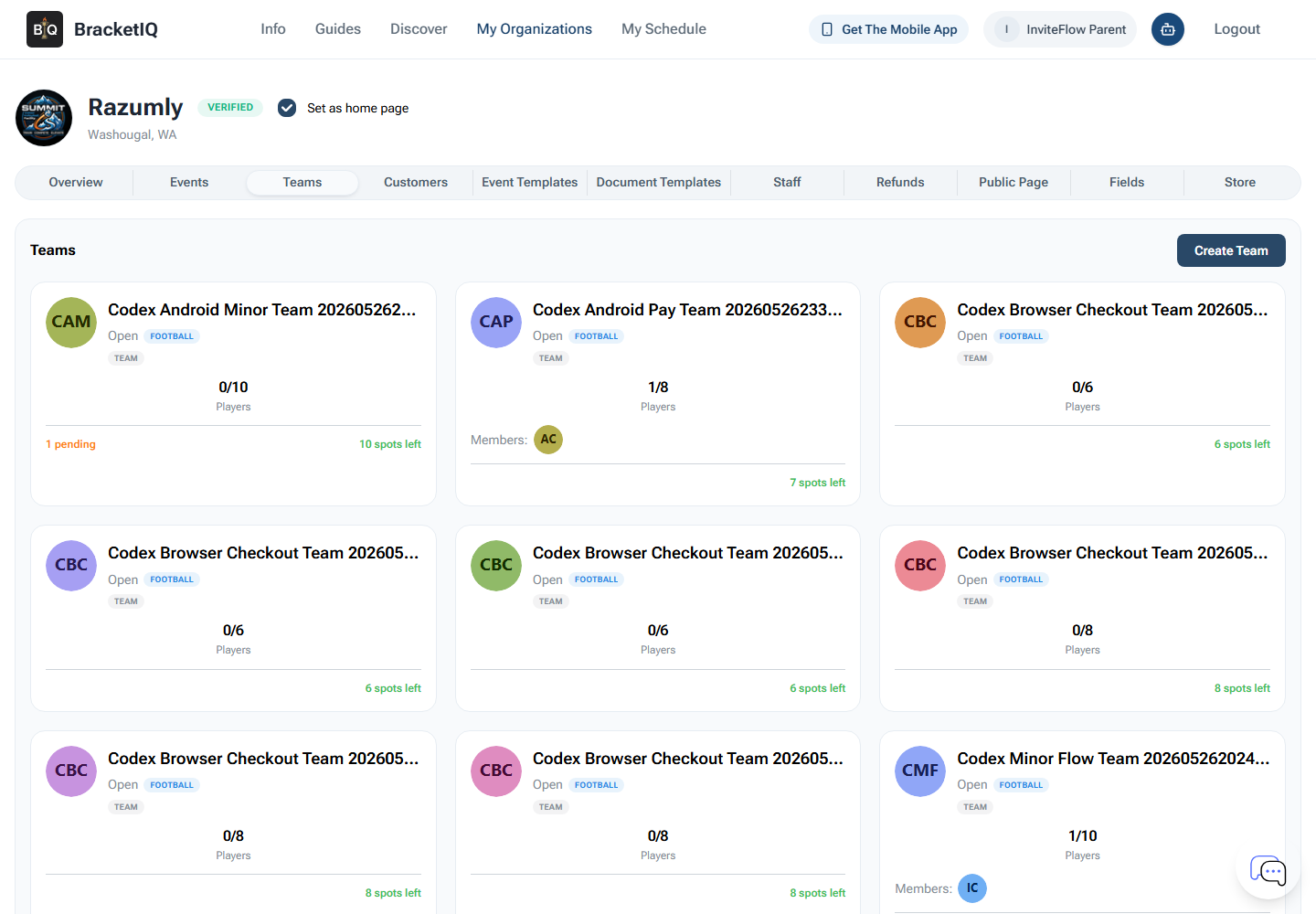
Use this screen before registration deadlines, tryouts, clinics, or a new season:
- Confirm each team name is clear enough for players, parents, and staff.
- Check player counts before you promise more spots.
- Review pending members before publishing rosters or schedules.
- Create missing teams before captains, coaches, or parents need to register.
- Clean up duplicate teams before they appear on public pages or registration flows.
This step is different from creating a league or tournament. The club team list is the long-term organization layer. A club may occasionally use BracketIQ events for tryouts, camps, clinics, evaluations, or internal registration windows, but the club should keep the team source of truth clean first.
Separate roster work from parent and billing context
Open the Customers tab when the club needs relationship history, then use the event participant list when staff need to act on a current team registration, bill, document, or roster issue.
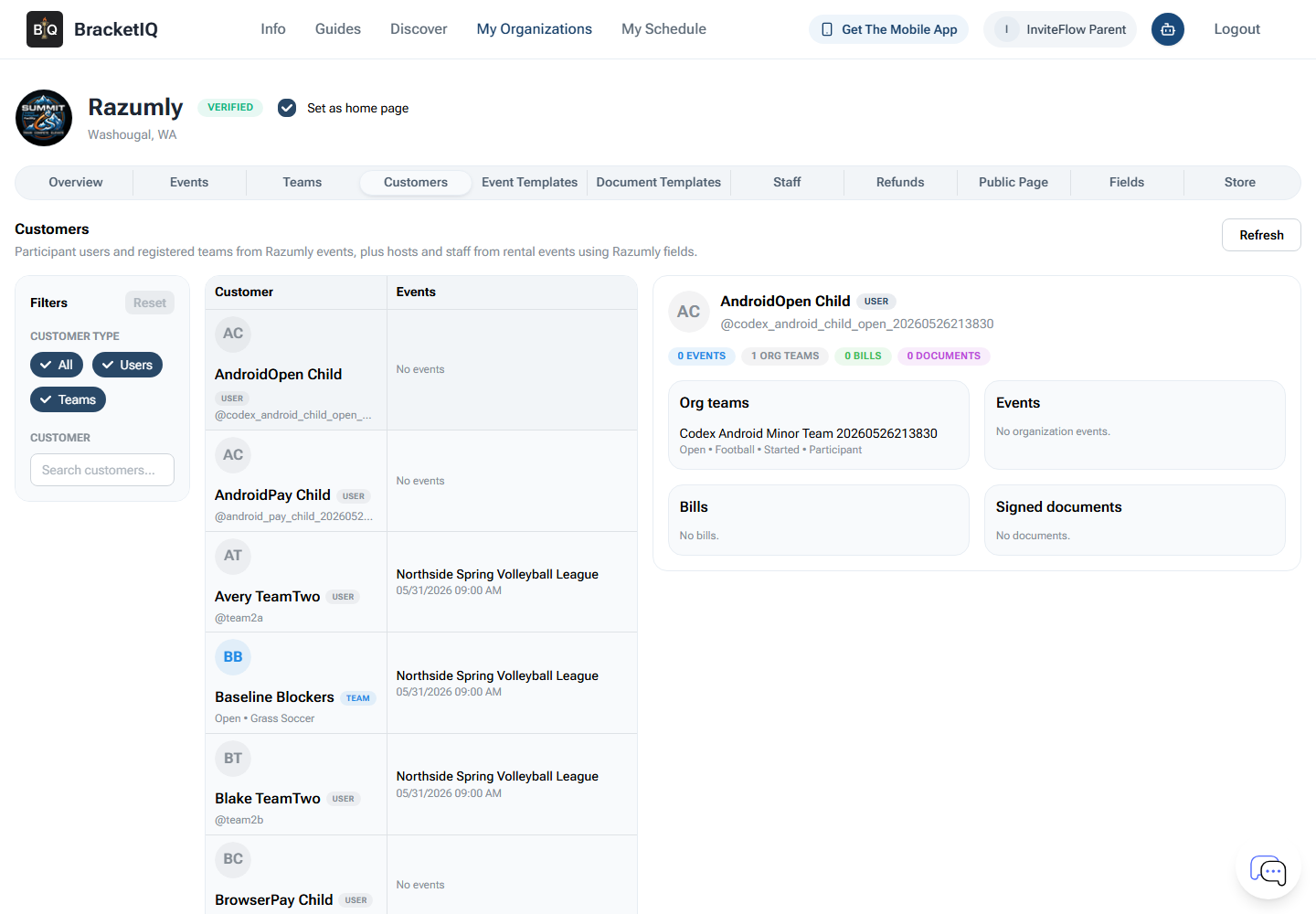
For a club, customers can include athletes, parents, guardians, captains, coaches, team managers, and the person responsible for payment. That is why this view should not be treated as the same thing as a roster.
Use teams for:
- Who plays together.
- Which players are on a roster.
- How many spots remain.
- Which team belongs in a season, training group, tryout group, clinic, or occasional outside league or tournament.
Use customers for:
- Parent or guardian follow-up.
- Payment and billing questions.
- Signed document or waiver context.
- Event participation history.
- Support questions from people who are not the player.
This separation matters most for youth clubs. A player may be on the roster, while a parent handles registration, payment, document signing, and schedule questions.
Use events for tryouts, clinics, and special programs
Open the Events tab when the club is running something that needs registration, payment, a schedule, or a public signup path. For most clubs, that usually means tryouts, clinics, camps, evaluations, open gyms, seasonal registration blocks, or occasional special programs rather than week-to-week club team management.
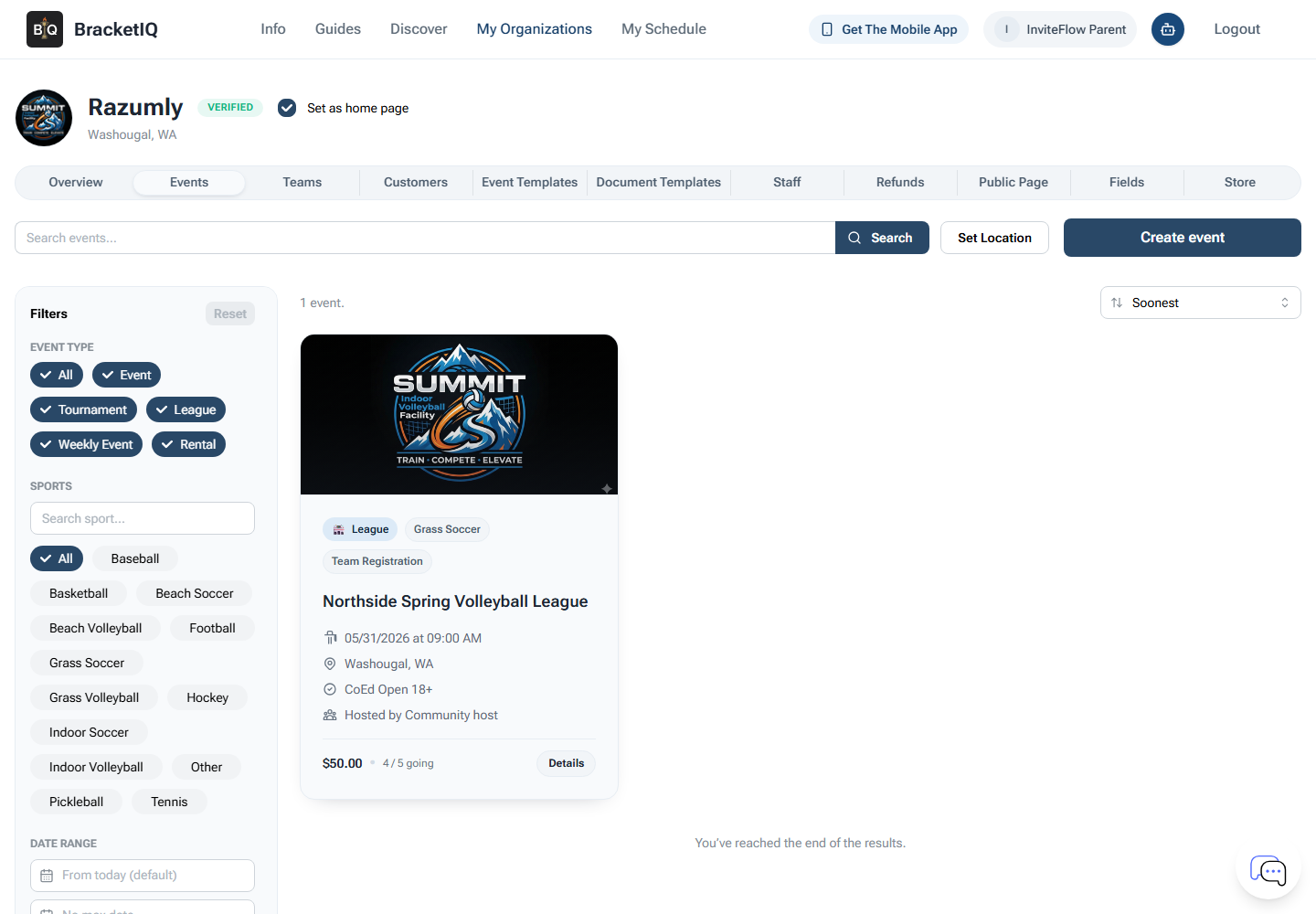
Use the event list as a focused queue for those registration-driven programs:
- Confirm the right tryouts, clinics, camps, or special programs are attached to the club organization.
- Check whether registration is open, closed, or still being prepared.
- Review whether the signup is individual, family-driven, or team-based.
- Confirm paid programs are connected to the organization payment setup.
- Make sure dates, times, and locations are ready before families rely on them.
- Keep old programs from distracting staff during the current season.
If the club also runs a league or tournament, use the dedicated setup guides instead of treating those as normal club roster work: How to Create a League in BracketIQ, How to Create a Tournament in BracketIQ, or How to Set Up Online Registration for a League or Tournament. This guide assumes the club is mainly managing teams, families, and staff, with events used only when a club program needs a signup workflow.
Review program registrations before families rely on them
Open the participant or registration review screen before finalizing tryout groups, clinic rosters, camp lists, invoices, or family communication.
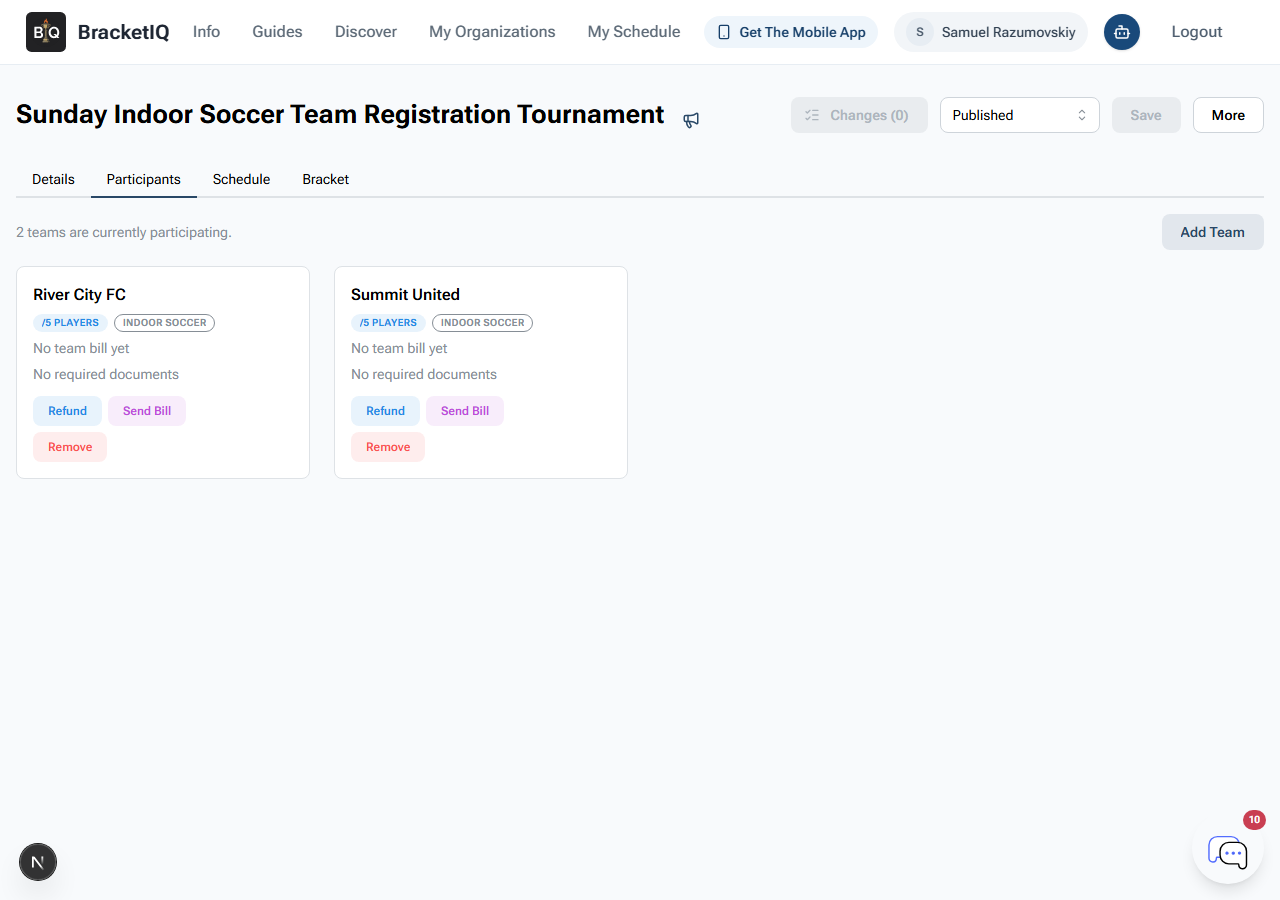
Use this review step to catch operational issues early:
- Players registered for the wrong age group, session, or skill level.
- Parents or guardians who registered the wrong child or need follow-up.
- Players who need a tryout group, training group, or team assignment.
- Missing payments or billing follow-up.
- Parent or guardian questions before the program starts.
- Duplicate or stale team records that should be cleaned up before they affect later club workflows.
Team registration is required for leagues and tournaments in BracketIQ. If a club is also running a team-based league or tournament, keep that workflow separate from ordinary club roster cleanup: first make the club teams understandable, then review the league or tournament registration list, then generate or publish schedules.
Give staff access by responsibility
Open the Staff tab when coaches, directors, coordinators, front desk staff, or finance helpers need to manage part of the club workflow.
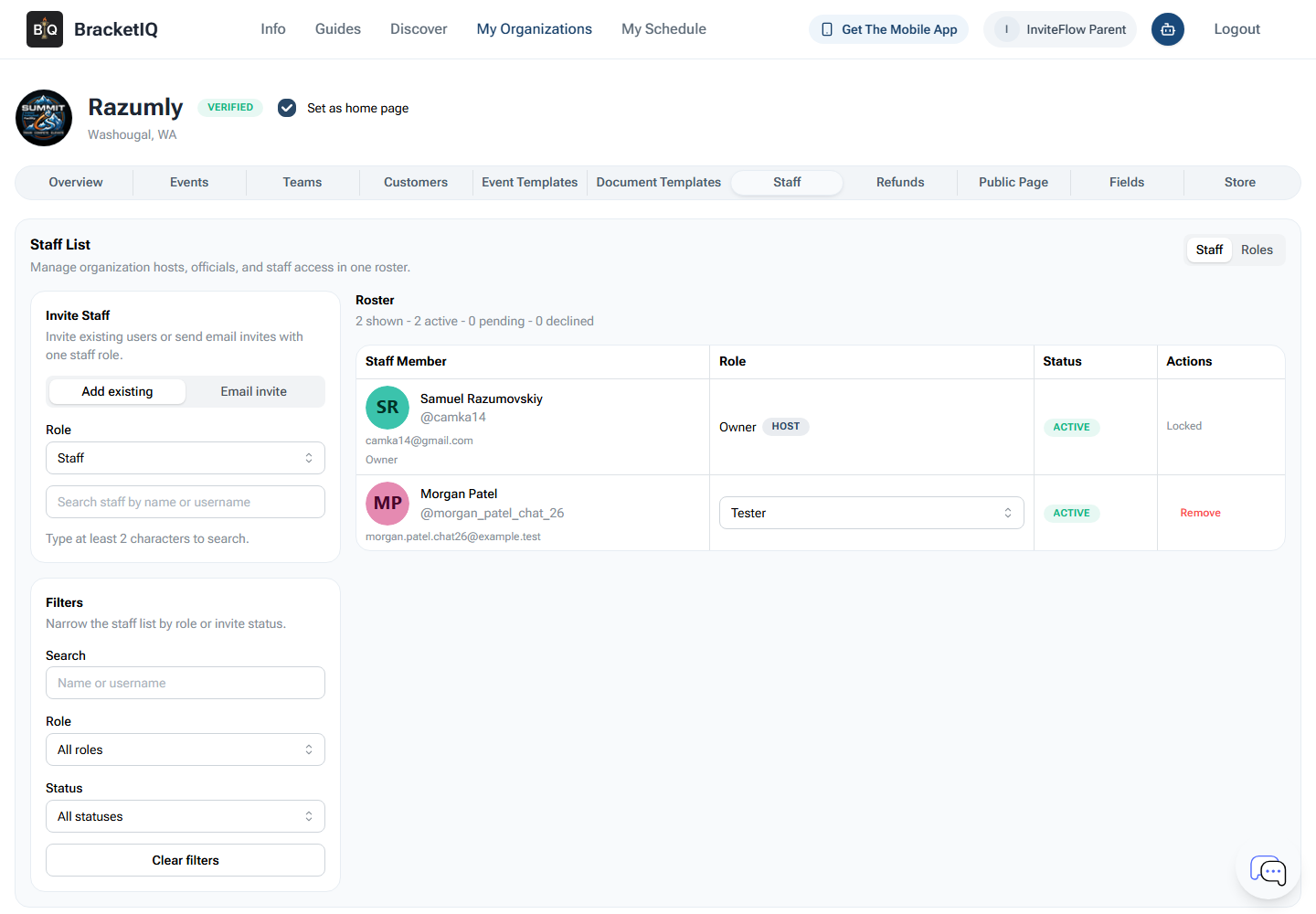
Match staff permissions to real responsibilities:
- Directors may need organization settings, staff, teams, programs, payments, and refunds.
- Coaches may need team and roster access without payment or public-page settings.
- Coordinators may need tryout, clinic, schedule, registration, and participant communication access.
- Finance staff may need payments, products, bills, refunds, and customer records.
- Seasonal helpers may only need the tryout, clinic, camp, or check-in workflow they are supporting.
Review pending and active staff access before each season. Remove stale access when a coach leaves, a contractor finishes, or a volunteer only helped with one short-term program.
Publish the family-facing path
Open the Public Page tab when the club is ready for players, parents, and teams to find the right action without asking staff for a separate link.
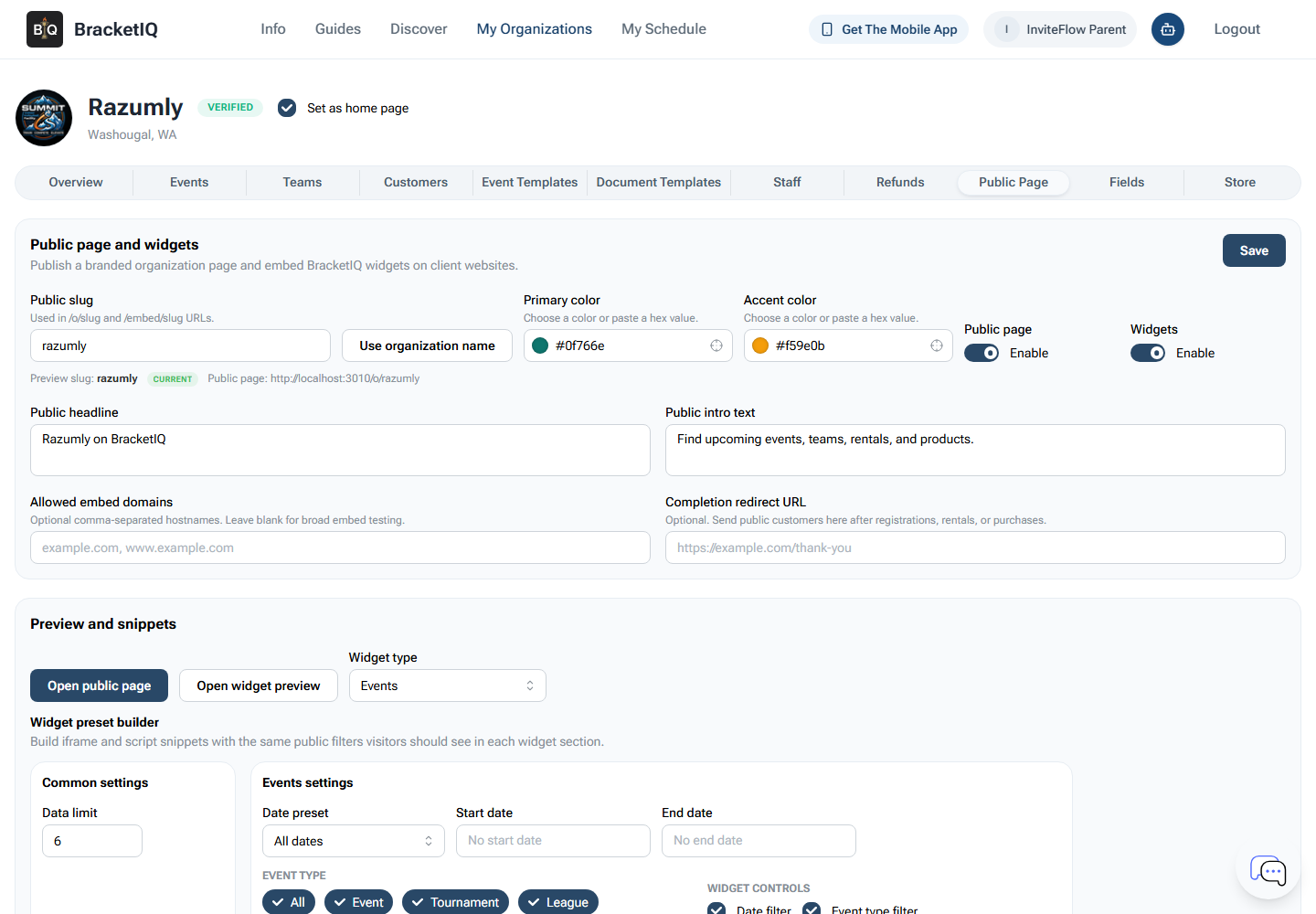
Use the public page and mobile app path to answer the questions families ask most often:
- Where do I register?
- Which team am I on?
- What is the schedule?
- Do I need to pay anything?
- Where do I find updates?
- What should I share with another parent or teammate?
For the detailed public page setup, use How to Create a Public Page for Your Sports Organization. If the club will collect money for registrations, dues, passes, products, or rentals, connect payment processing with How to Set Up Payment Processing for Your BracketIQ Organization before sharing paid links widely.
Club operations checklist
Use this checklist before a new season, tryout window, clinic block, camp, or evaluation program:
- Review the club team list.
- Confirm player counts, pending members, and available spots.
- Check customers for parent, guardian, player, and billing context.
- Create or update the club program only when it needs registration, payment, scheduling, or a public signup path.
- Review registered players, parents, teams, or participants before the program starts.
- Resolve duplicate teams, missing payments, wrong age groups, and wrong sessions early.
- Give staff access based on responsibility.
- Publish the public page or widget path.
- Confirm families can find registration, payment, schedules, teams, and updates on web or mobile.
Clubs get easier to manage when the team list, parent context, occasional program registration, staff permissions, and public access all live in the same BracketIQ organization. The goal is not to turn every club workflow into an event. The goal is to keep the club's season organized and use registration workflows only where they actually help.
