
Start from a league with scores entered
This guide starts after the league has been created, scheduled, and at least some match scores have been entered. If you still need the setup workflow, start with How to Create a League in BracketIQ. If you need the weekly operating workflow first, use How to Manage a League in BracketIQ. If the schedule itself is still being built, use How to Schedule a Multi-Week Sports League.
The example uses an indoor soccer league, but the same standings workflow works for volleyball, outdoor soccer, pickleball, basketball, tennis, hockey, baseball, football, and other recreational sports that rank teams before playoffs.
Before you confirm standings, decide:
- Which matches count toward the final standings.
- Whether forfeits, penalties, or organizer decisions need point adjustments.
- How many teams qualify for playoffs.
- Whether BracketIQ should automatically place qualified teams into playoff matches.
- Who should review the public standings before teams rely on them.
BracketIQ keeps the league schedule, scores, standings, and playoff bracket connected so you do not need to copy teams between a spreadsheet and a separate bracket builder.
Review scored matches in Agenda view
Open the league and go to the Schedule tab. Switch to Agenda view so completed results are listed by date, time, team, score, and field.
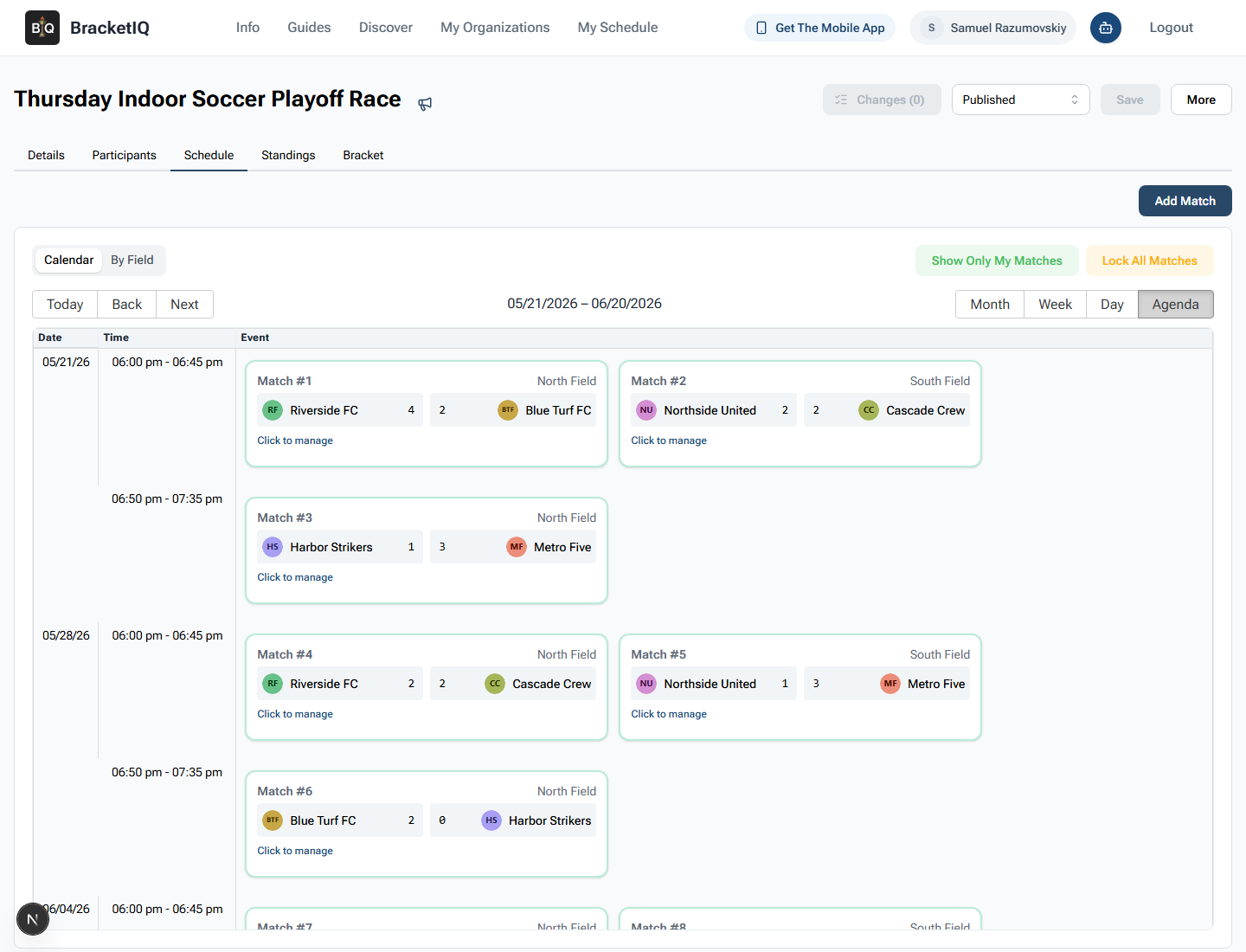
Use Agenda view as the source check before standings review:
- Confirm every completed match has the expected score.
- Check match order by date and time.
- Review field assignments if a result looks tied to the wrong match.
- Look for future playoff matches so you know what the standings will feed.
- Open a match if a score needs to be corrected before standings are confirmed.
Do not start with the standings table if the scores are not trusted yet. Standings are only as useful as the results feeding them.
Review the standings table
Open the Standings tab and select the division you want to review. BracketIQ ranks teams from the recorded league results and shows wins, losses, draws, and final points.
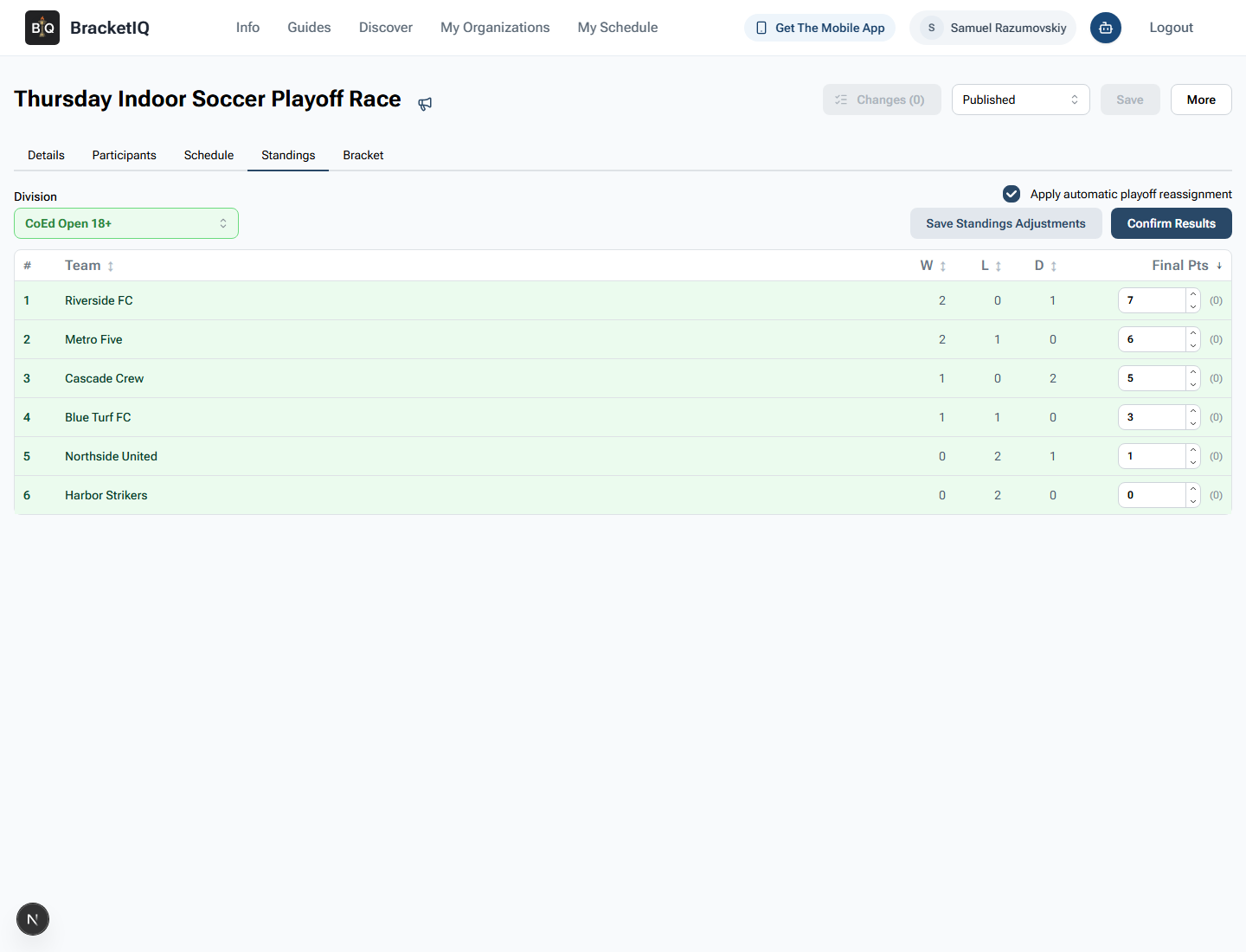
Review the table like a league director:
- Confirm the division selector is on the correct division.
- Compare each team record against the scored matches.
- Check final points against your league scoring rules.
- Keep
Apply automatic playoff reassignmentenabled when BracketIQ should seed playoff matches from these standings. - Do not click
Confirm Resultsuntil the rankings match the league rules.
In the example, Riverside FC leads the league, Metro Five is second, Cascade Crew is third, and Blue Turf FC is in the final playoff spot.
Save standings adjustments when organizer decisions apply
Use Final Pts adjustments only when a league rule or organizer decision changes the standings after scores are entered. Examples include forfeits, eligibility penalties, administrative corrections, or a tiebreak policy that awards an extra point.
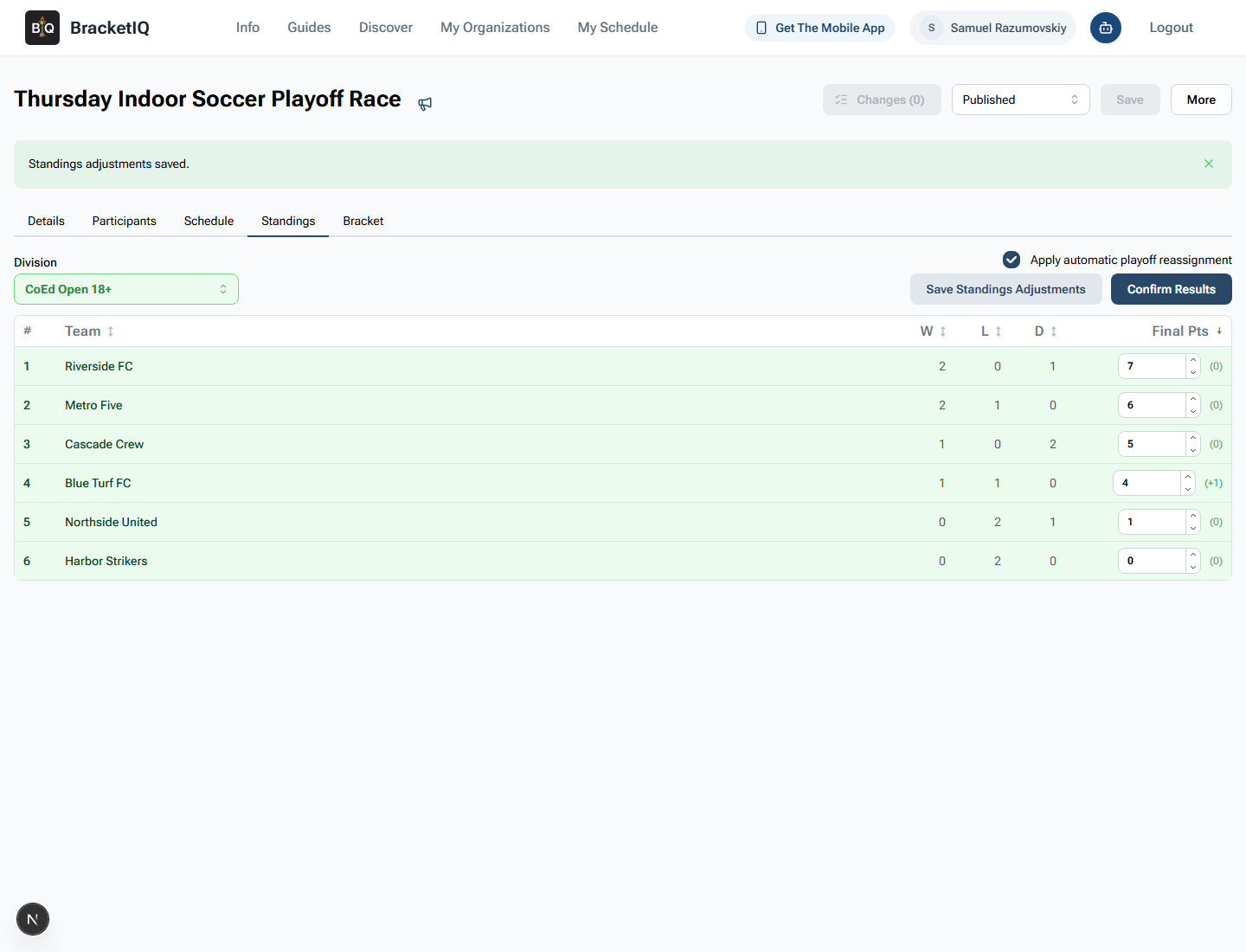
In this example, Blue Turf FC receives one additional final point. After entering the new value:
- Check the green delta beside the points value.
- Click
Save Standings Adjustments. - Wait for the saved message before confirming results.
- Recheck the order of the table after the adjustment is applied.
Standings adjustments should be rare and intentional. If a normal match score is wrong, fix the match score first. Use final point overrides when the standings need to reflect a decision that is not just a score correction.
Confirm the standings
When the standings are correct, leave automatic playoff reassignment on and click Confirm Results. BracketIQ records the confirmation time and marks the standings state that should drive downstream playoff workflows.
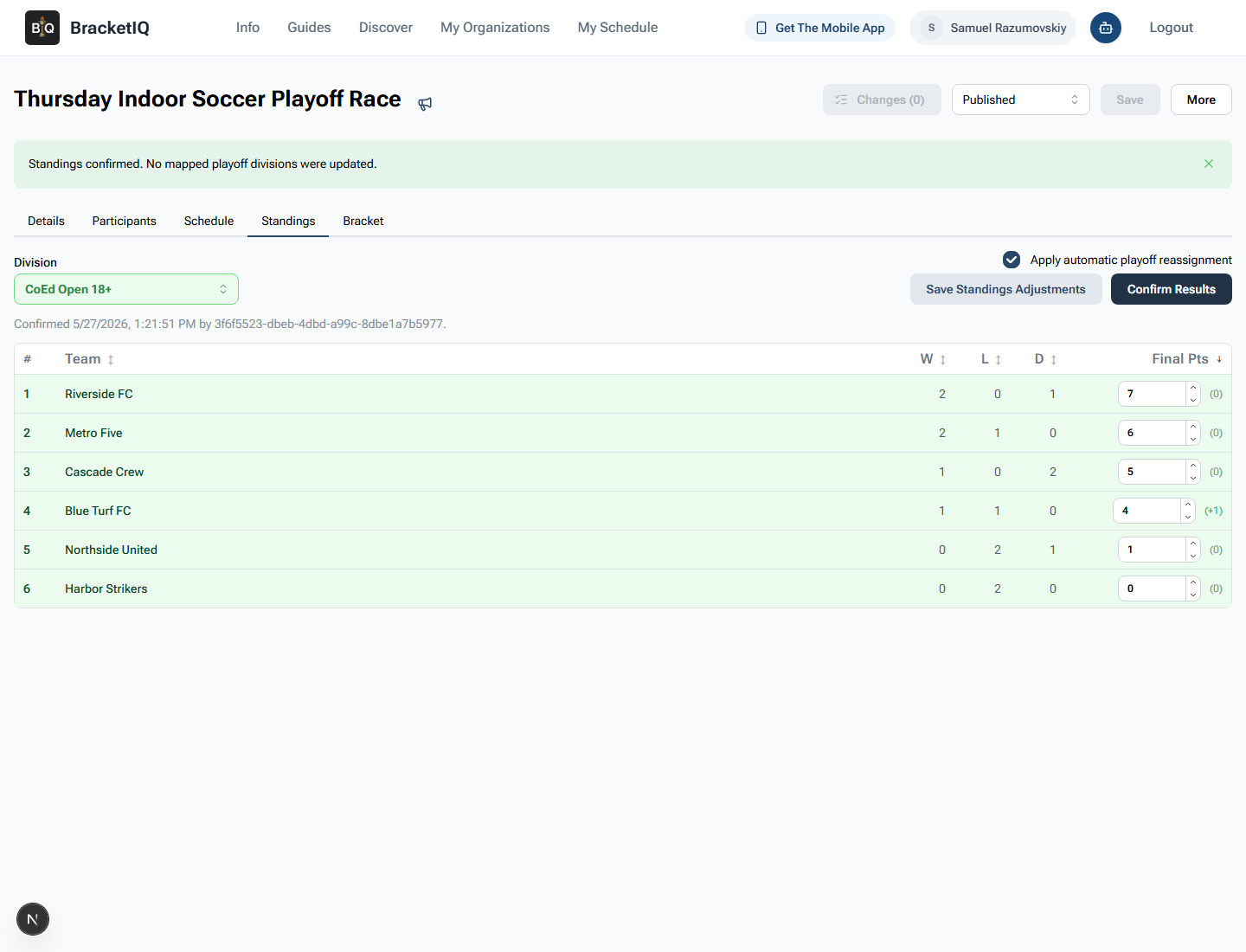
After confirmation, check:
- The confirmed timestamp appears under the division selector.
- The standings still show the expected order.
- Any saved point adjustments remain visible.
- The confirmation message does not hide a problem you still need to resolve.
For a single-division league, BracketIQ may say no mapped playoff divisions were updated because the playoff bracket belongs to the same division rather than a separate mapped playoff division. The important follow-up is the bracket check.
Verify playoff seeding in the bracket
Open the Bracket tab after confirming standings. The top qualified teams should be placed into the playoff match slots according to the league playoff configuration.
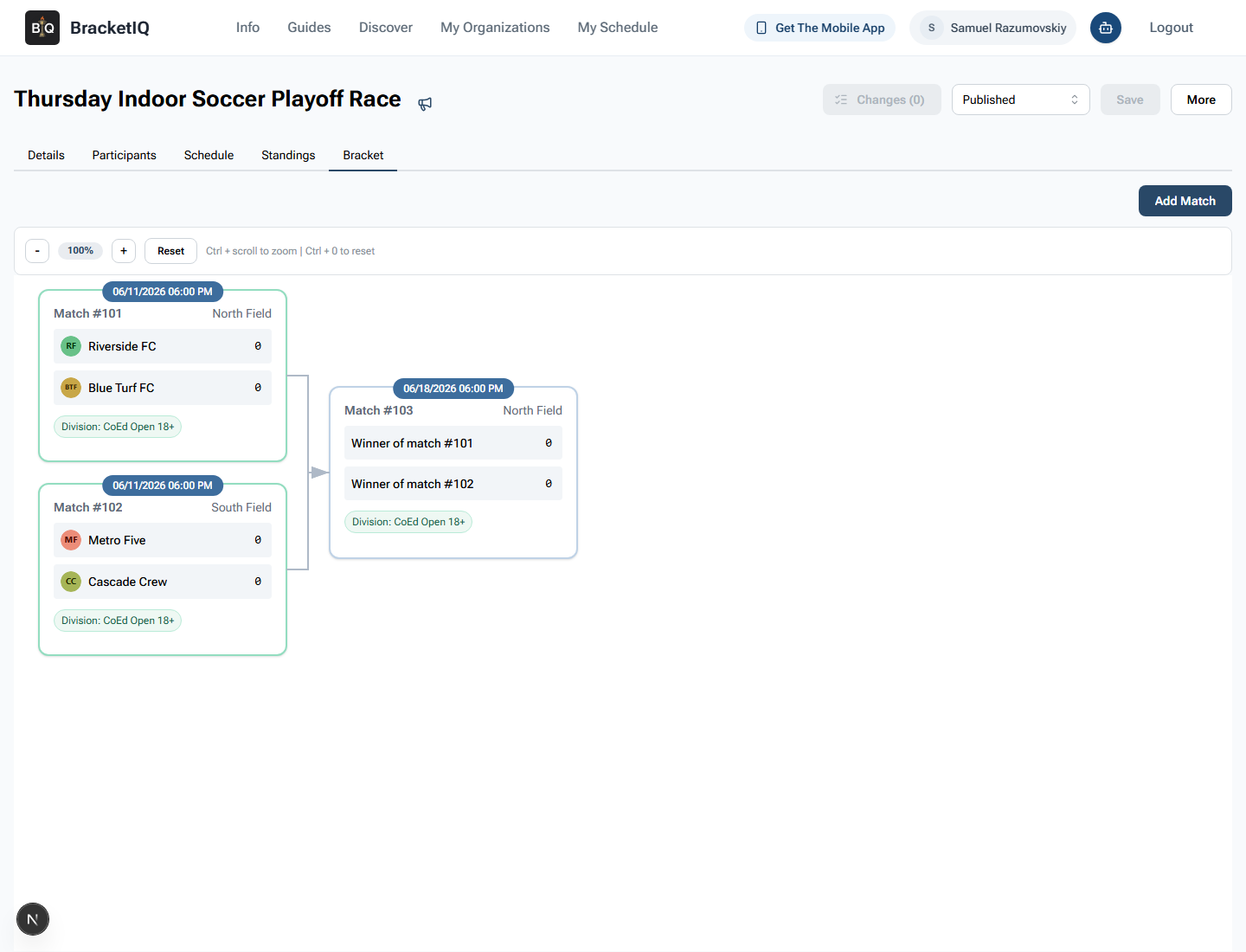
In this example:
- Riverside FC and Blue Turf FC are placed into the first semifinal.
- Metro Five and Cascade Crew are placed into the second semifinal.
- The final still shows winner placeholders until semifinal results are entered.
This is the checkpoint that matters most before playoff matches start. If a team is missing or seeded incorrectly, go back to Standings, fix the scores or adjustments, confirm again, and then recheck the bracket.
Check the participant-facing standings
Use a participant-facing view to confirm that teams can see the same rankings without organizer controls. This is the standings page captains and players will use when they ask who made playoffs.
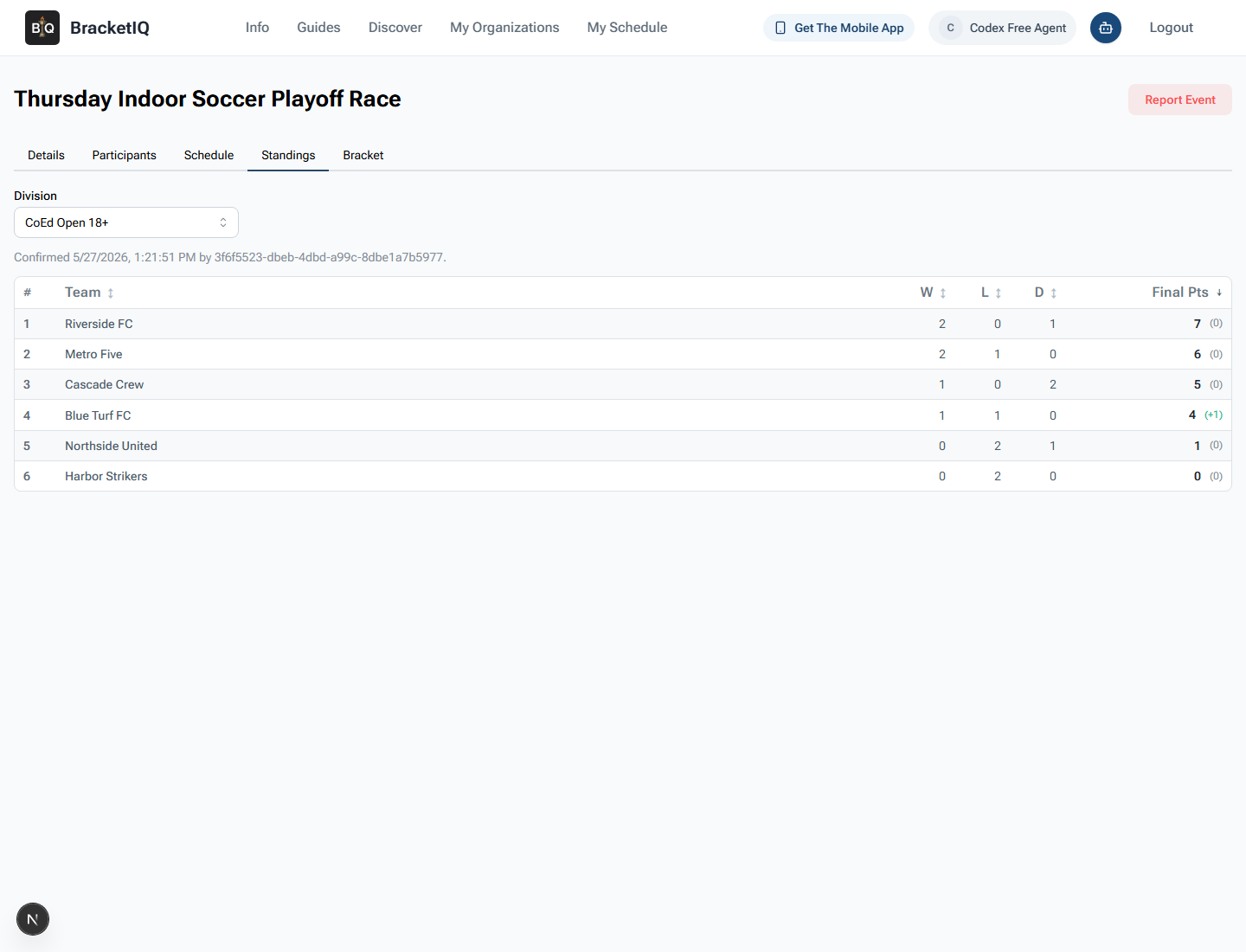
Check that participants can see:
- The correct division.
- The confirmed standings order.
- Wins, losses, draws, and final points.
- Any final point adjustment that affects playoff qualification.
- No organizer-only buttons such as
Save Standings AdjustmentsorConfirm Results.
This public review is where you catch the gap between what the organizer knows and what teams can actually see. If the public page is unclear, teams will ask for the bracket in texts, screenshots, or group chats instead of trusting the league page.
Standings and playoff seeding checklist
Use this checklist before playoff matches begin:
- Review scored matches in Agenda view.
- Fix match scores before using standings adjustments.
- Open Standings for the correct division.
- Confirm wins, losses, draws, and final points.
- Save any intentional final point adjustments.
- Keep automatic playoff reassignment on when BracketIQ should seed the bracket.
- Confirm results only after the standings are final.
- Open the Bracket tab and verify seeded teams.
- Check the participant-facing standings after confirmation.
- Continue playoff score entry from the bracket or schedule.
League standings are where the season turns into playoffs. BracketIQ keeps that handoff inside the same workflow: scores feed standings, standings feed seeding, and teams can check the public page without waiting for a separate bracket update.
