
Start by knowing who needs the update
Open the club organization, then use the Customers tab and the relevant event Participants tab to understand who needs the update. If the club is still getting its teams and parent context organized, start with How Clubs Can Manage Players, Parents, Teams, and Events, then return to this communication workflow.
Customer records help with relationship and billing context. Participant lists help staff see the teams or people attached to a specific league, tournament, tryout, clinic, camp, or schedule update.
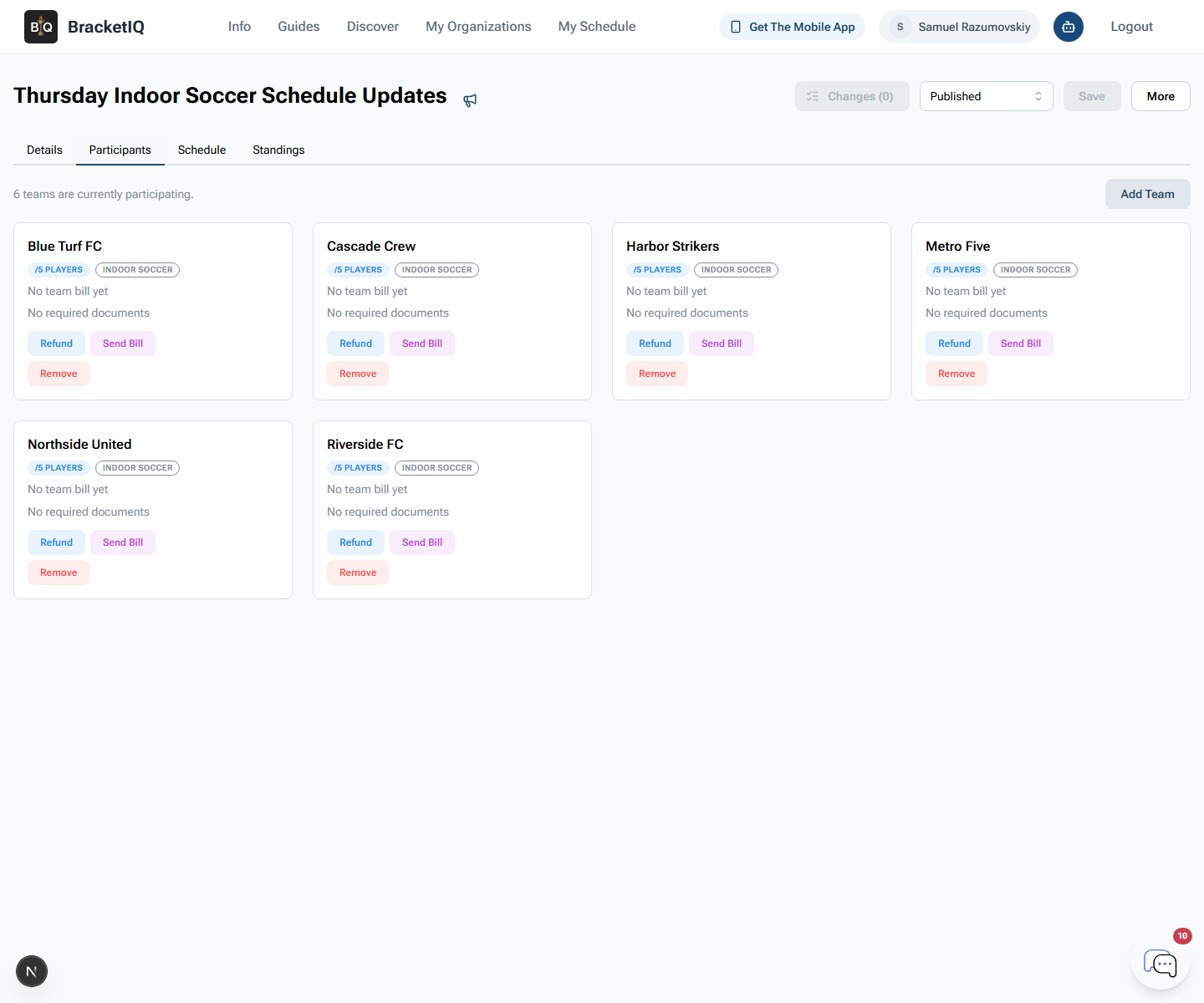
Before sending any club update, confirm the audience:
- Players who need schedule, roster, or arrival details.
- Parents or guardians who handle payment, transportation, forms, and questions.
- Captains, coaches, or team managers who need team-level follow-up.
- Customers with billing, document, or registration history.
- Teams connected to the current season, tryout, clinic, camp, or evaluation.
This prevents the common club problem where the athlete hears one thing, the parent gets a different message, and the coach is left reconciling both.
Decide who is allowed to communicate
Open the Staff tab before letting coaches, directors, coordinators, or front desk staff send updates.
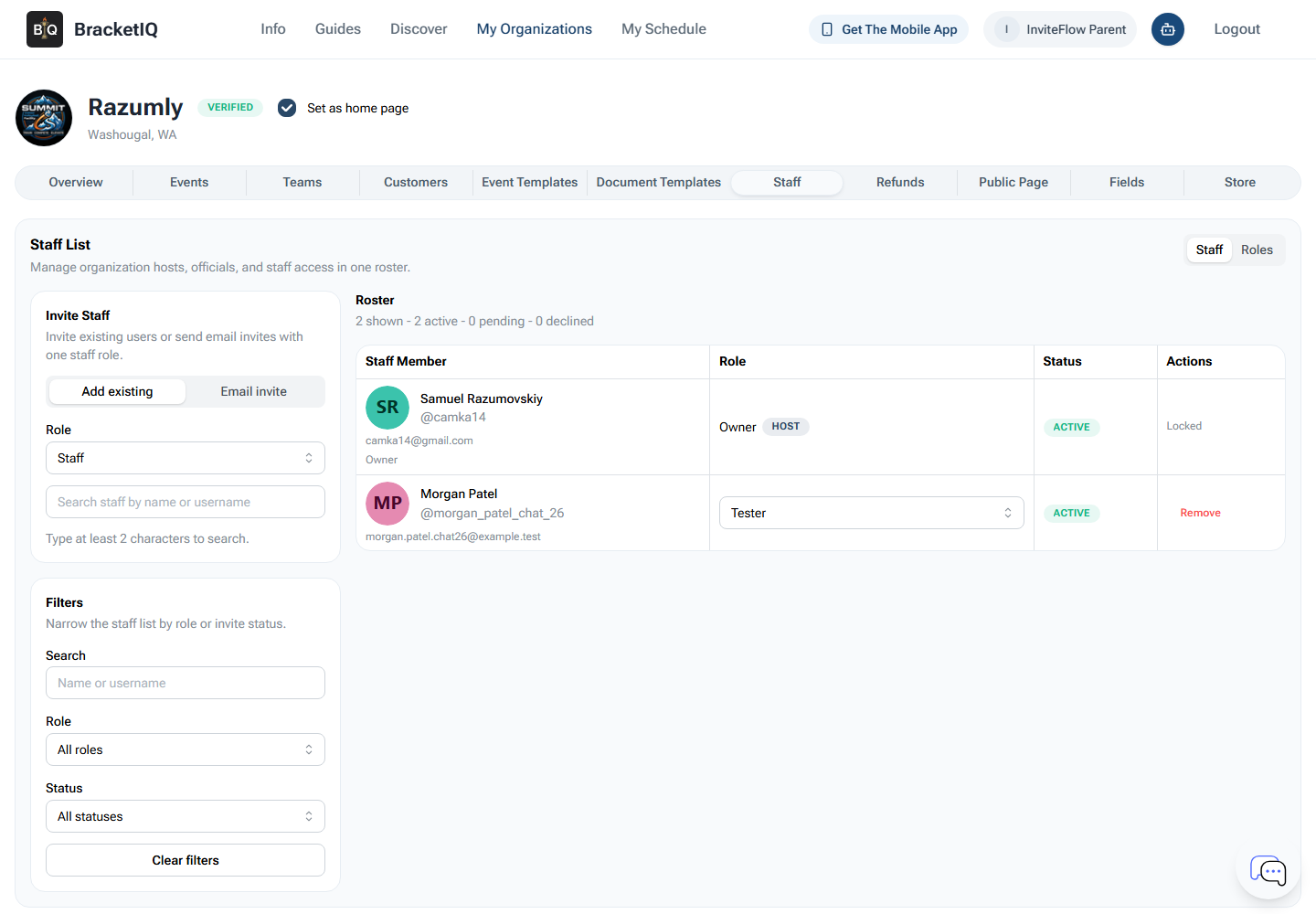
Use permissions to keep communication ownership clear:
- Directors can usually manage organization-wide updates and sensitive issues.
- Coaches can handle team and roster communication.
- Coordinators can manage tryout, clinic, camp, schedule, and registration updates.
- Finance or admin staff can follow up on payments, bills, refunds, and products.
- Temporary helpers should only have access for the workflow they are supporting.
Do not make every staff member the sender for every topic. Families trust updates more when the right person sends the right kind of message.
Send direct updates when something changes
When a schedule, location, time, or registration detail changes, use BracketIQ's notification workflow from the relevant event or program surface.
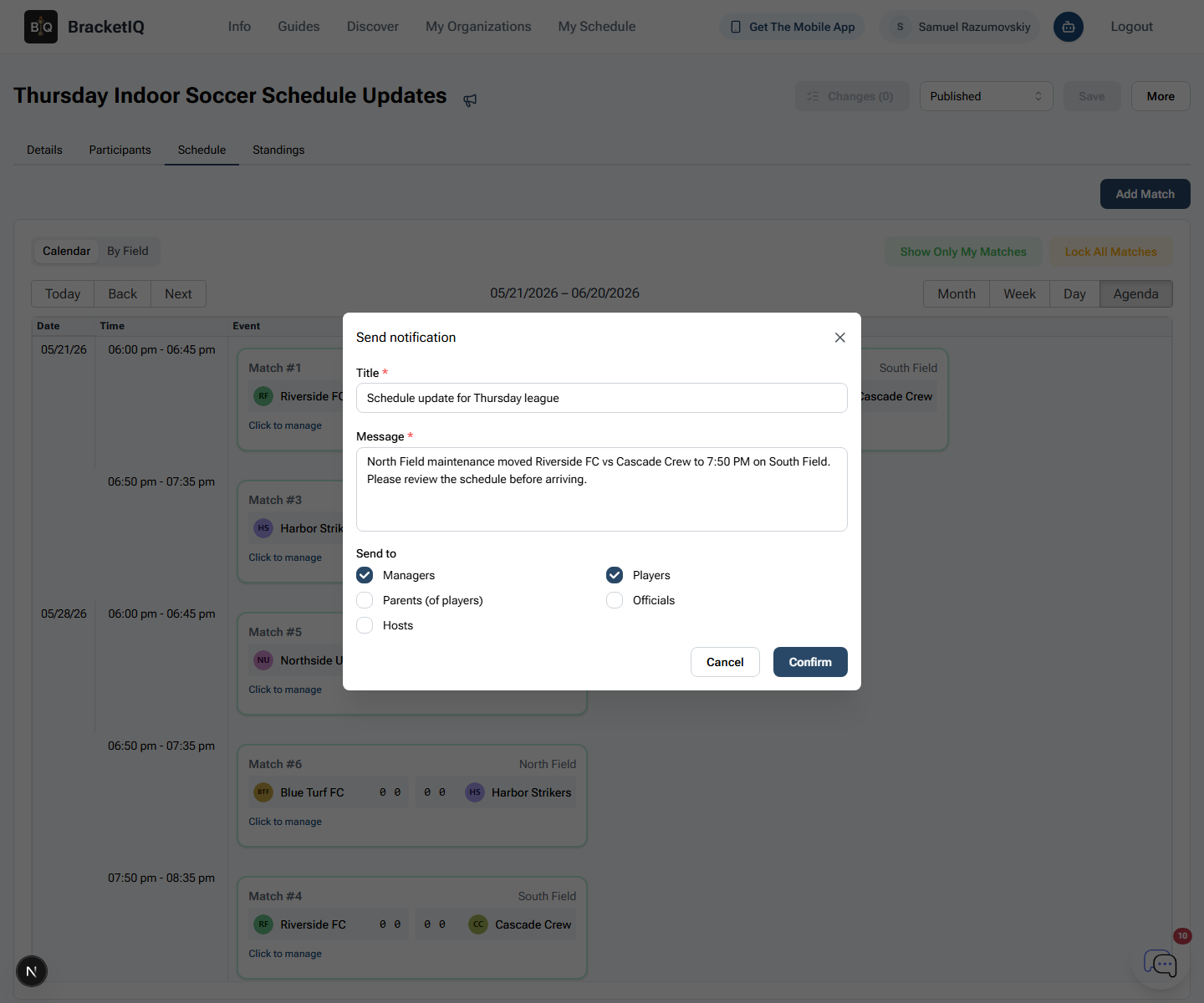
Keep the message specific:
- What changed.
- Who is affected.
- The new date, time, location, or action.
- Whether payment, registration, or roster follow-up is needed.
- Where families should check the latest information.
For clubs, this is most useful for tryouts, clinics, camps, evaluations, open gyms, seasonal registration windows, or schedule changes tied to a specific program. Most everyday team communication should still start from the team, roster, parent, or staff context rather than treating every club update like a new event.
If the club is communicating about a league schedule, use How to Communicate Schedule Changes During a League Season for the league-specific workflow.
Keep program communication tied to registration
Open the Events tab when the club is running a registration-driven program such as a tryout, camp, clinic, evaluation, open gym, or special session.
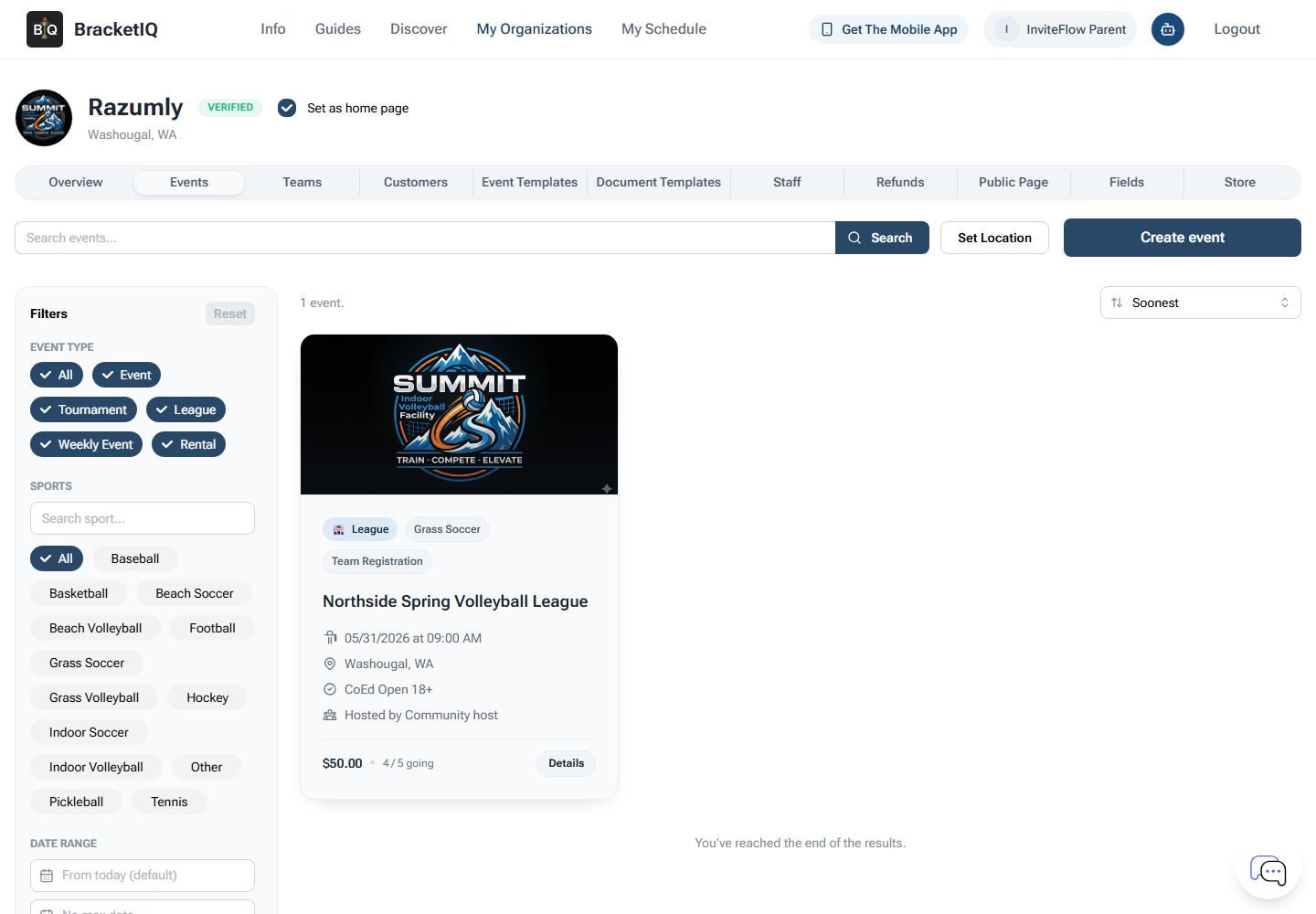
Use the program list to keep communication grounded:
- Confirm the registration page is open or closed.
- Check which families are already registered.
- Review whether the program is paid or free.
- Confirm the right staff know who is managing questions.
- Keep old programs from confusing families during the current season.
Clubs usually do not need to create events for ordinary team management. Use this workflow when there is a clear signup, payment, schedule, or public information need.
Make the public page the shared source of truth
Open the Public Page tab when the club needs one place for players, parents, and teams to find current links.
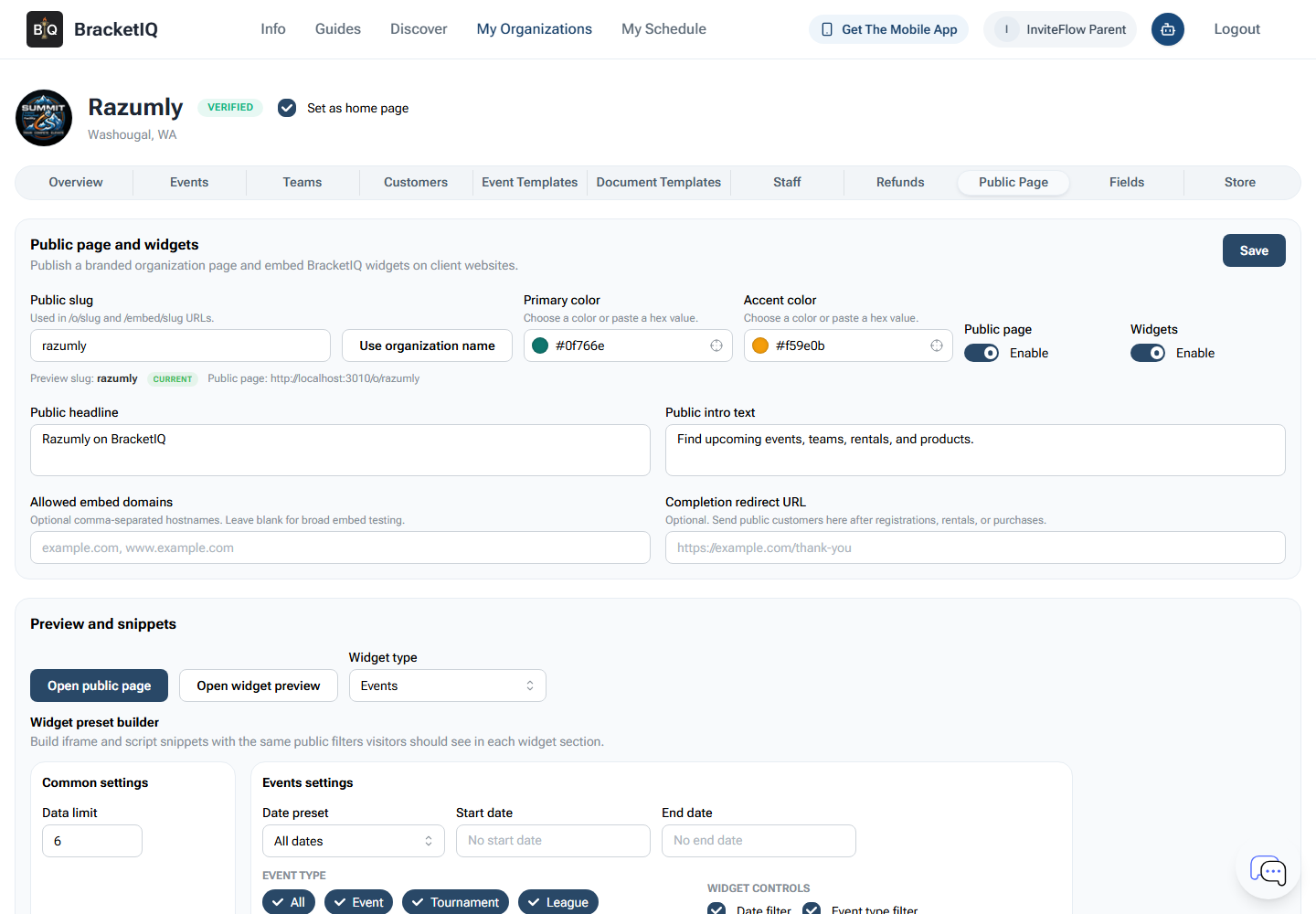
Use the public page to reduce repeated questions:
- Registration links for tryouts, clinics, camps, and special programs.
- Team or program listings the club wants public.
- Payment, product, or pass links when used by the club.
- Widget snippets for the club's existing website.
- Mobile-friendly access for parents and players.
For the full public-page workflow, use How to Create a Public Page for Your Sports Organization.
Club communication checklist
Use this before sending a club-wide or program-specific update:
- Confirm whether the audience is players, parents, guardians, teams, staff, or customers.
- Check customer context before handling billing, document, or registration questions.
- Make sure the right staff member has permission to send or manage the update.
- Tie tryout, clinic, camp, or evaluation updates to the relevant BracketIQ program.
- Keep the message specific about what changed and what action is needed.
- Point families back to the public page, schedule, registration, or mobile app path.
- Remove stale staff access and stale program links at the end of the season.
Better club communication is mostly about reducing ambiguity. BracketIQ helps by keeping teams, parent context, staff permissions, program registration, public links, and mobile access in the same organization workspace.
