
Start from a league that is already published
This guide starts after the league has been created and published. If you still need to build the season, start with How to Create a League in BracketIQ, then come back here when teams are registered and the season is ready to operate.
The example uses a weekly indoor soccer league, but the same management workflow works for volleyball, outdoor soccer, pickleball, basketball, tennis, hockey, baseball, football, and other recreational sports.
Before you start managing the league week to week, make sure you know what has to stay accurate:
- The published league details teams will read.
- The registered team list.
- The weekly schedule by time and field or court.
- Match score entry.
- Standings points.
- The participant-facing public page.
BracketIQ keeps those pieces in the same league workspace so staff, captains, and players are working from one source of truth.
Open the league workspace
Open the league from your BracketIQ account and switch into Manage mode. The league workspace shows the published status, save controls, workflow tabs, and editable setup sections.
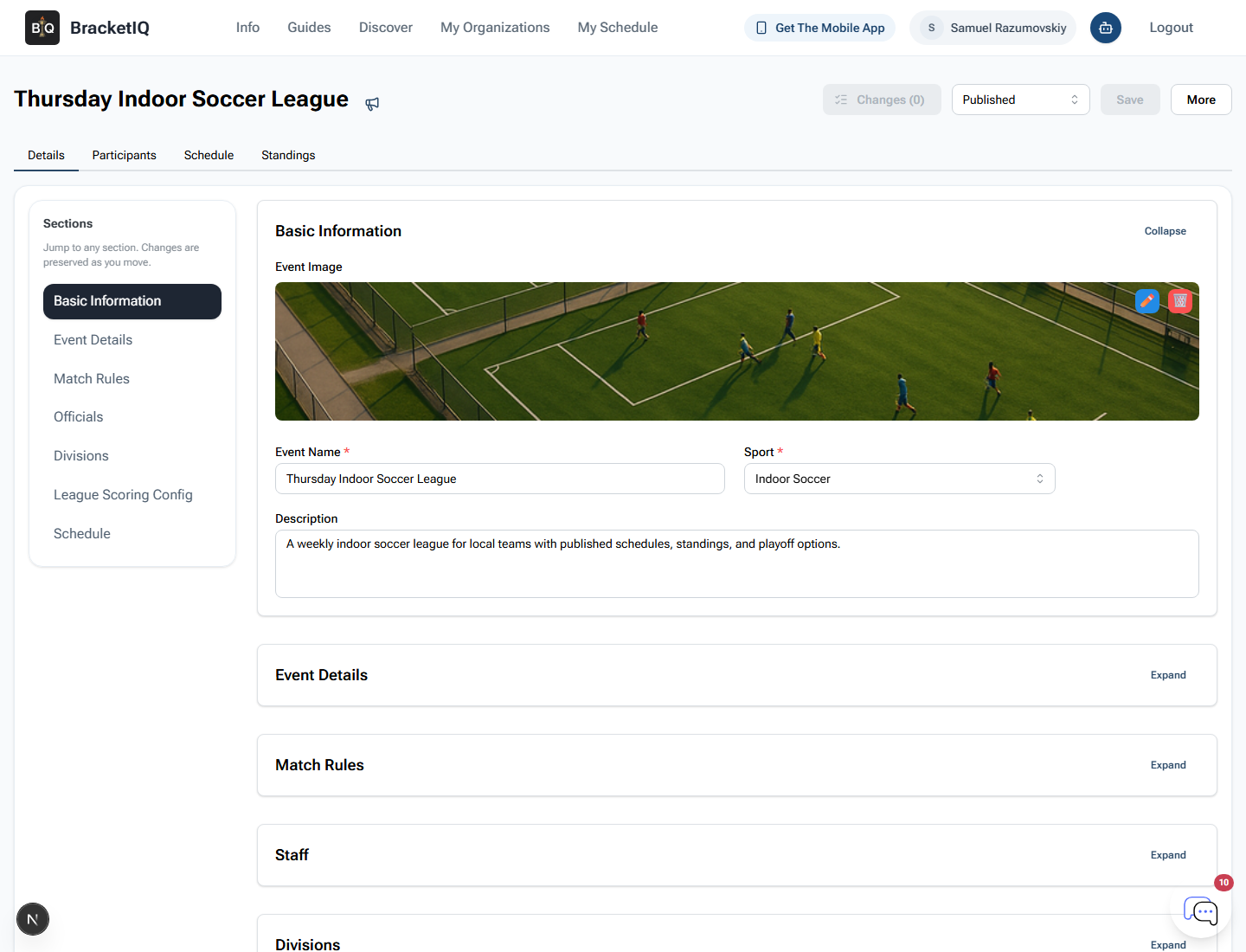
Use this screen as your first weekly control check:
- Confirm the league is still
Published. - Check that the event image, name, sport, and description are still correct.
- Confirm Changes shows
0before you start making new edits. - Use the left section menu when you need to jump back to league details, divisions, scoring, or schedule setup.
If you change league basics after teams have joined, save the changes and then check the public page before you assume captains saw the same information.
Review registered teams
Open Participants to review the teams currently in the league. This is where you confirm who is participating, add late teams, remove teams that should not remain in the season, and check roster capacity.
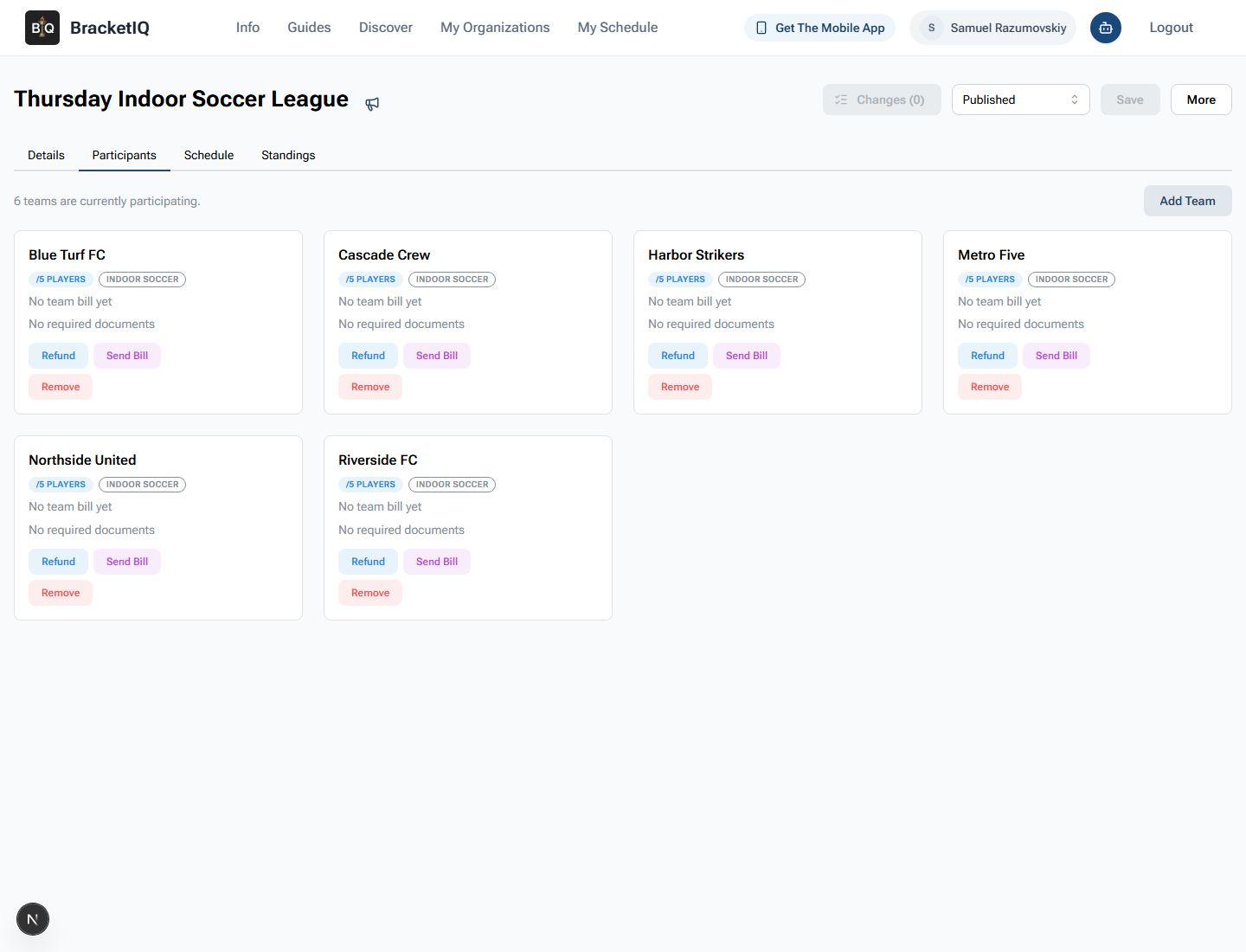
Before each week of play, check:
- The number of teams currently participating.
- Team names and division labels.
- Whether any team needs roster cleanup before the next match.
- Whether a team should be removed before the next schedule update.
- Whether a late team needs to be added manually.
For paid leagues, this is also the workflow where you should review bill, refund, document, and roster follow-up before the schedule becomes hard to change.
Check the weekly schedule in Agenda view
Open Schedule and switch to Agenda view. Agenda view is the clearest schedule format for league operations because it shows match order, times, teams, scores, and field assignments in a single list.
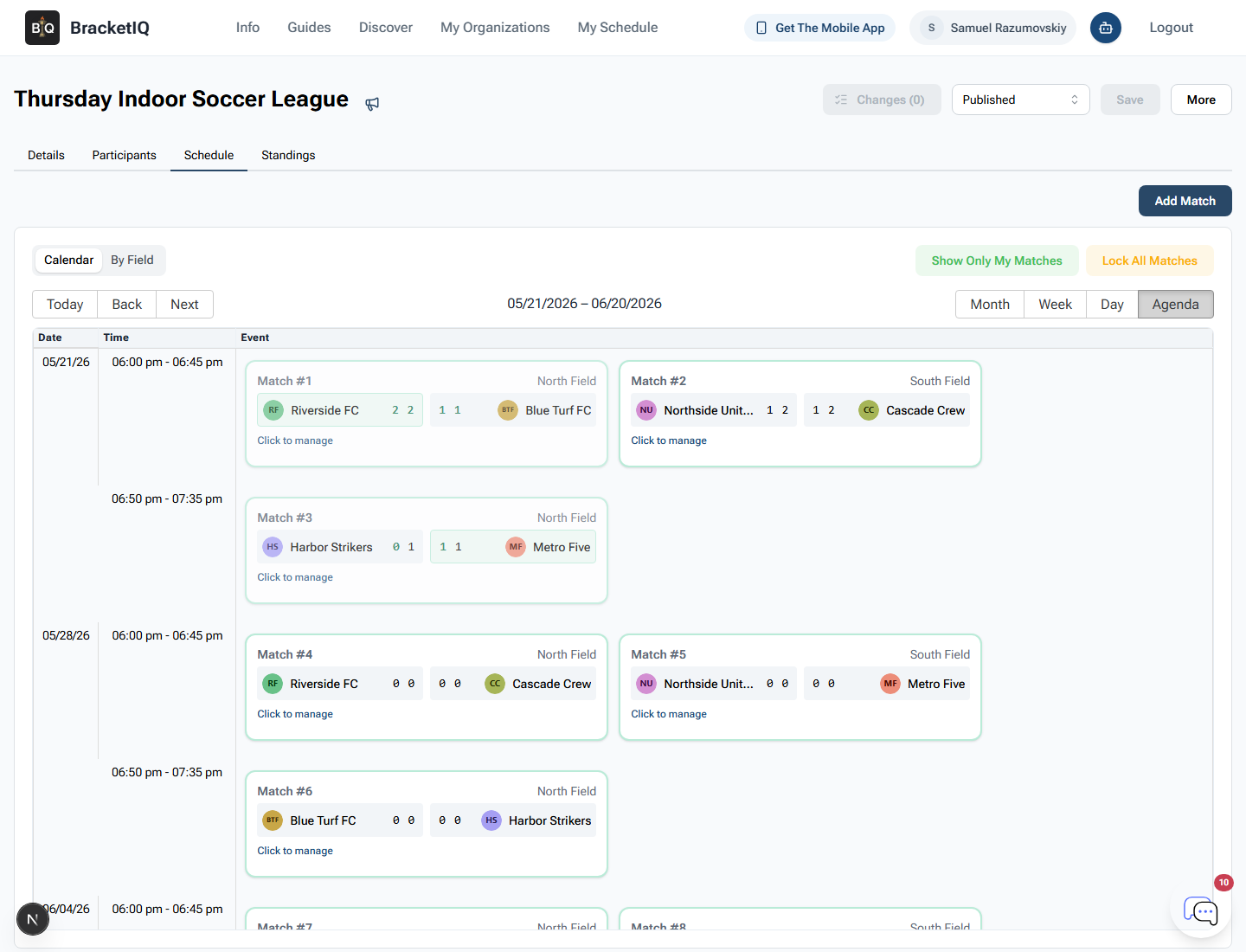
Review the schedule like a facility manager or league coordinator:
- Confirm each match is on the expected week.
- Check field or court assignments.
- Look for teams that would be double-booked.
- Confirm completed scores are visible on past matches.
- Confirm upcoming matches still show as unplayed.
- Use Lock All Matches only when the schedule should stop moving automatically.
For a multi-week league, Agenda view becomes the operating board. It should answer who plays next, when they play, and where they go without needing a separate spreadsheet.
Open a match and enter scores
Click a match from the Agenda schedule to open the match editor. The editor shows teams, field assignment, scheduled time, status, score controls, actual times, officials, and match log tools.
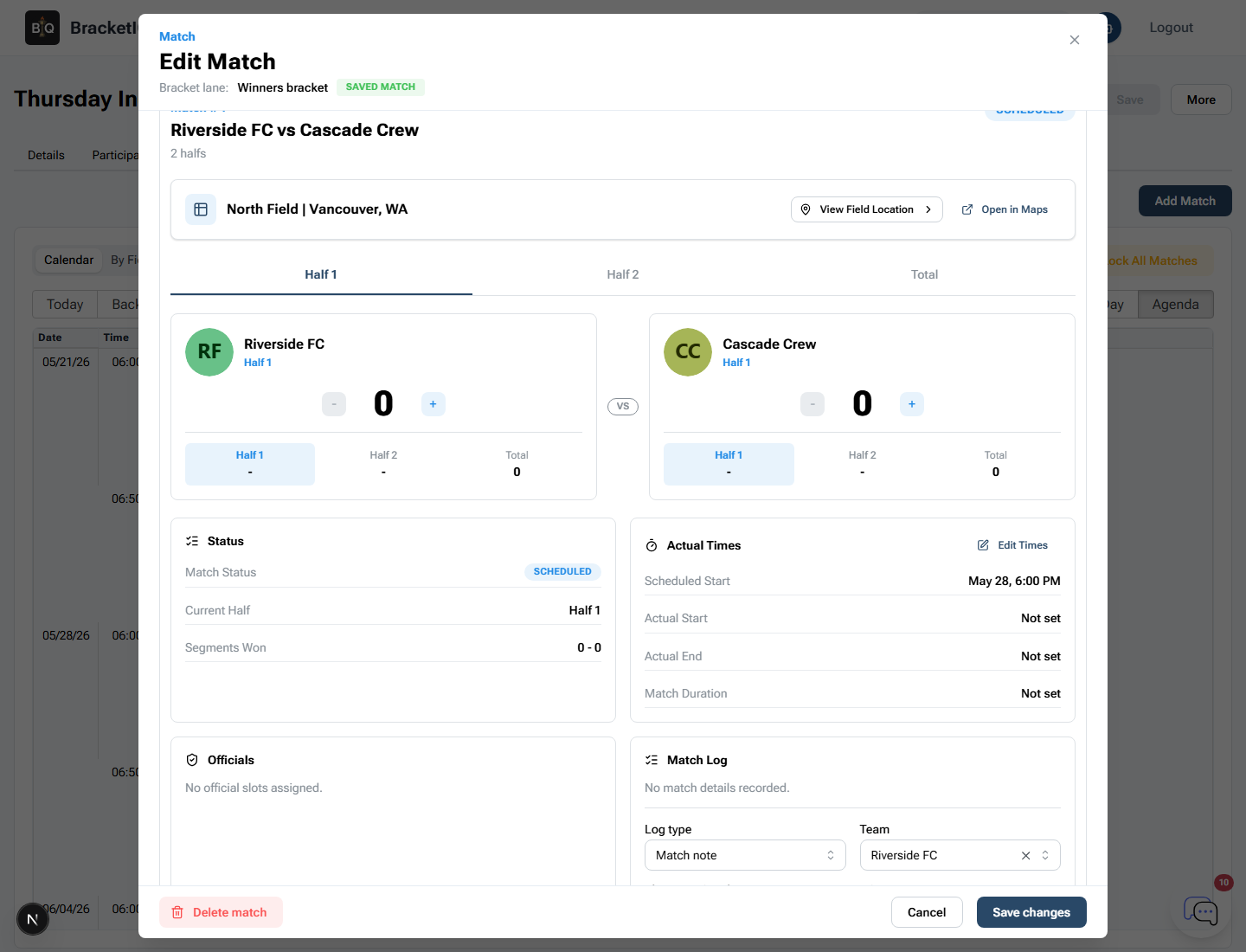
Use the match editor during league play to:
- Confirm the teams and field are correct.
- Enter scores with the plus and minus controls.
- Move between halves, sets, periods, or other sport-specific segments.
- Mark actual start and end times when needed.
- Add match notes for forfeits, injuries, delays, or administrative decisions.
- Save changes after score or status updates.
For sports with captains, referees, or scorekeepers, show them where this screen lives before the first week gets busy. The score entry workflow is what feeds standings and keeps the public schedule useful.
Review standings
Open Standings after match results are entered. BracketIQ calculates wins, losses, draws, and final points from the recorded scores and the league scoring configuration.
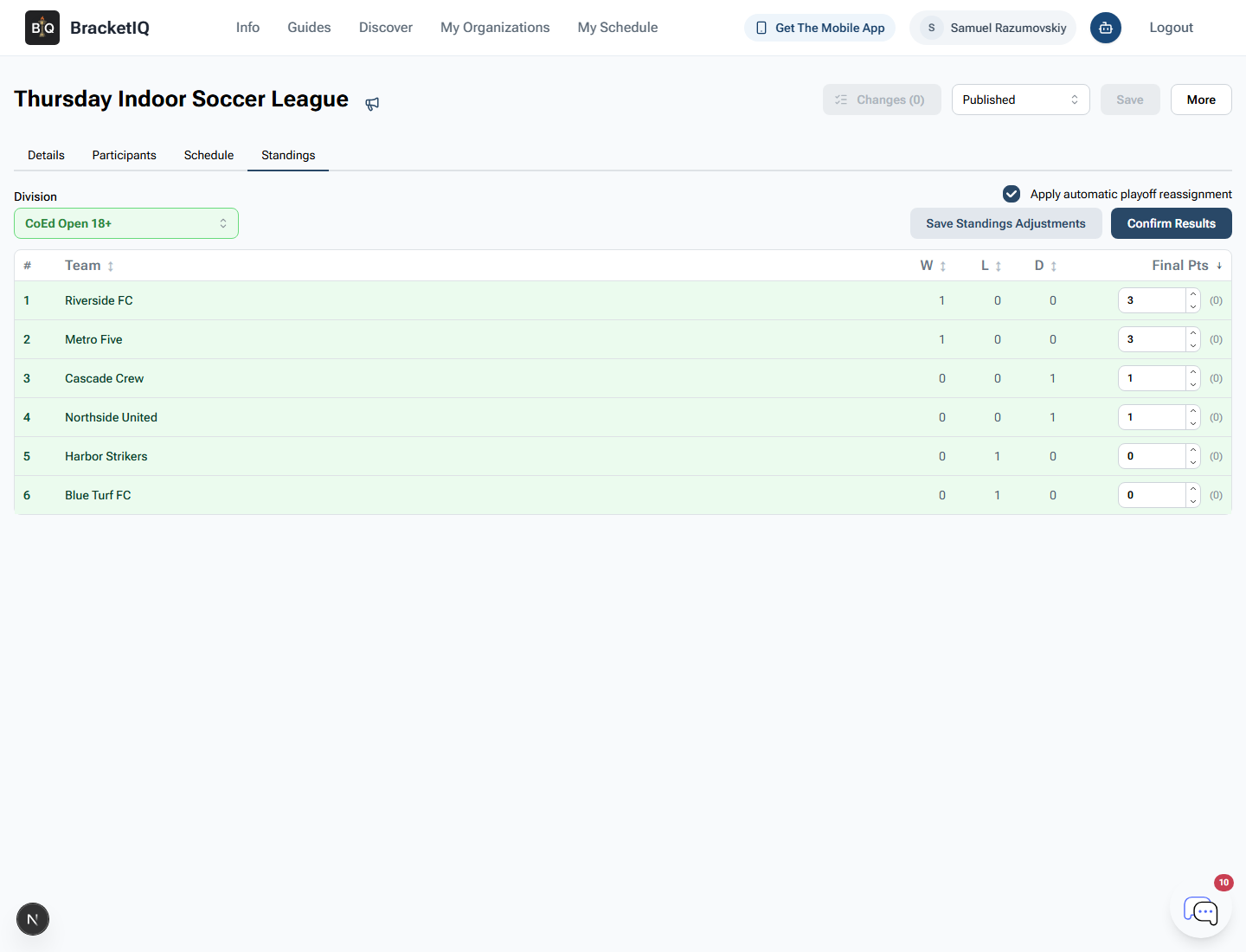
Check standings after each round of matches:
- Confirm the top teams match the scores that were entered.
- Review wins, losses, draws, and points.
- Use standings adjustments only when an organizer decision needs to change the final points.
- Save standings adjustments if you make overrides.
- Confirm results when the standings are ready to drive downstream playoff or advancement workflows.
For a simple league, standings are the weekly scoreboard. For a league with playoffs, standings become the input for seeding, qualification, and end-of-season placement.
Verify the public league page
After you review the organizer tools, open the participant-facing league page. This is the page captains and players use to confirm league details, registered team count, divisions, schedule, standings, and registration availability.
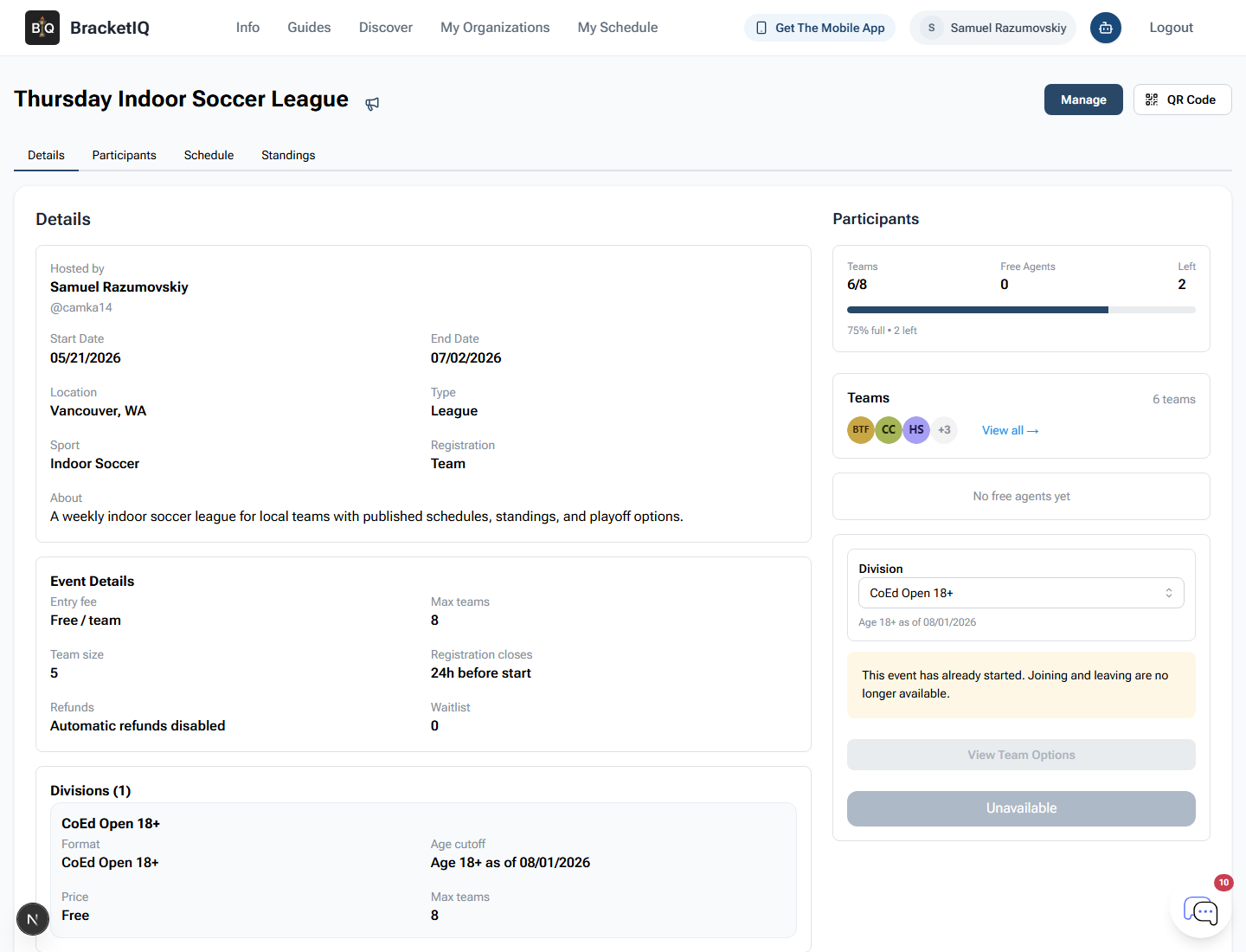
Check the public page for:
- Correct date range, location, sport, and registration type.
- The right team count and remaining spots.
- Accurate division information.
- A schedule tab that teams can use.
- A standings tab that reflects entered results.
- Clear registration status if the league has already started.
This public review catches mistakes that the organizer view can hide. If the public page is confusing, teams will ask the same questions repeatedly during the season.
League management checklist
Use this checklist each week:
- Start from a published league.
- Review Details before making changes.
- Open Participants and confirm the registered team list.
- Follow up on roster, payment, document, or refund issues.
- Open Schedule and use Agenda view for match order, times, teams, and fields.
- Open a match and confirm score entry is easy to find.
- Save score and status changes.
- Open Standings and verify rankings after results are recorded.
- Recheck the public page after meaningful updates.
- Keep BracketIQ open on web or mobile while the league is active so staff and teams can rely on the same source of truth.
League creation gets the season published. League management keeps the season accurate after teams start playing: teams, schedules, scores, standings, and participant-facing information all stay connected in BracketIQ.
